Power BI Connection
Power BI can connect directly to the Ultra API to build live reports and dashboards from your data. There are two connection methods available.
Option A: Get Data from OData Feed
This method uses the API Key as a query parameter in the URL. It is simpler but exposes the key in the URL.
Steps:
In Power BI Desktop, click Get Data → OData Feed.
In the URL field, enter the OData endpoint with the api_key query parameter:
https://ultraapi.indysoft.com/odata/GAGES?$top=10&$select=COMPANY,GAGE_SN,GAGE_ID&api_key=your-api-key-here
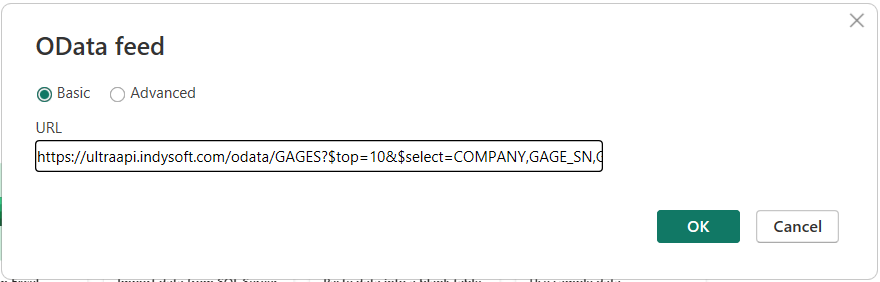
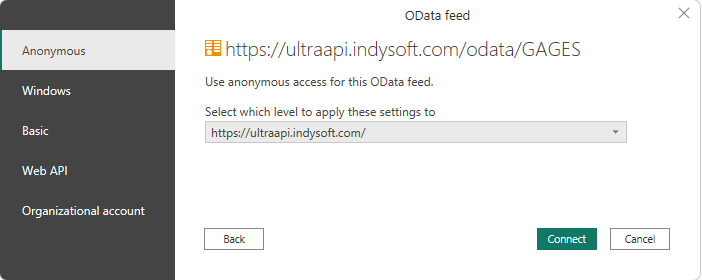
- Tip: Use $select to limit the fields returned, reducing payload size and improving load times. If prompted for authentication, select Anonymous (the API Key in the URL handles authentication).
Click Connect button to connect.
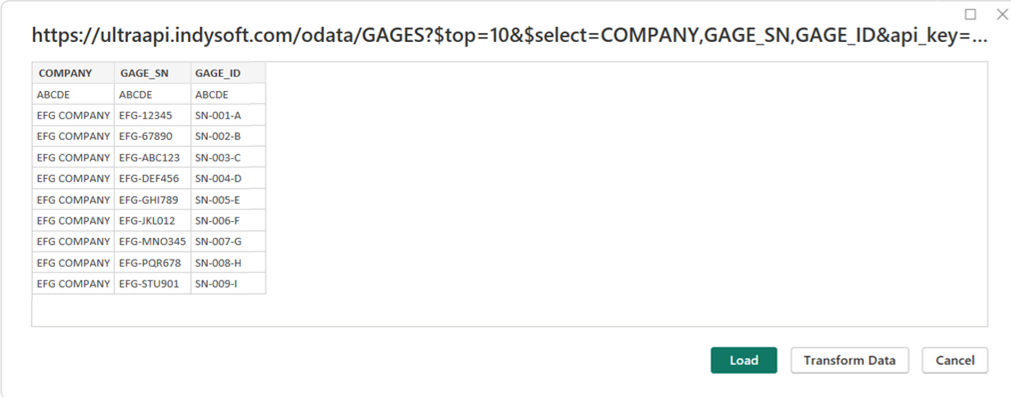
Power BI will retrieve the data. Click Load or Transform Data as needed.
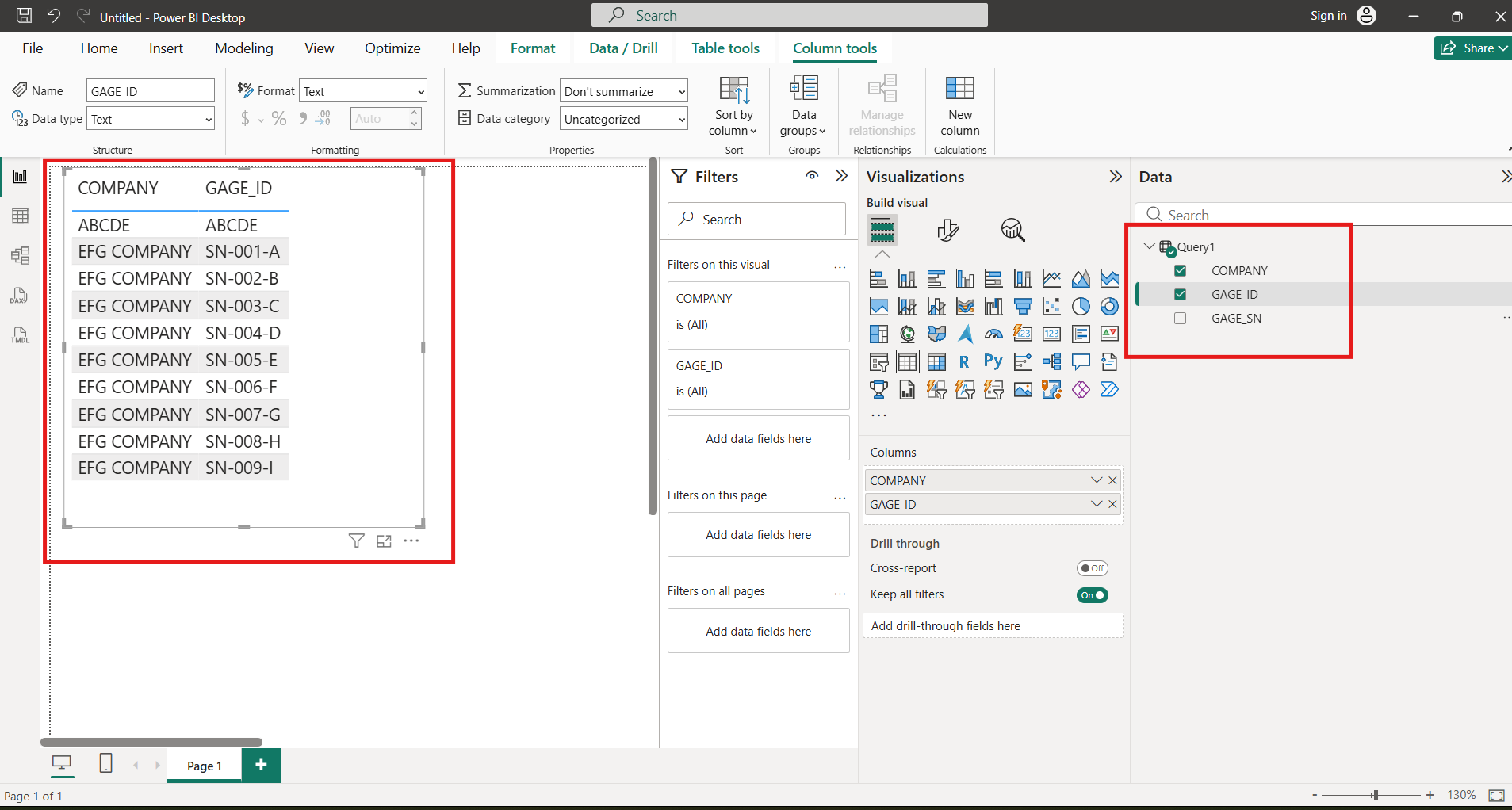
- Once the data is loaded, you should have the query available to use.
Option B: Get Data from Web (Advanced)
This method uses the X-API-Key header for authentication, which is the recommended approach.
Steps:
In Power BI Desktop, click Get Data → Web.
Select the Advanced option.
In the URL parts field, enter the full OData endpoint URL. For example:
In the HTTP request header parameters section:
Header name: X-API-Key
Header value: Your API Key
Click OK to connect.
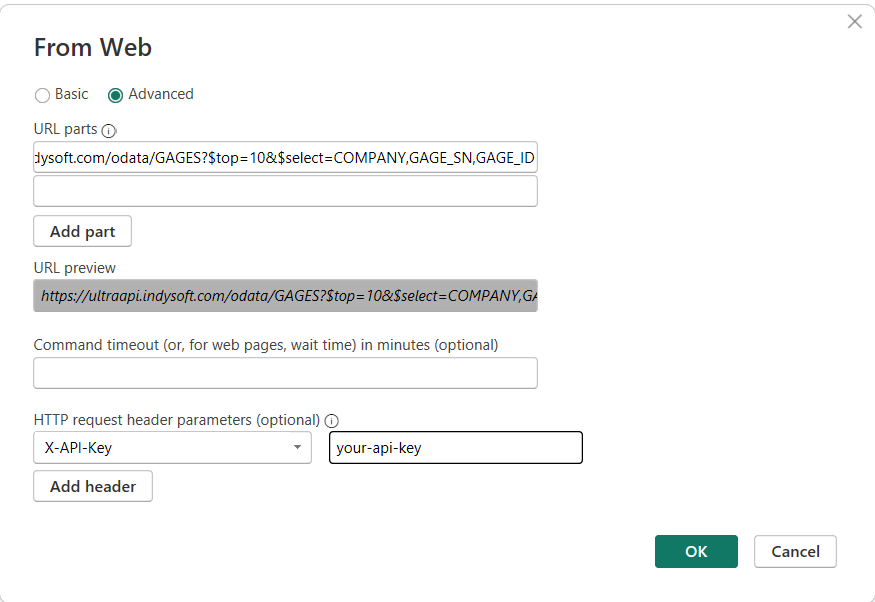
Tip: Use $select to limit the fields returned, reducing payload size and improving load times.
Once the data is loaded, you should have the query available to use.
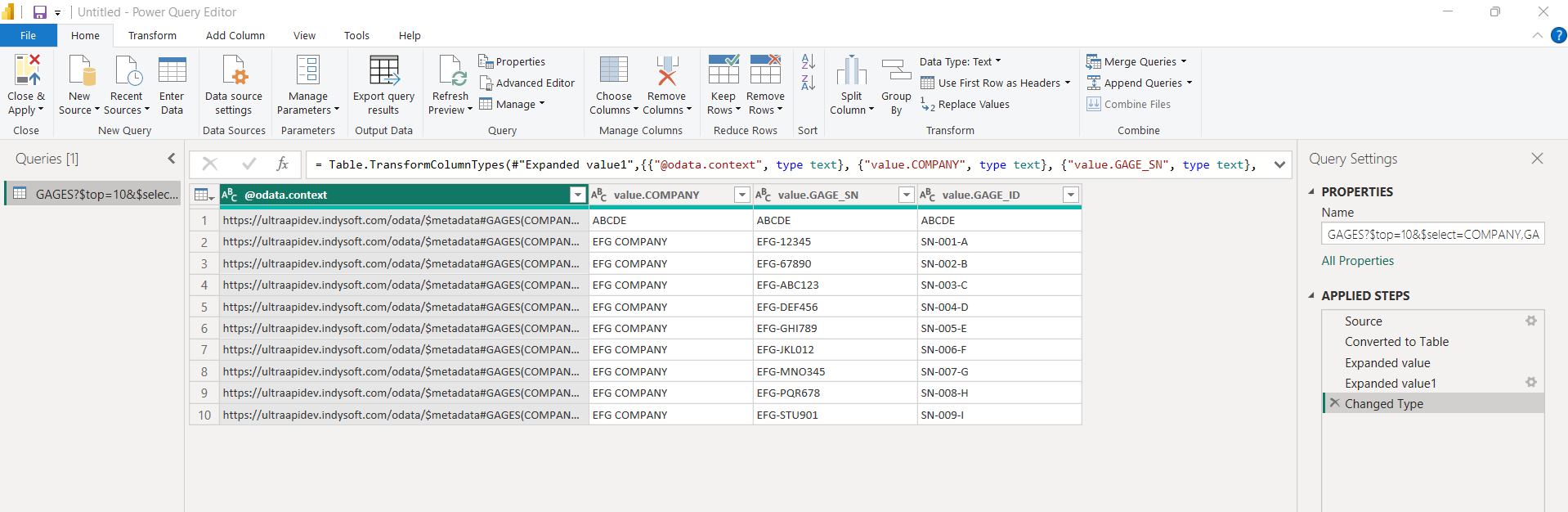
Tips for Power BI
Pagination: The Ultra API returns a maximum of 100 records per page. Power BI’s OData connector automatically handles pagination by following @odata.nextLink URLs, so all records will be loaded even if there are more than 100.
Use $select: Always specify the fields you need to reduce data transfer and improve performance.
Use $filter: Apply filters at the API level rather than in Power BI to reduce the amount of data transferred.
Refresh: You can set up scheduled refresh in Power BI Service to keep your reports up to date. Ensure the gateway has access to the Ultra API endpoints.
Rate limits: Be mindful of the rate limits (5,000 requests per minute, 500 MB cumulative response size per minute) when configuring auto-refresh or loading large datasets.