GraphQL API with GraphiQL UI
What is GraphQL
GraphQL is a query language for APIs that lets you request exactly the data you need — no more, no less. Unlike REST, where each endpoint returns a fixed structure, GraphQL allows you to specify which fields to retrieve and combine multiple queries into a single request.
In Ultra API, GraphQL is read-only. It is ideal for building reports, dashboards, and complex queries that would require multiple OData calls.
Key advantages over OData:
Request only the fields you need (reduces payload size).
Combine multiple queries in a single request using aliases.
Filter parent entities by child conditions (e.g., “equipment that has at least one calibration schedule”).
Explore the full schema interactively using the GraphiQL UI.
GraphiQL Authentication
GraphiQL is the official open-source IDE maintained by the GraphQL Foundation, an interactive GraphQL explorer available in the browser where you can write queries, browse the schema, and test results.
Available environments:
| Environment | URL |
|---|---|
| PROD | https://ultraapi.indysoft.com/graphql |
Steps to authenticate:
Open the GraphQL URL for your environment in a web browser.
In the GraphiQL interface, at the bottom-left of the editor, click on the "Headers" tab to expand the headers panel.
Enter your API key in JSON format:
{
"X-API-Key": "your-api-key-here"
}

The header will be sent automatically with every request you execute from this point forward.
Configuration & Limits
| Setting | Value |
|---|---|
| Default page size | 100 items |
| Max page size | 100 items |
| Max query execution depth | 5 levels |
| Execution timeout | 30 seconds |
GraphiQL Interface Layout
The GraphiQL interface is organized into the following areas:
Left Sidebar
Show Documentation Explorer: Browse the full API schema
Show History: View previously executed queries
Show GraphQL Explorer (Query Builder): Build queries visually by selecting fields

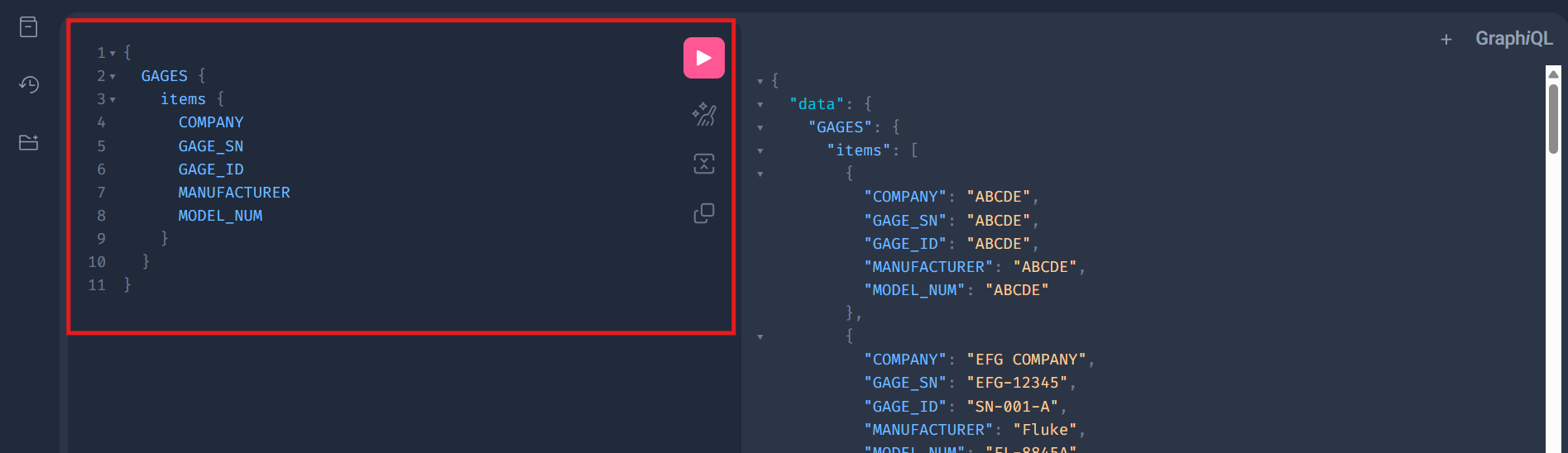
Query Editor (Center-Left)
The main area where you write or edit your GraphQL queries. Features include:
Syntax highlighting — keywords, field names, and values are color-coded (keywords in purple, fields in blue, strings in orange).
Autocomplete — press Ctrl + Space to see available fields, arguments, and types at the current cursor position.
Line numbers — displayed on the left side of the editor for easy reference.
Multi-tab support — click "Add Tab" at the top-right corner to open multiple query tabs.
Response Panel (Right Side)
Displays the JSON response returned by the API after executing a query. Results are formatted with:
Collapsible nodes — click the ▶ arrows to expand or collapse nested objects and arrays.
Syntax highlighting — keys in blue, string values in orange, for easy scanning.

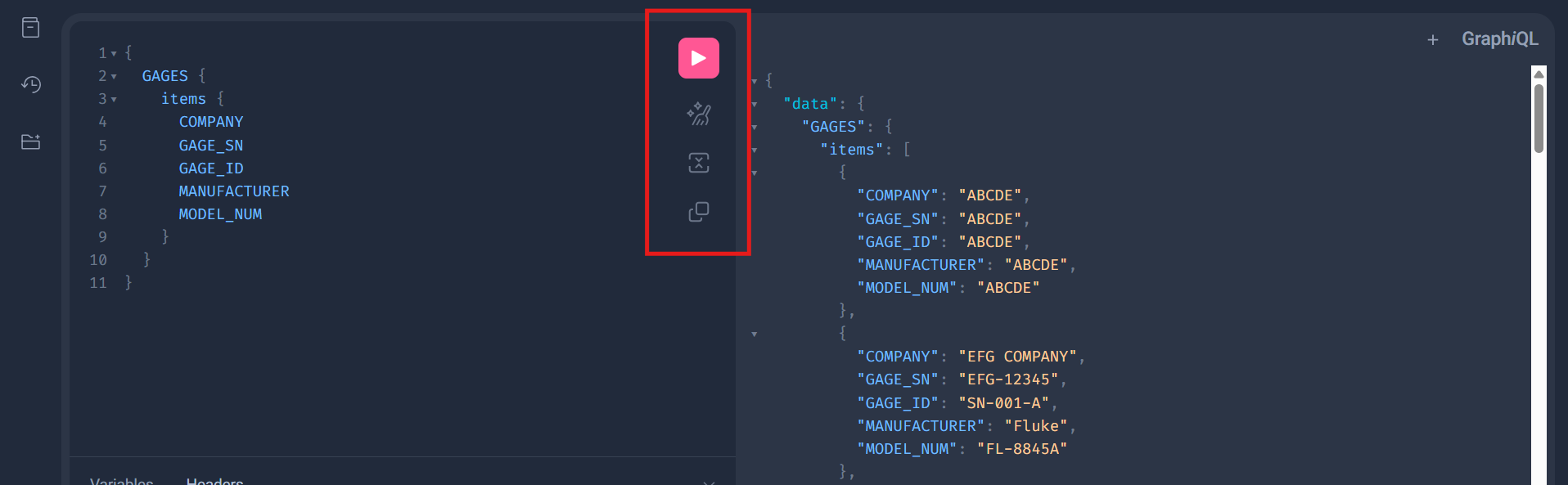
Toolbar (Top-Center)
Execute Query (Play button): runs the current query
Prettify Query: auto-formats and indents your query
Merge Fragment into Query: merges any GraphQL fragments into the main query
Copy query: copies the current query to your clipboard
Building Queries with Visual Query Builder
The Explorer panel allows you to build queries by clicking on fields instead of typing them manually:
Click in the Show GraphQL Explorer (Query Builder) icon on the left sidebar.
The panel displays a tree view of the root Query type with all available entities.
Click on an entity name (e.g., ACTIONREQUESTFILTER) to add it to your query.
Check the boxes next to the fields you want to retrieve (e.g., FILTER_TYPE, USER_NAME).
The query editor updates in real time as you make selections

Query Examples
Basic list
query {
  GAGES {
    items {
      COMPANY
      GAGE_SN
      GAGE_ID
      MANUFACTURER
      MODEL_NUM
    }
  }
}
Pagination
Use take and skip to paginate results. The response includes pageInfo and totalCount for navigation.
query {
  GAGES(take: 3, skip: 0) {
    items {
      COMPANY
      GAGE_SN
      GAGE_ID
    }
    pageInfo {
      hasNextPage
      hasPreviousPage
    }
    totalCount
  }
}
Primary key lookup
Use the _by_pk suffix to retrieve a single record by its primary key.
query {
  GAGES_by_pk(COMPANY: "ABCDE", GAGE_SN: "ABCDE") {
    COMPANY
    GAGE_SN
    GAGE_ID
  }
}
Filter + order + pagination
query {
  GAGES(
    where: { ISACTIVE: { eq: "1" } }
    order: [{ COMPANY: ASC }, { GAGE_SN: ASC }]
    take: 10
    skip: 0
  ) {
    items {
      COMPANY
      GAGE_SN
      GAGE_ID
      MANUFACTURER
      MODEL_NUM
    }
    pageInfo { hasNextPage hasPreviousPage }
    totalCount
  }
}
Expand navigation property (related entity)
query {
  GAGES(
    where: { ISACTIVE: { eq: "1" } }
    order: [{ COMPANY: ASC }, { GAGE_SN: ASC }]
  ) {
    items {
      COMPANY
      GAGE_SN
      MANUFACTURER
      SCHEDGI {
        SCHED_TYPE
        SCHED_FREQ
        SCHED_INTERVAL
        SCHED_LAST
        SCHED_DUE_DATE
      }
    }
  }
}
Filter parent by child condition (ANY/SOME)
Retrieve equipment that has at least one calibration schedule:
query {
  GAGES(
    where: {
      and: [
        { ISACTIVE: { eq: "1" } }
        { SCHEDGI: { some: { SCHED_TYPE: { eq: "CALIBRATION" } } } }
      ]
    }
  ) {
    items {
      COMPANY
      GAGE_SN
      SCHEDGI { SCHED_TYPE SCHED_DUE_DATE }
    }
  }
}
OR logic
query {
  GAGES(
    where: {
      or: [
        { COMPANY: { eq: "ACME" } }
        { COMPANY: { eq: "BETA" } }
      ]
    }
  ) {
    items { COMPANY GAGE_SN MANUFACTURER }
  }
}
String operations
Contains:
query {
  GAGES(where: { GAGE_SN: { contains: "SN-100" } }) {
    items { COMPANY GAGE_SN }
  }
}
Starts with:
query {
  GAGES(where: { MANUFACTURER: { startsWith: "Fluke" } }) {
    items { COMPANY GAGE_SN MANUFACTURER }
  }
}
IN operator
query {
  GAGES(
    where: { COMPANY: { in: ["ACME", "BETA", "GAMMA"] } }
  ) {
    items { COMPANY GAGE_SN }
  }}
Null checks
query {
  GAGES(where: { MANUFACTURER: { neq: null } }) {
    items { COMPANY GAGE_SN MANUFACTURER }
  }}
Date range comparison
query {
  SCHEDGI(
    where: {
      and: [
        { SCHED_DUE_DATE: { gte: "2026-01-01T00:00:00Z" } }
        { SCHED_DUE_DATE: { lte: "2026-12-31T23:59:59Z" } }
      ]
    }
    order: [{ SCHED_DUE_DATE: ASC }]
  ) {
    items { COMPANY GAGE_SN SCHED_TYPE SCHED_DUE_DATE }
  }}
Aliases — multiple queries in a single request
This is one of GraphQL’s most powerful features. You can combine multiple independent queries into one request, which would require separate HTTP calls in OData.
query {
  activeEquipment: GAGES(
    where: { ISACTIVE: { eq: "1" } }
    take: 5
  ) {
    items { COMPANY GAGE_SN MANUFACTURER }
    totalCount
  }
  calibrationSchedules: SCHEDGI(
    where: {
      and: [
        { SCHED_TYPE: { eq: "CALIBRATION" } }
        { SCHED_DUE_DATE: { gte: "2026-01-01T00:00:00Z" } }
        { SCHED_DUE_DATE: { lte: "2026-03-31T23:59:59Z" } }
      ]
    }
  ) {
    items { COMPANY GAGE_SN SCHED_TYPE SCHED_DUE_DATE }
    totalCount
  }
}