Equipment Field Layouts
Equipment View
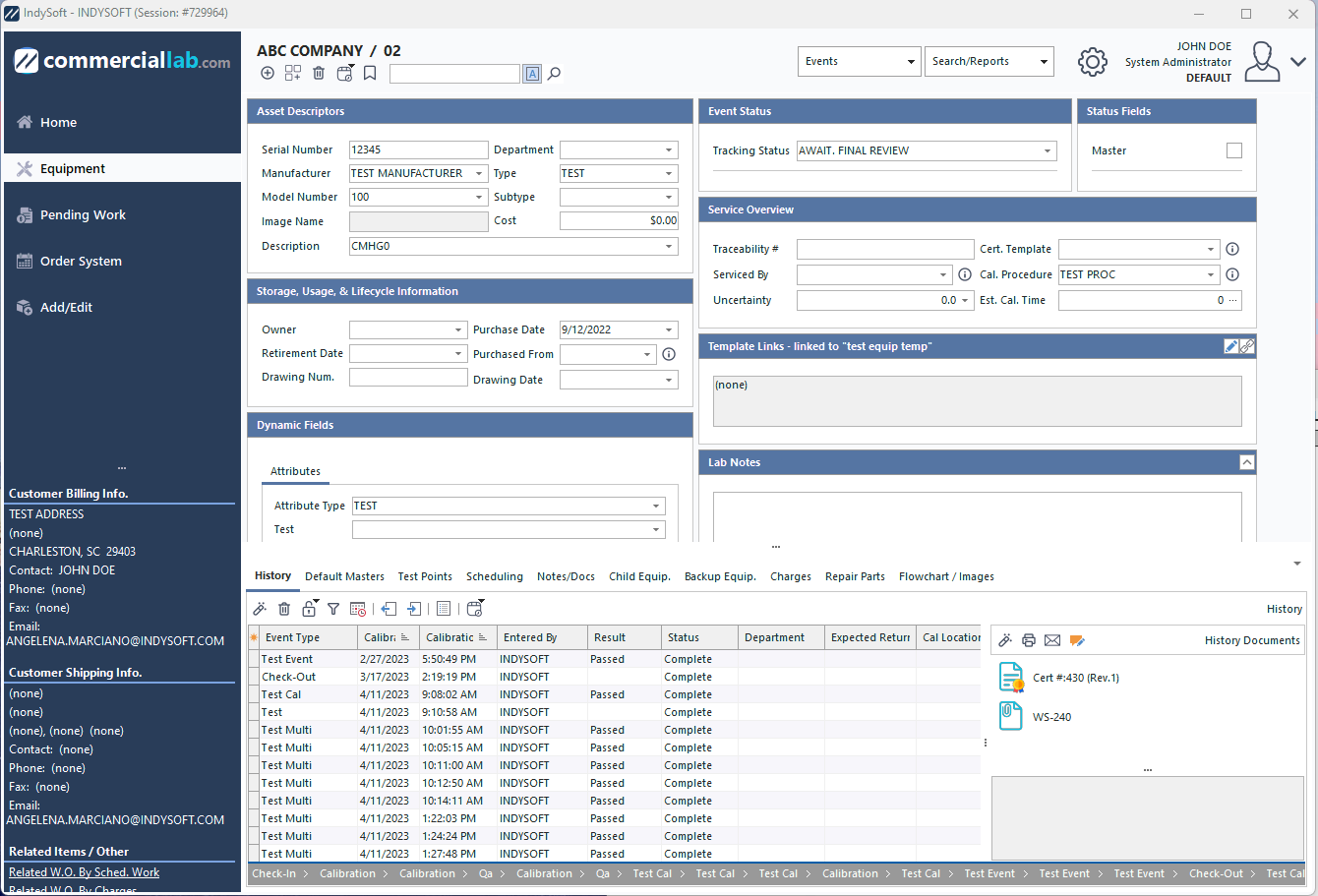
Equipment View Field Layout
Right-Click Options
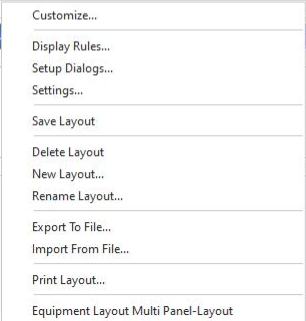
- Customize...
Use the Customize option to launch the dialog with available fields to drag/drop into the layout view.
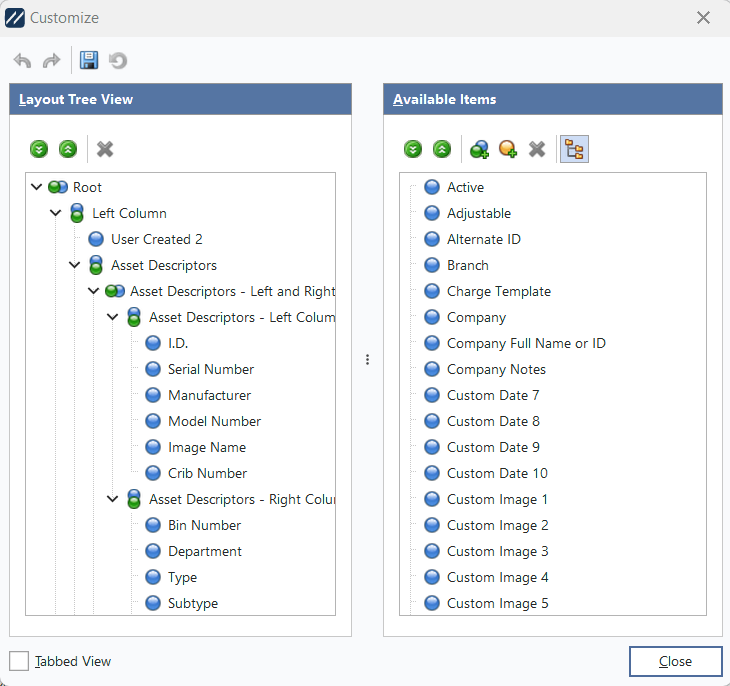
- Display Rules...
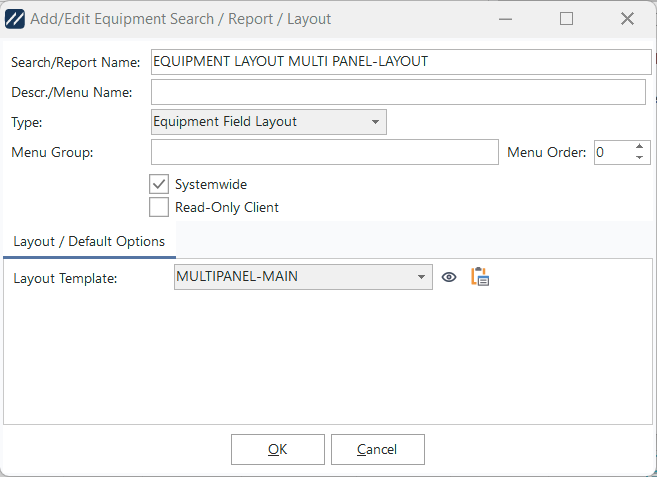
The Display Rules option represents the search name and visibility rules associated with the current layout.
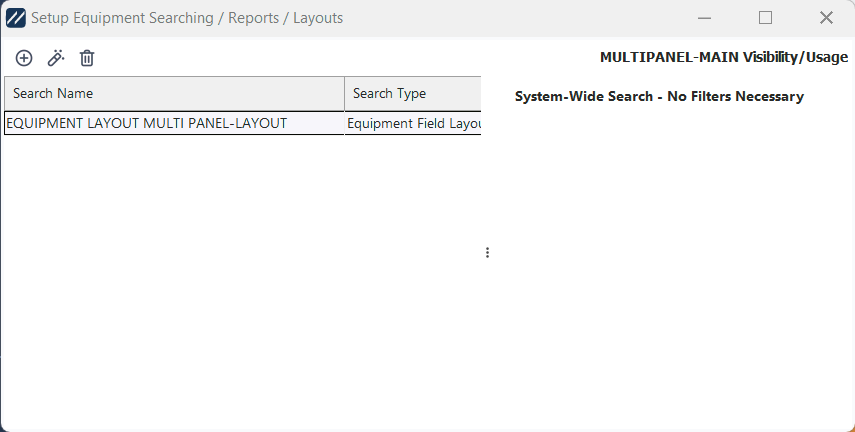
- Setup Dialogs...
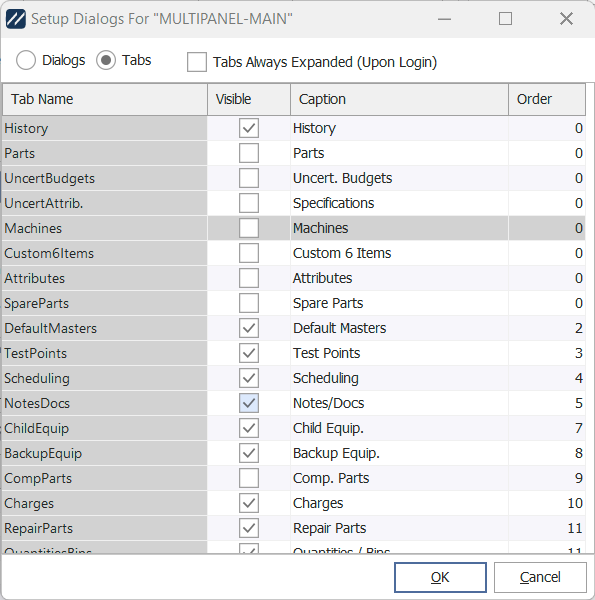
The Setup Dialogs section represents the equipment view detail tabs shown within the layout:
- Settings...
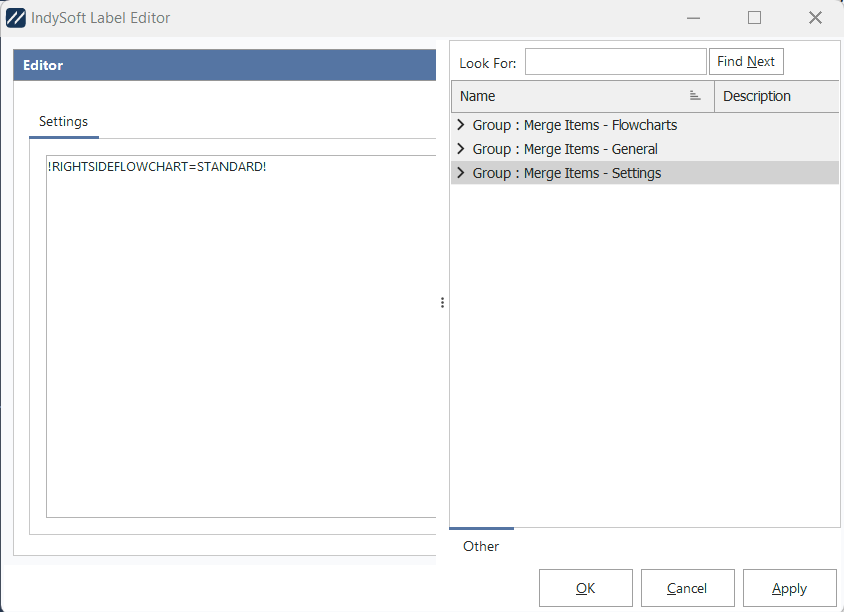
The Settings section represents any additional merge items that are associated with the current field layout:
- Save Layout
This button will save the current layout changes.
- Delete Layout
This button will delete the currently selected layout.
- New Layout...
Use this button to create a new layout (cloned from the current one in view)
- Rename Layout...
Use this button to rename the selected layout.
- Export to File...
Use this option to export the layout to a file (for import, use the Import from File option)
- Import from File...
Use this option to import a layout from a Layout Export File (created when using the Export to File option)
- Print Layout...
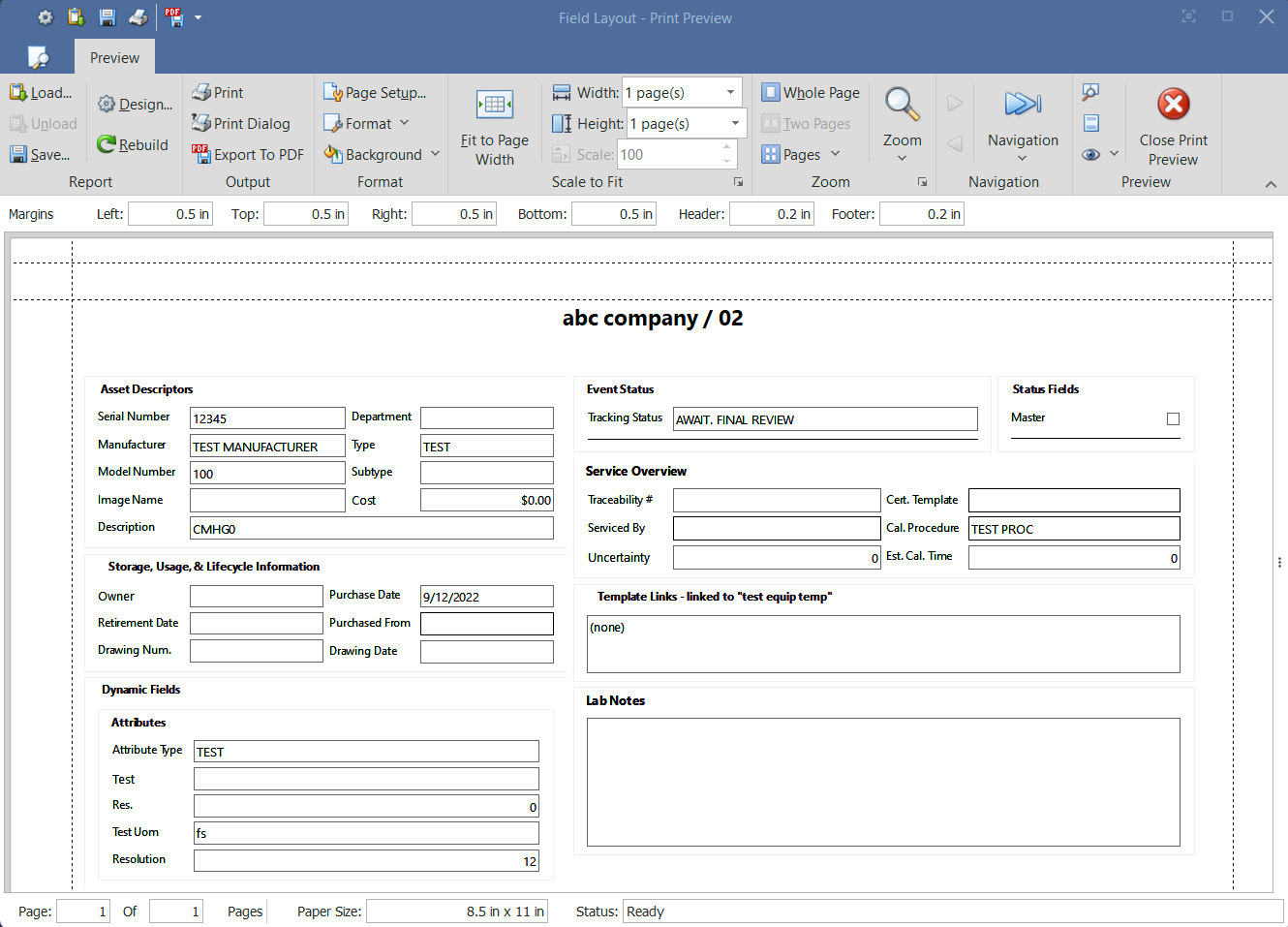
Use this option to print the current layout in view.
- Visible Layout List Names
The bottom section of the right-click options will display a list of the visible layouts for that user. The user can then click on a layout in this list to select it and pull it into view.
Available Fields
There are different fields available for each the main section of the equipment view and header section of the view
Equipment Main Fields
| Category | Fields |
|---|---|
| Asset Descriptors |
- ID.
- Serial Number
- Manufacturer
- Model Number
- Image Name
- Crib Number
- Bin Number
- Department
- Type
- Subtype
- Cost
- Search
- Description
- Equip. Category
- Active
- Adjustable
- Alternate ID
- Branch
- Company
- Company Full Name or ID
- Company Notes
| | Storage, Usage, and Lifecycle Info |
- Owner
- Retirement Date
- Drawing Num.
- Purchase Date
- Purchased From
- Drawing Date
- Storage ID
- Storage ID Full
| | Dynamic Fields |
- Attributes
- Attribute Type
- Event Status (includes tracking status)
| | Service Overview |
- Traceability #
- Serviced By
- Uncertainty
- Cert Template
- Cal. Procedure
- Est. Cal. Time
| | Statuses |
- Master
- Status 1-10
| | Inventory Counts |
- Total On Hand
- Total At Rework
- Total Reserved
- Total Checked Out
- Total On Order
- Total Items
| | Lab |
- Lab Custom 1-8
- Lab Status 1-10
- Lab Date 1-2
| | Notes |
- Equipment Notes
- Lab Notes
| Custom |
- Custom Date 1-10
- Custom Image 1-10
- Custom Num. 1-10
- Custom Text 1-22
| | User Created |
- User Created 1-30
| | User Defined |
- User Defined 1-5
| | Miscellaneous |
- Template Links
- Schedules
- Purchase 1-2
- Last Mod. Date/Time
- Locked
- Locked By User
- Last Modified By
- Event Launch
- Image Company
- In-Service Date
- New
- Spec. ID
- Test Point Type
- VisualCal Proc.
|
Equipment Header Fields
| Category | Fields |
|---|---|
| Company |
- Company
- Company Full Name
- Company Full Name or ID
- ID.
- Zoom Controls
| | Equipment Options |
- New Equipment
- New From Template
- Delete
- Recent Equip.
- Bookmark
- Change ID.
- Save As Template
- Cloning Wizard
- Navigator
- New Work Order
- Print Worksheet
- Email Asset
- Equipment Company Transfer
- Change Equip. Group
- Equipment - Change Section
- Equipment - Label
- Event Status
| | Events / Search |
- Events
- Search / Reports