Event Steps - Event Information
The Event Information event step appears if it has been selected for the current event type through the Event Configuration Wizard. See Event Configuration - Event Step for details.
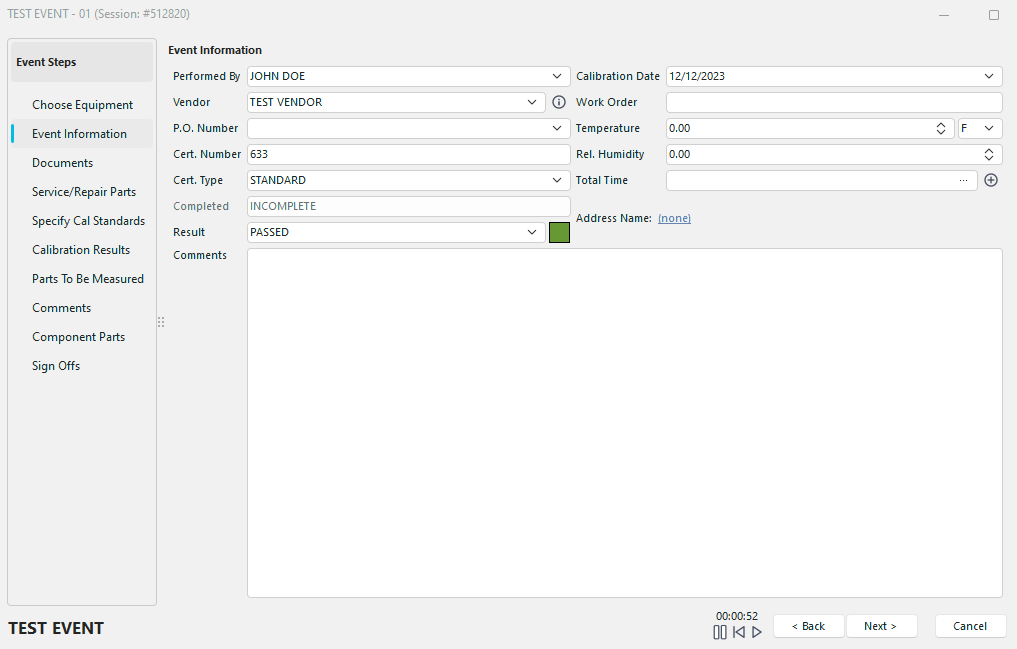
Event Steps - Event Information
The Event Information step is used to enter basic information about the event: when, where, and so on. When the Event Information screen is resized, the widths of the edit controls also resize to allow the maximum entry space given the width of the event window. Edit controls are grouped vertically into columns of two and centered vertically on the event window. If the Comments field is visible, it automatically expands to fill the remaining space.
Up to thirty pieces of information can be displayed on the Event Information tab. Their relative positions and display captions can be changed in the Work Flow Configuration Wizard — see Work Flow Configuration - Field Settings for details.
Available fields
-
Employee — Who is performing the event.
noteIf you have selected Show Employee, With Image in the Left Panel, the Employee field under Event Information is not visible. Both fields work the same way for documentation purposes.
-
Date — Date of the current event (entered automatically by IndySoft when the event is started).
-
Time — Time of the current event (entered automatically by IndySoft when the event is started).
-
Vendor — Outside or in-house vendor performing the event. This value can be entered automatically based on the last event of this type performed. See Work Flow Configuration - Miscellaneous for details.
-
Vendor Contact — Contact person within the outside or in-house vendor performing the event.
-
Work Order — Work order number for the current event. This number can be matched to IndySoft's work order system.
-
P.O. Number — Purchase order associated with the current event.
-
Department — Department performing the current event. This value can be entered automatically based on the last event of this type performed. See Work Flow Configuration - Miscellaneous for details.
-
Location (Crib) — The new crib location being set by this event. If this should change the actual gage status, set it up in the Work Flow Configuration Wizard.
-
Sub-Location (Bin) — The new bin location being set by this event. If this should change the actual gage status, set it up in the Work Flow Configuration Wizard.
-
Workstation — The workstation name where this event is performed.
-
Machine — The machine relevant to this event.
-
Total Parts Checked — Total parts checked as a result of this event. The number of parts can be used when calculating the due date of equipment scheduled by accumulation of parts. See Work Flow Configuration - Schedule Updates for details.
-
Cost — The cost of the current event.
-
Total Time — Total time to perform the current event. If an event timer is used and this field is left blank, this field is updated automatically with the time on the event timer when the event is completed. If the two times disagree, the user is asked to choose the appropriate value.
-
Expected Return — Expected time the current equipment should be returned, if it is being checked out.
-
Condition — The general condition of the equipment at the time of the event.
noteYou can also specify the condition of each piece of equipment if this event is performed on multiple pieces. See Event Tabs - Choose Equipment for details.
-
Completed — Whether the current event is complete or incomplete. If an event is incomplete, the user is asked on Finish whether to mark the event as incomplete. If the Sign Offs tab is being used, that tab takes control of setting the Completed value.
-
Result — For most events, whether the event passed or failed. You can also specify ROV, Adjusted, or Limited for calibration-type events. See Work Flow Configuration - Miscellaneous to specify calibration-type result options.
-
User Defined 1-10 — Custom field per event type. The Work Flow Configuration Wizard can set the caption and drop-down type. See Work Flow Configuration - Miscellaneous for details.
-
Temperature — The temperature at the time of the event.
noteIndySoft can interface with external data-logging hardware to update room temperature and humidity in events automatically. See IndySoft's External Temperature/RH Logging Utility for details.
-
Temp. Type — Whether the temperature is taken in Fahrenheit or Celsius.
-
Relative Humidity — The relative humidity at the time of the event. (Same external-logging note as Temperature applies.)
-
Cert. Type — The certificate template used to create a certificate upon event completion. The Cert. Type, Cert. Number, Vendor, and Completed fields must be visible and populated before generating a certificate. The default value comes from the Cert. Template value on the Calibration Info. tab on the IndySoft main screen. If that field is blank, the value can be entered automatically based on the last event of this type performed. See Work Flow Configuration - Miscellaneous for details.
-
Comments — General comments or miscellaneous information about the current event. Comments can also be displayed on a separate event tab if more space is needed. See Event Steps - Comments for details.
-
Cert. Number — The certificate number used when a certificate is generated upon completion of this event.
-
Barometric Pressure — The barometric pressure at the time of the event.
-
BP Type — The unit of measure for the barometric pressure reading. Units are taken from the Add/Edit...System-Wide...Units of Measure listing.
-
Branch — The related branch for the current event. Branches can be edited from Add/Edit...Companies...Companies but are filtered to show only companies that have the Branch checkbox on.
-
Start Date — The start date for the event. Including this field along with Event Date lets you have separate fields for start and finish.
-
Start Time — The start time for the event. Including this field along with Event Time lets you have separate fields for start and finish.
-
Incomplete Event Status — Used to explain why the event is currently incomplete (if applicable). Two hard-coded values are provided: AWAITING SIGN OFF and IN PROCESS. Additional statuses can be set up under list type 0 in Workflow Configuration - Event Lists.
-
Location (From) — The From location, if the asset is being moved during the event. Selected from the locations specified in Add/Edit...System-Wide...Location Tree Editor.
-
Location (To) — The To location, if the asset is being moved during the event. Same source as Location (From).
-
As Found Result — The As Found result for the event. Drop-down options match those of the Result field. This value is more specific — the result as found.
-
As Left Result — The As Left result for the event. Drop-down options match those of the Result field. This value is more specific — the result as left.
Remember that the security settings in Profile Manager can control all Event Information fields.