On-Site Calibration
Calibration events are launched from Events → Calibration on the main-screen menu. The default Calibration event has five steps:
- Event Information
- Documents
- Service / Repair Parts
- Specify Standards
- Calibration Results
This is all the pertinent and required information needed to complete the event.
The following fields must be visible on the Event Information view to print a certificate:
- Cert. Type
- Cert. Number
- Vendor
- Result
- Completed (set when the event is completed)
If any are missing, you'll be prompted to fill them in before completing the event.
1. Event Information
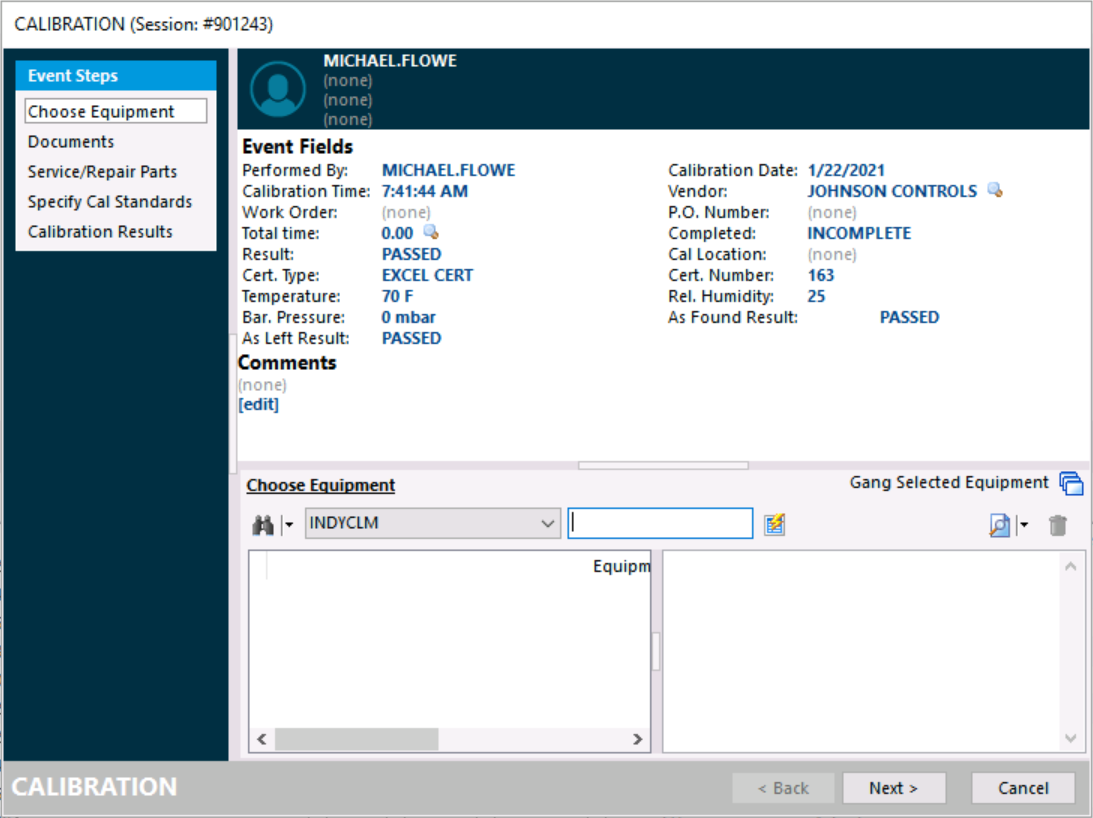
Event Information
Click Next to proceed.
2. Documents
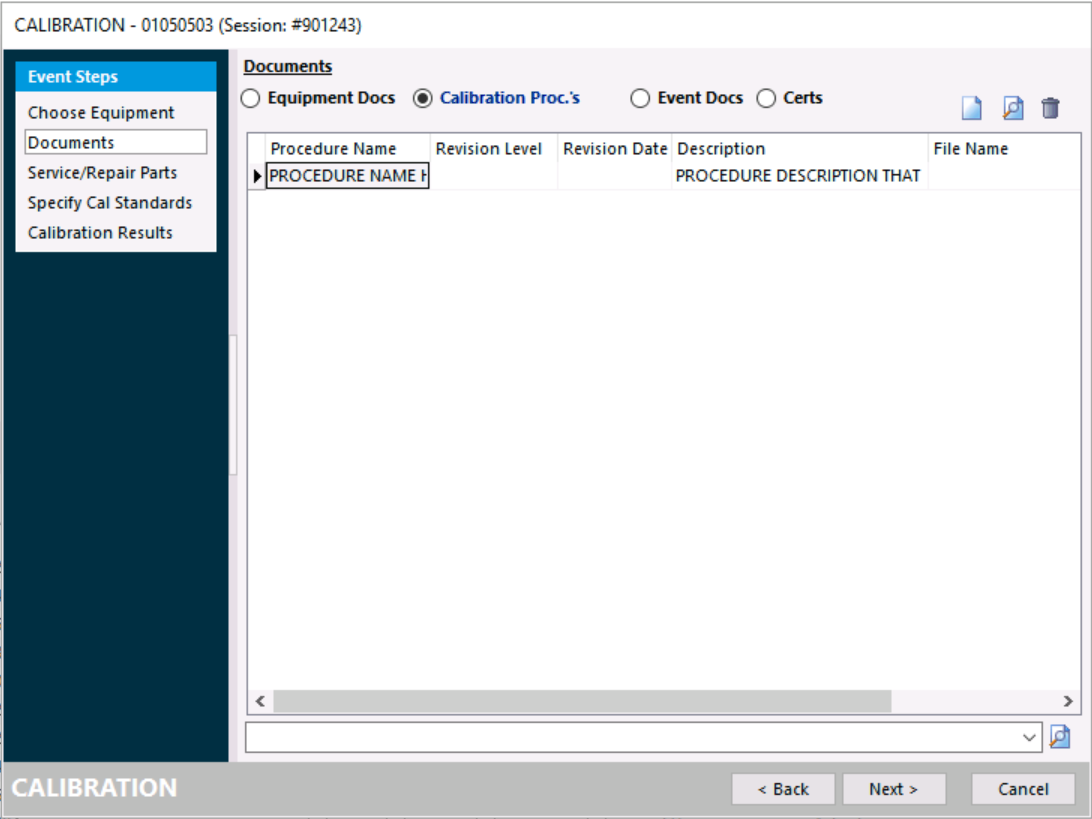
Document Information
Documents are carried forward into the event if you've inserted them on the Equipment Layout under the Calibration Info tab. You can also add them on the fly using the Add New icon at the top-left.
Clicking OK adds the document to the event.
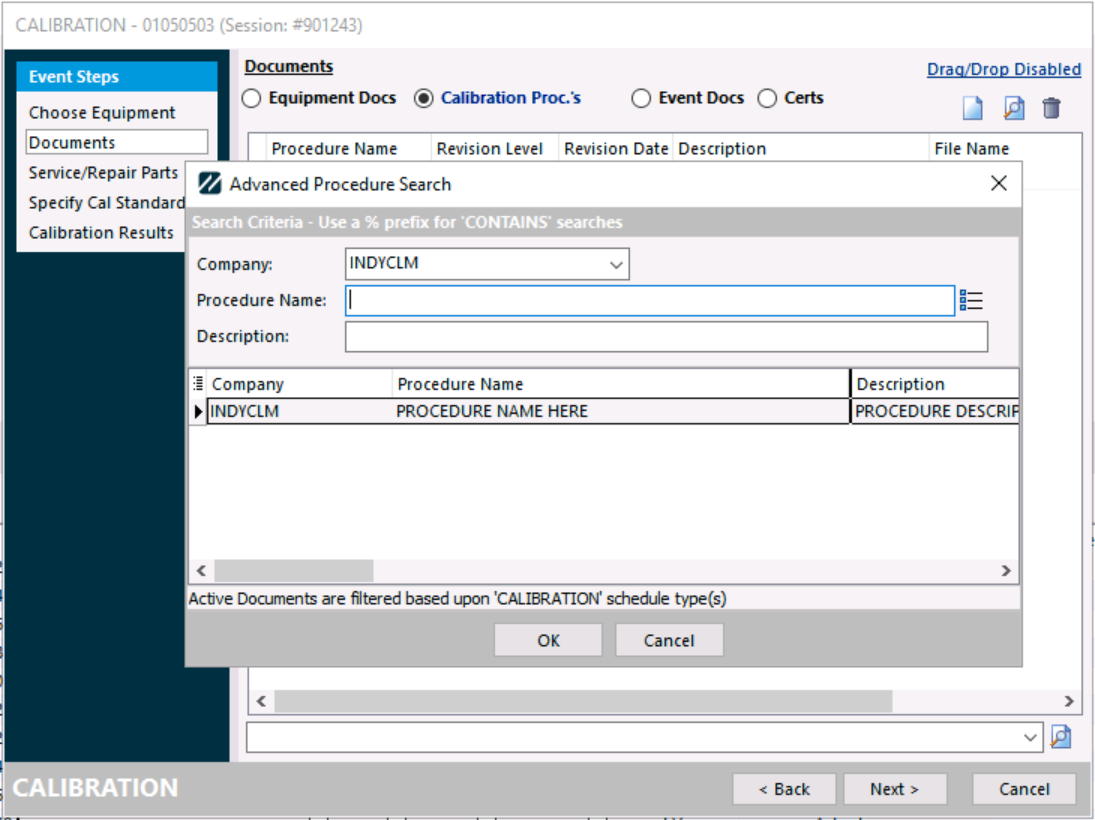
Add document dialog
You can scan documents by selecting the Event Docs or Certs radio buttons. The dialog that appears lets you attach a document from a file or scan it directly.
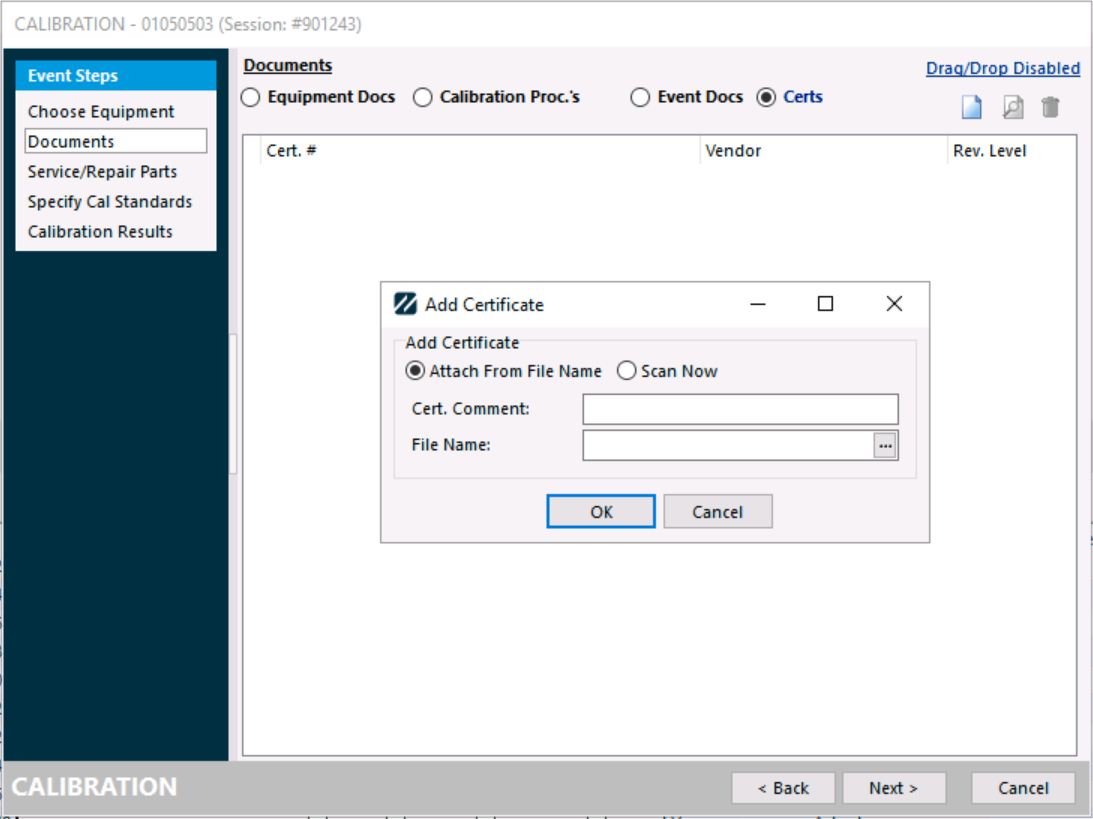
Scan or attach a document
Click Next to proceed.
3. Service / Repair Parts
These can be added here or from the Equipment View screen. Any charges or parts linked from a template may also be added.
Service / Repair parts could include charges for batteries or fuses and replacement parts to repair the calibrated item.
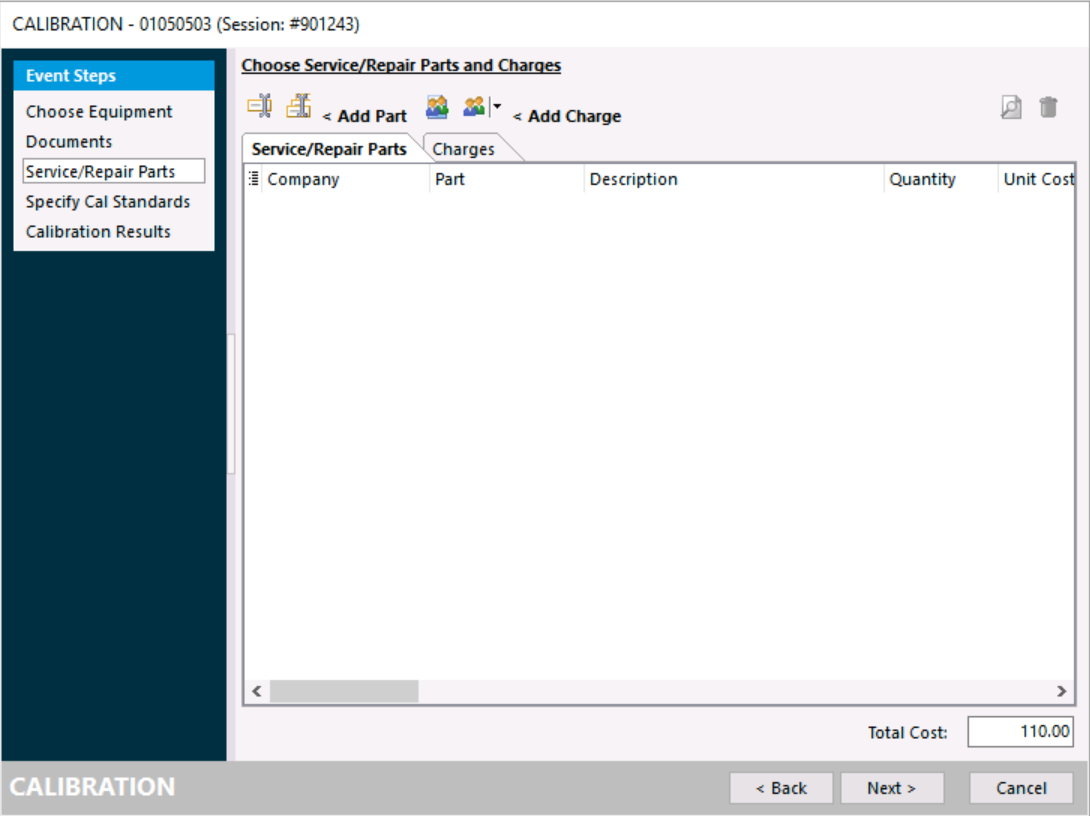
Service / Repair Parts
The Charges tab is used to associate charges for labor-related fees, such as calibration charges or labor hours.
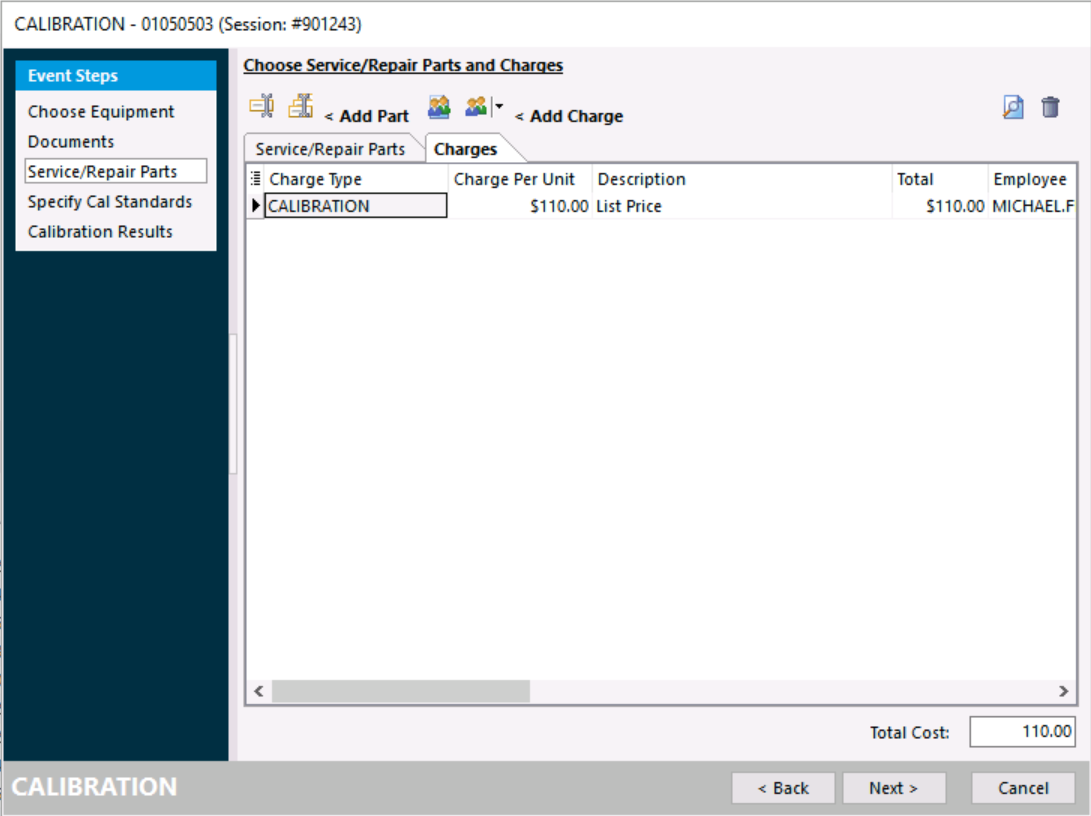
Charges
4. Specify Standards
These can be added here or from the main screen under the Calibration Info tab. Click the binoculars icon  and choose a standard from the listed choices.
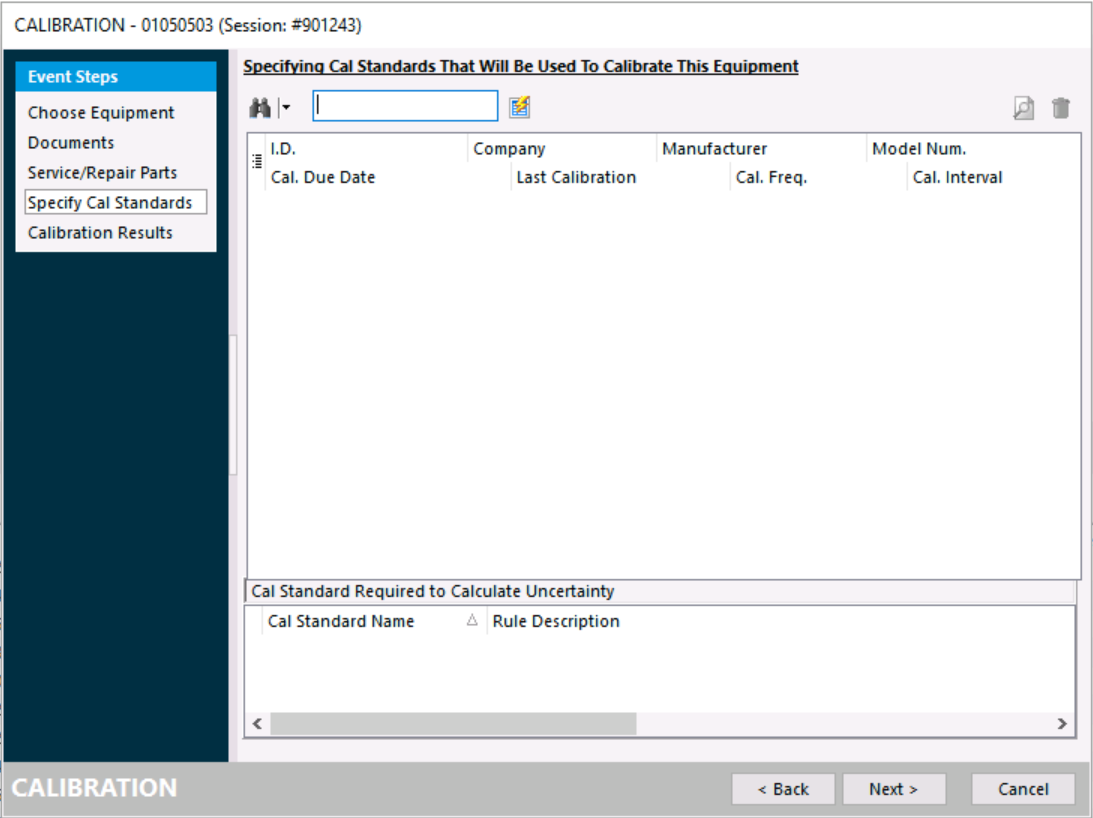
Specify Standards
Click Next to proceed.
5. Calibration Results
Select the result by dragging the slider bar up or down. If you don't have test-point data on the main screen, the screen below appears:
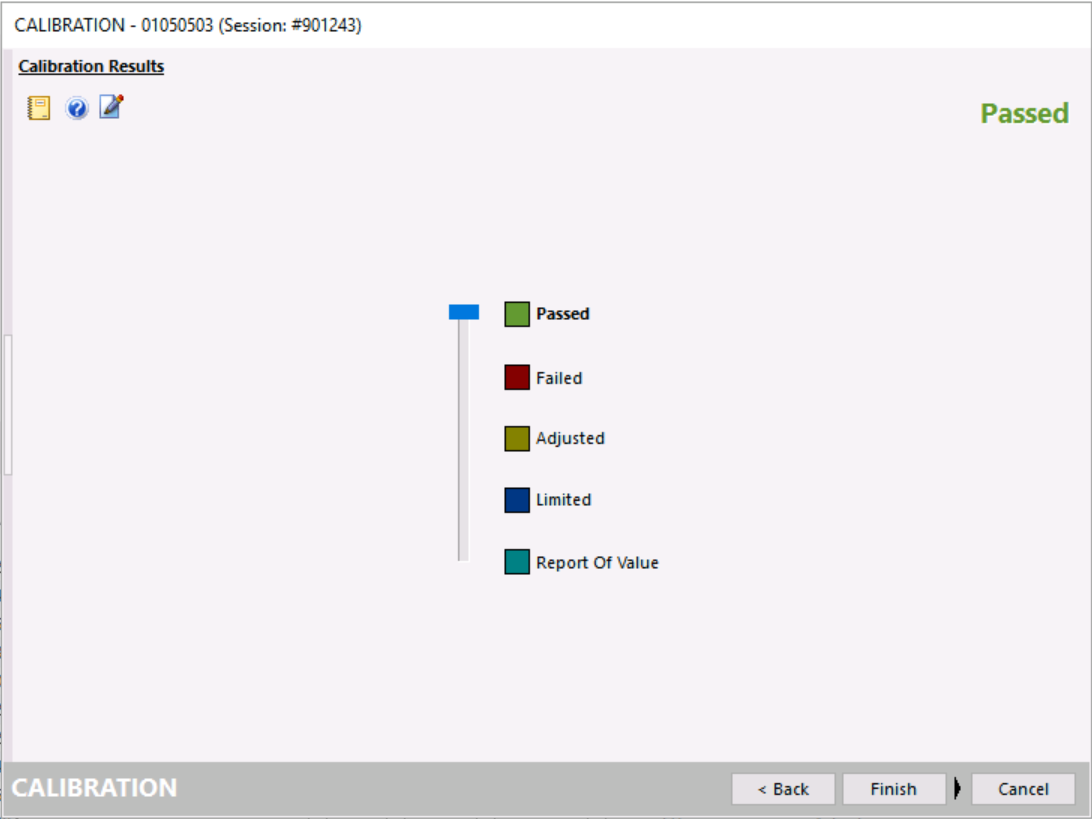
Calibration Results — no test points
If you do have test-point data on the main screen, the screen below appears. Enter the test results in the As Found column. When complete, click Finish.
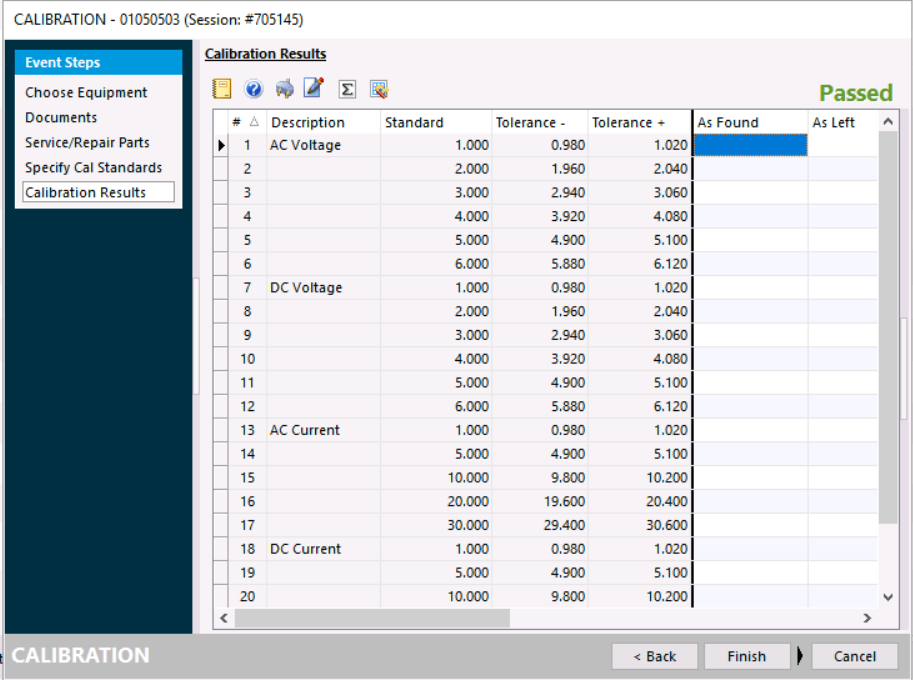
Calibration Results — with test points
When the test is complete, click Finish. You'll be prompted to mark the event as Complete.
If you can't complete the event right now, click No at the prompt. The event is marked as Incomplete and you return to the main screen. You can return later by double-clicking the highlighted blue Incomplete marker in the History grid.