Estimates
With IndySoft's Order System, you can quote estimates to your customers quickly and easily.
Creating an estimate
- Select the Order System tab.
- Choose Estimate from the menu, then click the New icon.
- Select the company in the new pop-up window.
- Fill in customer-related information such as Company and Due Date.
Adding charges
Begin adding charges based on the customer's needs. Click the Add New charges icon on the Charges tab. The Charge Type dialog opens. Begin entering the desired charges.
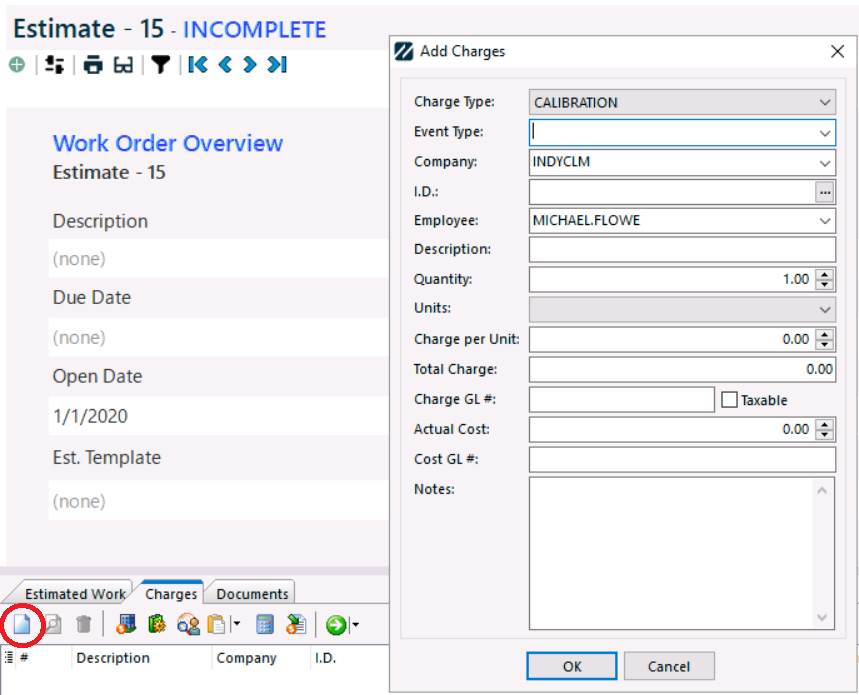
Add Charge Type
Click OK when finished. Continue adding charges as needed.

Charges accumulating
As you add charge types, the total updates in the lower-right of the Charges tab.
Adding charges from a template
You can also add charges from a template by clicking the Add from Template icon: 
This launches the Template screen. Select the template the customer is interested in, the quantity, and the Event Type and Charge. Click Add — the template with its appropriate charges is added to the estimate.
Make sure the template you're adding to the estimate has Auto Add to the Event checked for the charge type, or it won't add to the grid.
If template charges are added, all charges associated with the template may be added to the estimate for the selected charge type.
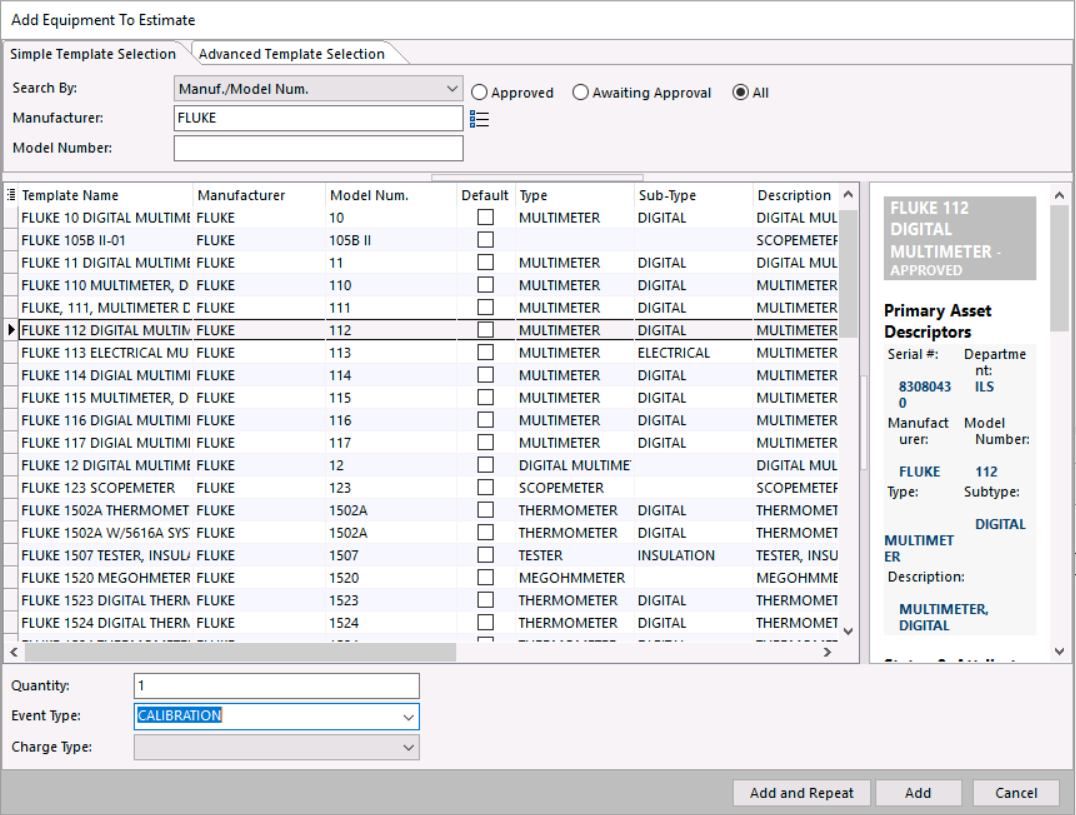
Charges from template
Calculating tax
Click the Add Tax icon: 
The tax information for the customer's company is added to the estimate's total cost.
Charge lines must have the Taxable box checked, and the corresponding company must have a tax table populated, for tax charges to calculate correctly.

Estimate with tax calculated