Receiving
To launch the Receiving event, select it from the Events drop-down menu.
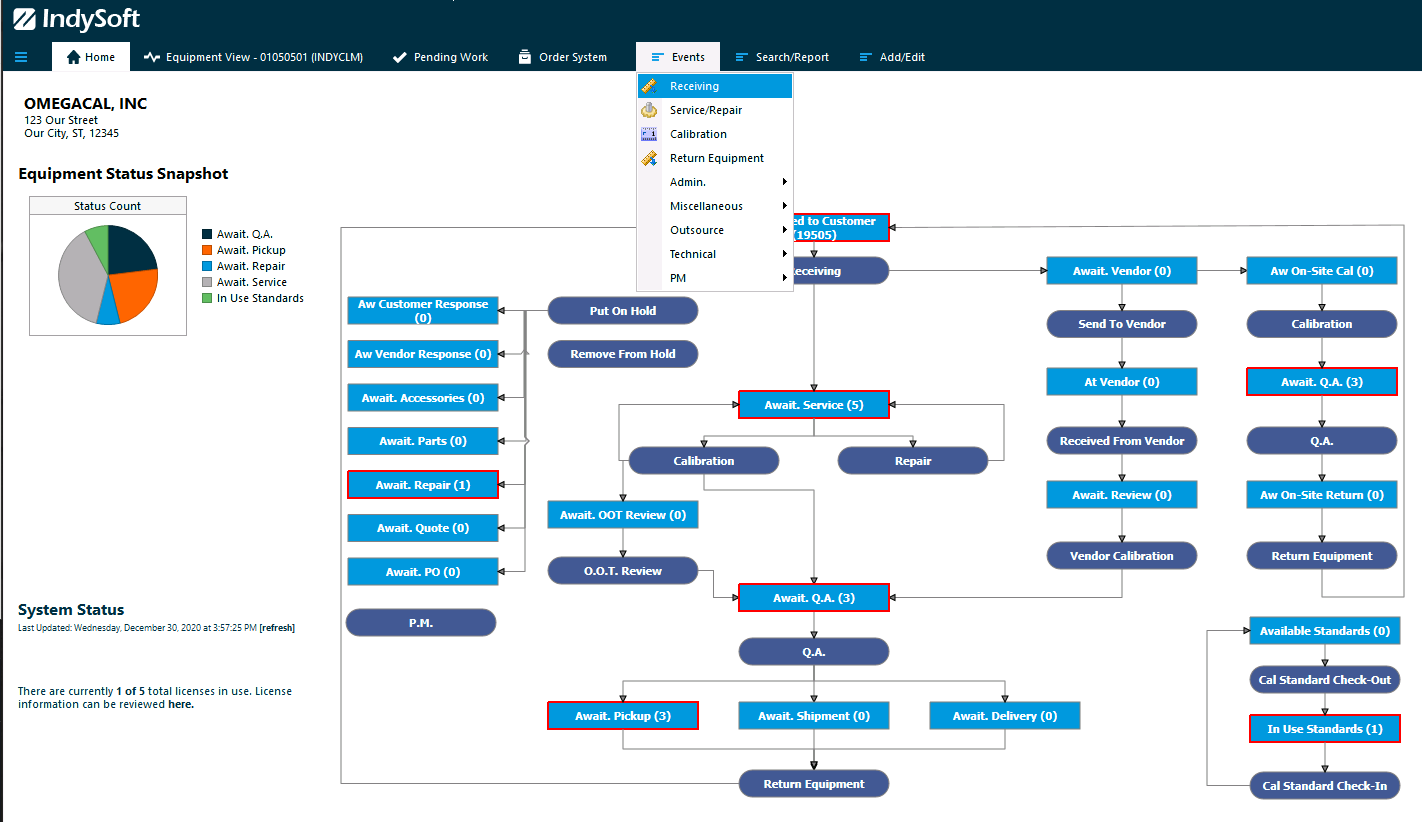
Events → Receiving menu
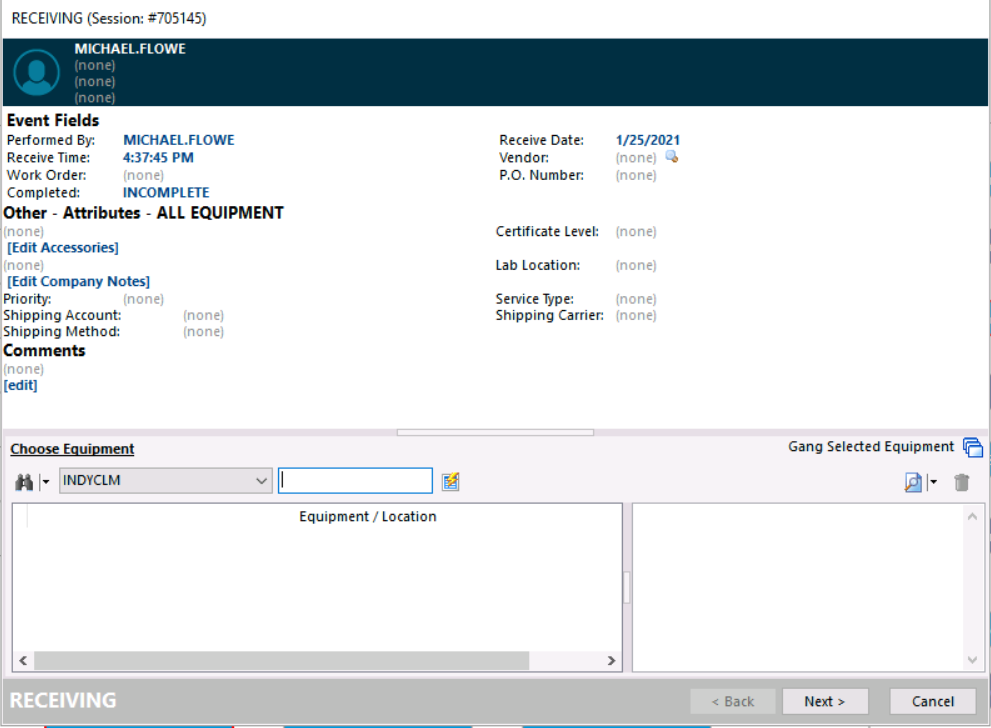
Receiving dialog
Adding equipment
Add equipment to the event by clicking the binoculars icon to open the search drop-down. Select the method you want to use to add equipment to the screen.
Some events accept only a single piece of equipment, while others accept multiple.
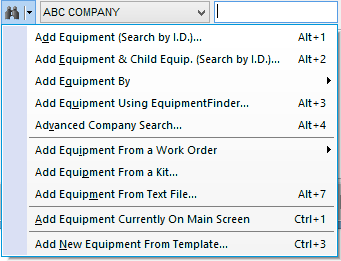
Adding equipment
Once you've chosen the equipment and populated the required fields, click Next.
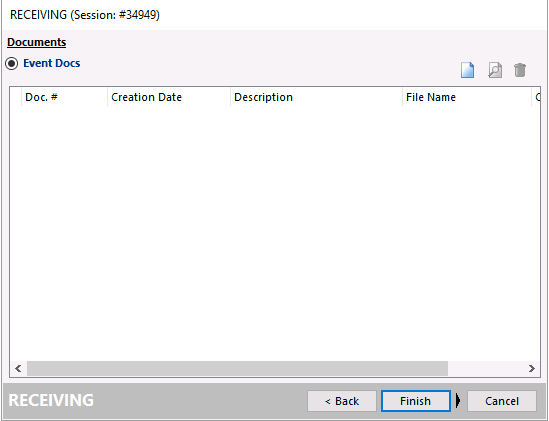
Receiving — attach documents
Attaching receiving documents
Attach any receiving documents — customer packing slips, purchase orders, and so on. Click Finish.
Auto-assigning employees
If desired, the event can prompt the Confirm Events dialog. Click Auto-Assign Employees to Work Order Items to have IndySoft search the system for the best match based on current employee workload. Once selected, the employee's name appears in the grid. Click OK.
A new work order is assigned to this Receiving event and can be retrieved from the Order System.