Pairing Assets with Passive and Active Tags
The IndyGo application lets users with the proper privileges and devices pair assets with both Active BLE tags and Passive RFID (UHF) tags. The process differs based on tag type.
Pairing Passive UHF tags
If you're using a supported RFID-capable device (Chainway C72, C66, R6, Zebra MC Series, 8500), you can pair passive UHF RFID tags with assets.
After searching for and selecting an asset on the Search screen, press the Pair button. If the device supports both RFID and BLE Tag Options is enabled, you're asked to specify the type of pairing. Choose Passive UHF Tag, and you'll be taken to a screen where you scan a tag to pair with it. The low-power setting is used here to make sure you only pick up the tag you intend.
If BLE Tag Options is disabled in Settings, the device goes directly into Passive UHF tag pairing — no prompt needed.
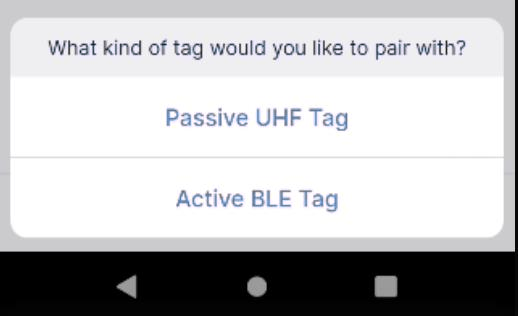
Pairing — selecting tag type
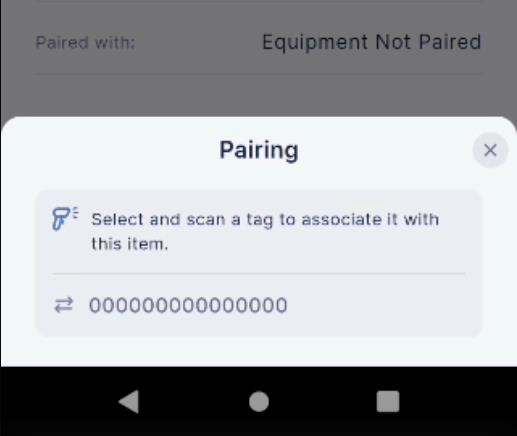
Scanning a passive UHF tag
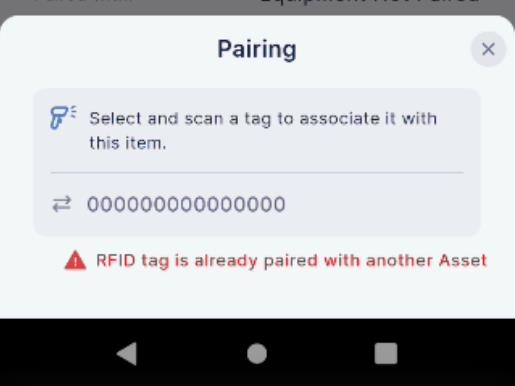
Pairing confirmation
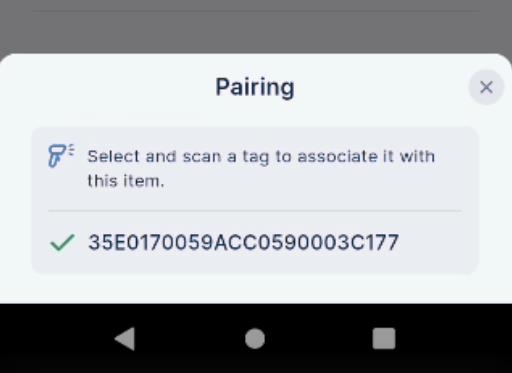
Paired asset
Pairing Active BLE tags
Users with permissions and BLE Tag Options enabled in their Settings can pair Active BLE tags. When pairing, you see the available BLE devices in the area, listed alphabetically. Tags already paired with assets are marked with an icon.
After selecting a tag, the system connects to it and asks you to confirm whether it's an IndySoft timing tag or an ELA Blue Series tag. Once confirmed, you're taken to the related equipment, where you can turn the tag's light on and off while connected.
An asset can only be paired with one tag at a time.
Unpairing an asset
If a device is paired, BLE Tag Options is enabled or RFID is supported, and the user is not blocked by security settings, the user can Unpair an asset from a tag.