Using Web-Tier Tools
To access specific areas of the Web-Tier Tools utility, right-click the Web-Tier Tools icon in your Windows system tray. The menu shown below appears.
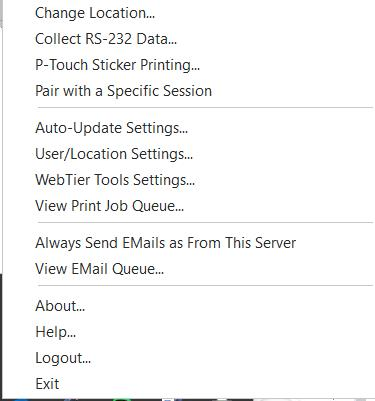
Web-Tier Tools system tray icon — right-click options
Menu options
-
Change Location — Quickly specify a location corresponding to where you are currently using the software. Optional, but useful when working from multiple locations.
-
Collect RS-232 Data — Opens the RS-232 setup dialog so you can configure RS-232 devices, just as you would from the IndySoft client.
-
User/Location Settings — Modify your own user/location settings. This is the same dialog found in the IndySoft client.
-
Web-Tier Tools Settings — Specify how often Web-Tier Tools checks the database for print jobs. The default is every 5 seconds.
cautionDon't set this interval lower than 5 seconds — frequent database checks can overload a large system.
-
View Print Job Queue — See existing or new print jobs and cancel them when necessary.
-
Help — Open the Web-Tier Tools help file.
-
Logout — Log out so a different user can log in.
-
Exit — Close the application.