Using RS-232 Devices
Choose Collect RS-232 Data from the system tray right-click menu to open the RS-232 device dialog. You set up RS-232 equipment the same way you would in the standard IndySoft client. Once data is collected, it is sent to the calibration results screen in the Web-Tier client.
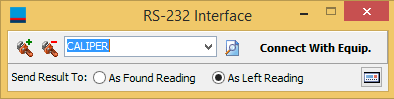
RS-232 Interface dialog
To start the calibration process listening for RS-232 results, press the button shown below.
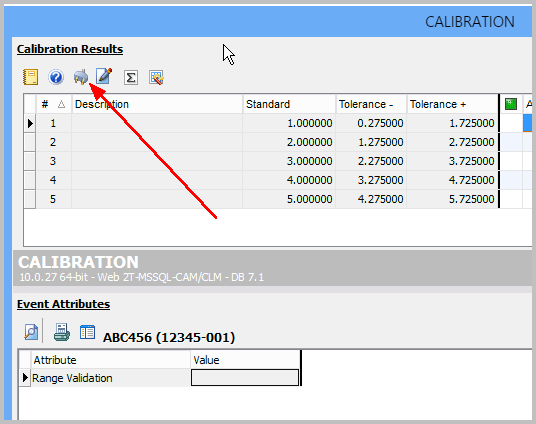
Calibration event — RS-232 option for Web-Tier Tools
You'll first see a dialog stating that RS-232 data from the Web-Tier Tools client will be pulled over until you restart the IndySoft client application.
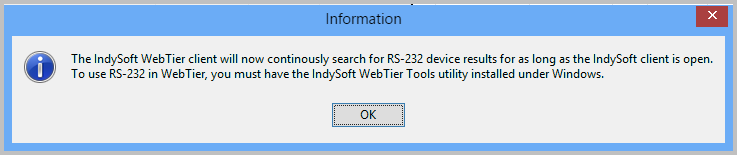
RS-232 / Web-Tier Tools dialog
If you don't have a device handy and want to test that data is pushing through to the IndySoft Web-Tier client, right-click the Send Result To text label and choose Send Test Data of 1.123456.
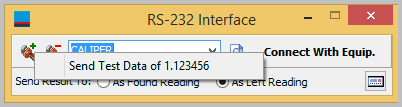
Sending test data when a device is not available