Connecting to Supported Hardware
The first time a user successfully logs into the mobile application (or after a manual uninstall and reinstall), IndyGo asks the user to identify any supported external hardware they'll use. Select the desired device, or press Skip this step if you're not using any of the listed devices.
Connecting devices directly is as simple as pressing Continue and Finish. BLE devices like the Chainway R6 require you to turn on the device and pair it with the identifier on the RFID/barcode sled. Bluetooth devices like the Zebra 8500 and CS4070 require you to connect via Bluetooth, then return to the application to finish pairing.
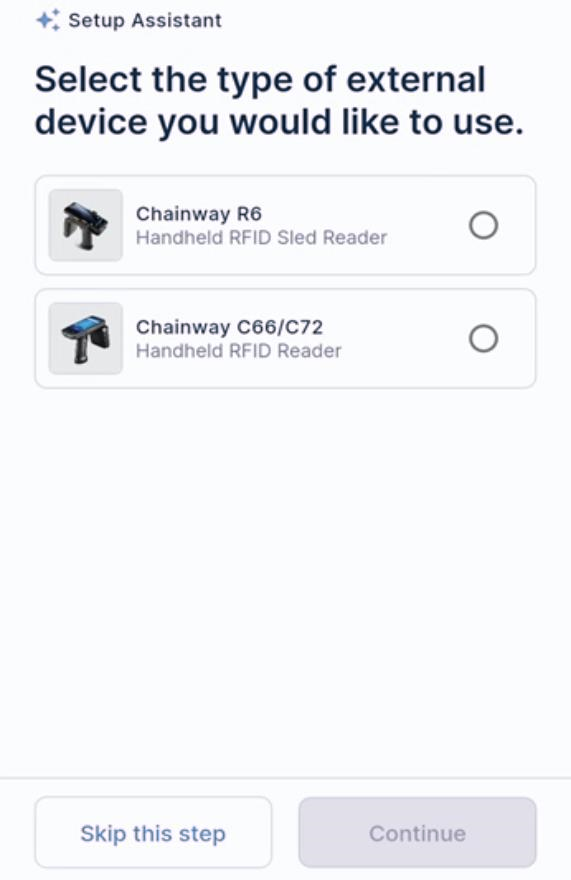
Hardware selection screen
After successful pairing, if the device uses UHF RFID, the user is asked whether they'd like to enable RFID capabilities. Answering Yes drops you into the application ready to scan/pair RFID devices.
If you need to pair with a different device or reconnect to your current one, you can always use Manage Device Connection on the Settings screen. From there you can refresh your connection, pair a new device, or forget the current device.