Scanning In
Administrators can let end users scan into the application with just a few setup steps. IndySoft doesn't provide a management interface for distributing these codes or guaranteeing their uniqueness, but the codes can be:
- Manually entered and associated with an employee record, or
- Pushed in via a script or the API if managed by another system.
The IndyGo mobile application requires that the access code be at least 8 characters when used to log in.
Setting up a scan-in code
Each user record has a corresponding employee record. The easiest, most reliable way to update the correct employee record is from Profile Manager:
-
Open Profile Manager and double-click the desired user.
-
From that screen, navigate to the user's employee record.
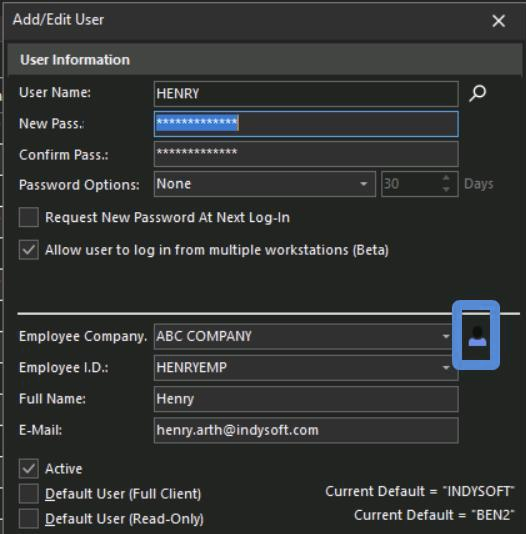
Navigating from user to employee record
-
From the employee record, find the Passive RFID Tag field and enter the code that corresponds to the user's scan-in badge or barcode.
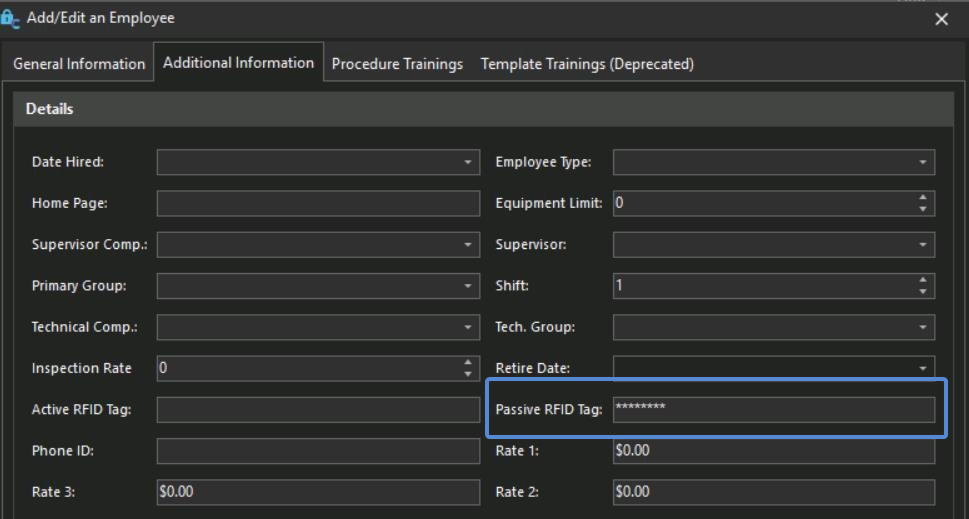
Setting the Passive RFID Tag code
Logging in with the code
Once associated, the user can log in by:
- Scanning a QR code of that value with the mobile device's camera.
- Using any device that functions as a keyboard wedge from an IndyGo Windows workstation.
This value cannot be typed in at the interface level instead of the user's password.