Adding New Equipment Using Templates
To add new equipment based on a template, choose New (Use Template) from the Options menu, or click the Template icon  on the Equipment Layout menu.

Adding new equipment using a template
The following dialog appears:
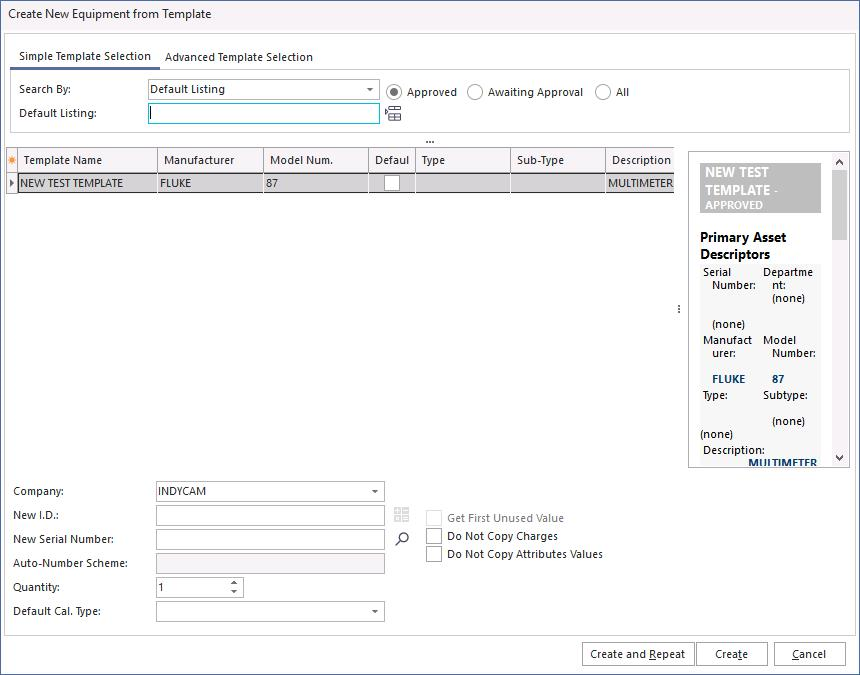
Template-search dialog
You can search by:
- Default Listing
- Type / Sub-Type
- Manufacturer / Model Number (most common and effective)
Pick a search type and use it to find the template you want. Once you've found it, highlight it in the grid below.
In step 2 at the bottom of the screen, assign a new gage number. Optionally specify a new serial number — if you want to keep the serial number assigned to the template, leave the field empty.
When you've selected the ID and serial numbers, click Create — or Create and Repeat if you have multiple pieces of equipment to add.