Using the Search-By Menu for Simple Searches
IndySoft's Search-By features give users quick and easy access to gage data. When you select a Search-By option, begin typing the first few numbers or letters — IndySoft automatically narrows the data based on what you type.
This page shows two simple search types.
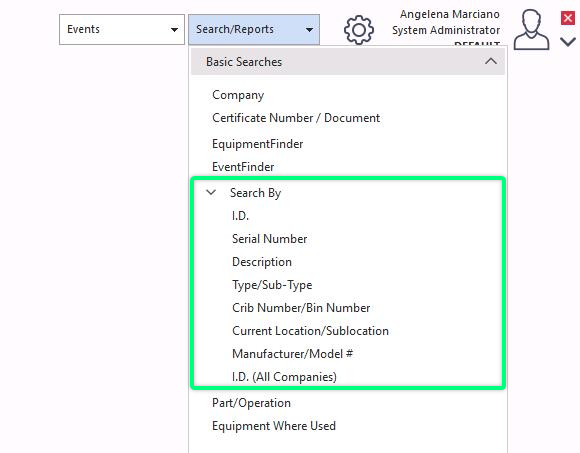
Search-By menu
Search by Type / Sub-Type
Select Search/Reports from the main-screen menu, then Type / Sub-Type.
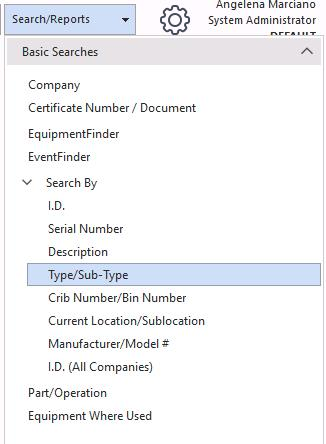
Search by Type / Sub-Type
The dialog below appears.
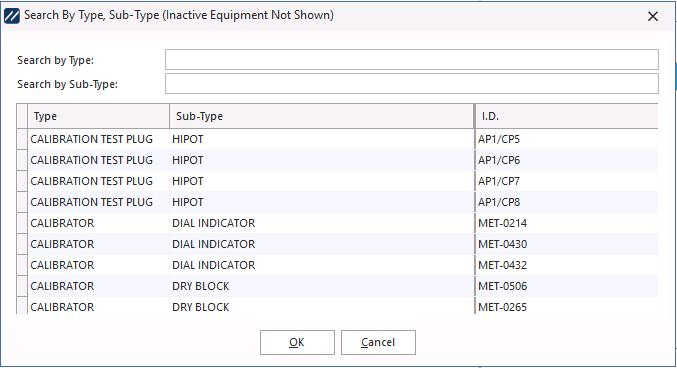
Type / Sub-Type search dialog
As you type, the list narrows. In this example, typing TEN narrowed the list to all equipment containing those letters. Select the equipment and click OK — it appears on the main screen.
These searches also include selecting the sub-type for a piece of equipment.
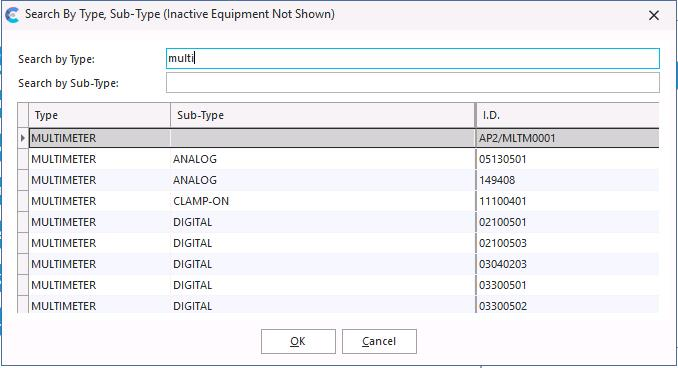
Type / Sub-Type results
Search by Manufacturer / Model
Select Search/Report from the main-screen menu, then Manufacturer / Model #.
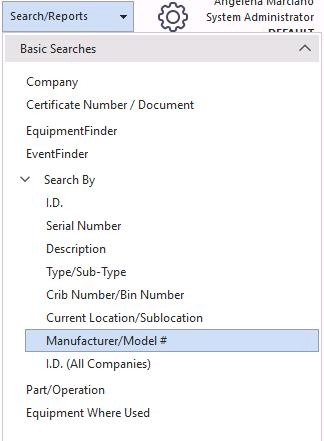
Search by Manufacturer / Model #
The dialog below appears.
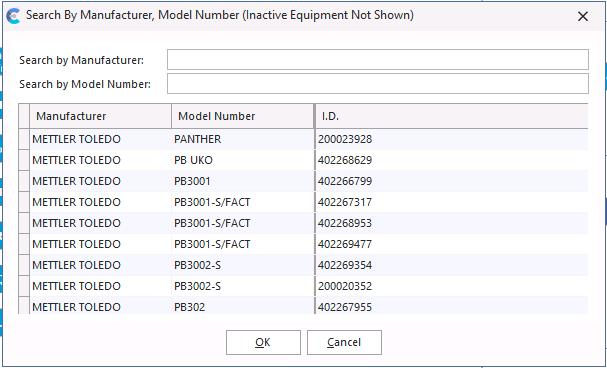
Manufacturer / Model # search dialog
As you type the manufacturer name, the list narrows. In this example, typing NO narrowed the list to all manufacturers containing those letters. Select the item and click OK — it appears on the main screen.
These searches also include selecting the model number for a manufacturer.
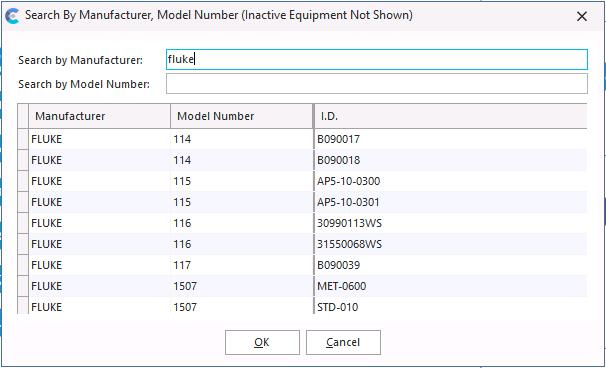
Manufacturer / Model # results