Equipment Finder - Advanced Equipment Selection
The Equipment Finder utility is useful for finding a particular piece of equipment using an advanced filter. You can load, save, clear, delete, and test filters using the buttons above the filter.
- To test a statement and see how much equipment would be selected, press the stopwatch button in the middle of the screen.
- To add the highlighted equipment, press the blue single-down-arrow button.
- To remove one item from the selected-equipment section, highlight it and press the blue button.
- To clear all selected equipment, press the blue double-up-arrow button.
For this tutorial, we'll look at Advanced Equipment Selection. For information on SQL-based selection, see the IndySoft user manual.
Launching Equipment Finder
Select Search-By from the main-screen menu. You'll see Equipment Finder at the bottom of the drop-down menu.
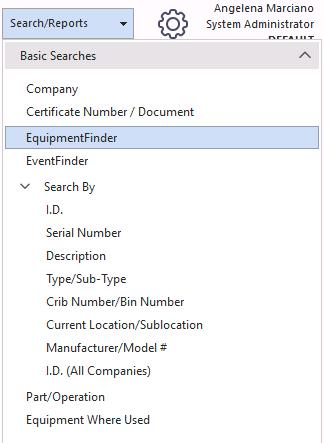
Search-By menu — Equipment Finder
The Advanced Equipment Selection lets you search for equipment based on detailed filter criteria.
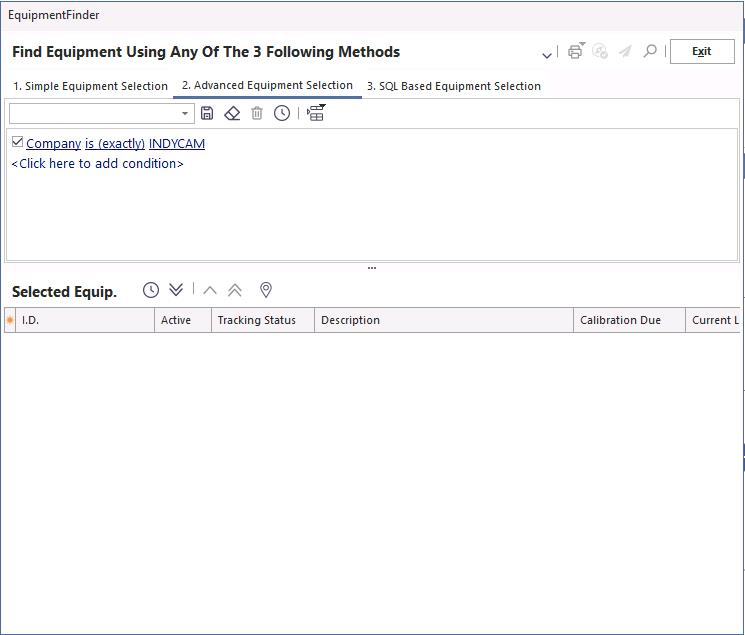
Advanced Equipment Selection
Toolbar

Advanced Equipment Selection toolbar
The toolbar contains, from left to right: Save, Clear Equipment Selection, Delete, and Test Equipment Filter.
Saving and testing a search
When you find a search combination that works, save it for future use. Below is an example saved for all system users (or just the current user). After setting up the filter, test it (using the stopwatch icon) to see how many pieces of equipment would be returned. The filter narrowed the search to only a few items meeting the criteria. Click OK.
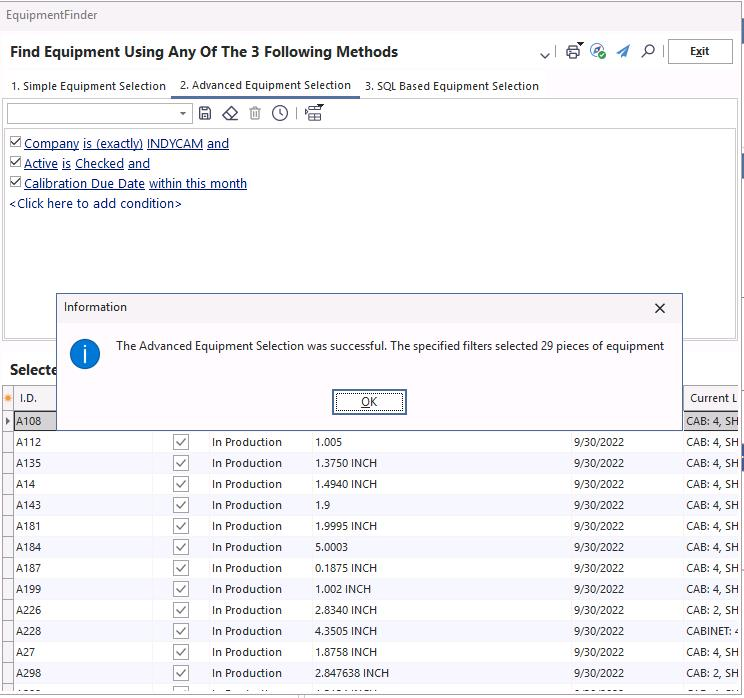
Filter test results

Filter results moved to selected grid
The information is processed and placed in the Selected Equipment grid by clicking the down arrow.
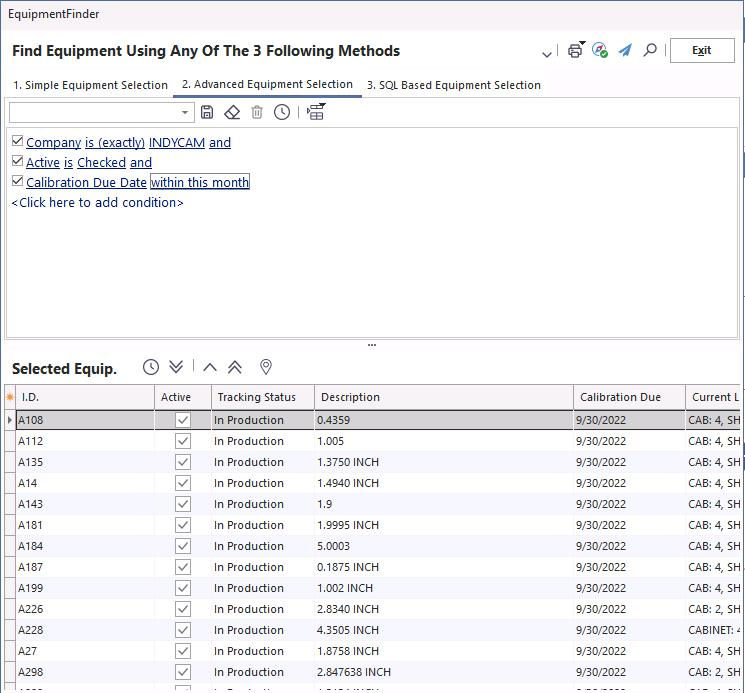
Selected equipment grid
To save the search, click Save  . Name the search and choose whether to make it visible globally or only to the current user.
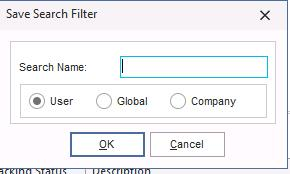
Save search dialog
The saved search is now in the drop-down list. You can save as many searches as you like — each time you open Equipment Finder, they're available. You can delete a search at any time.
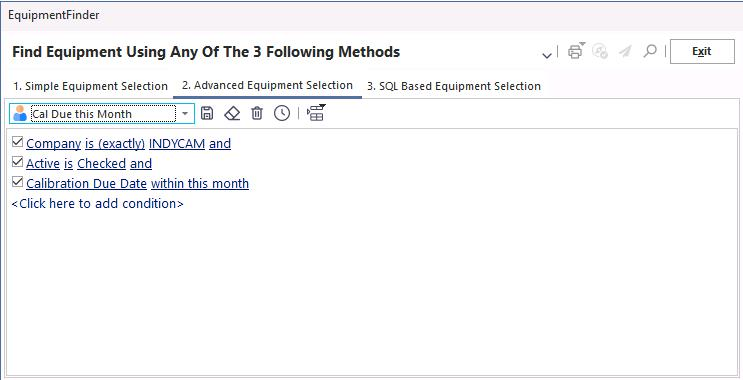
Saved searches drop-down
Processing selected equipment
Use the icons in the top-right of the screen to act on selected equipment.
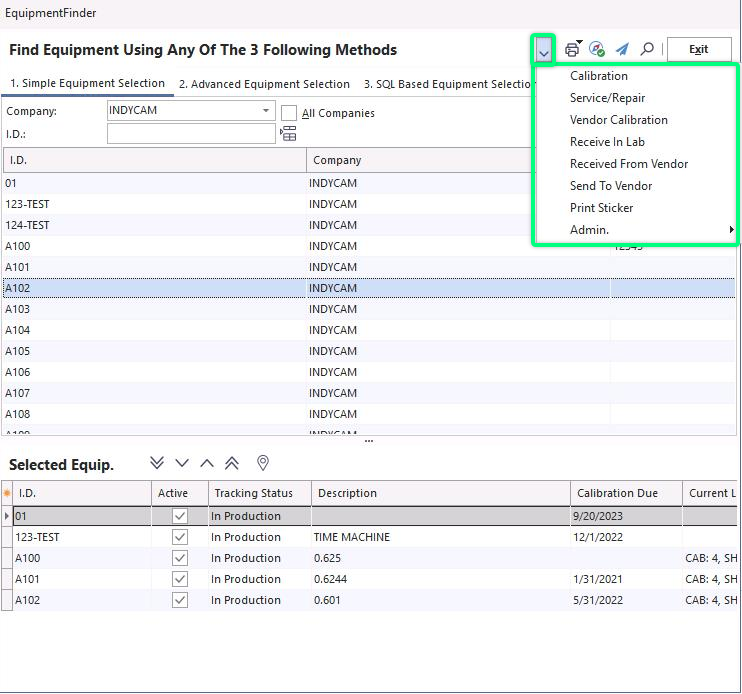
Processing toolbar
Events drop-down
The black arrow icon  opens the events drop-down. You can perform any of these events for one or all of the selected equipment.
Events drop-down
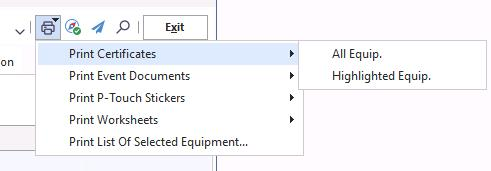
Print
The Print icon  lets you print documents from the selected equipment. To print all worksheets, choose Print All Equipment — or highlight a single gage and print just that one.
Send to Navigator
Send selected equipment to the navigator using  .
.
Send to another user
To send the gage info to another user, click Send to Another User  . You'll be prompted to choose a username and write a short note. The gage info is sent as an instant-message-style pop-up; you can also email the user if desired.
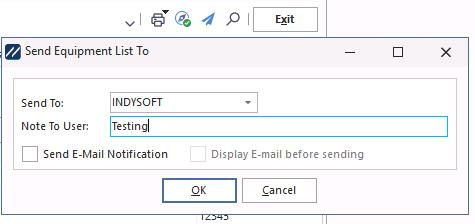
Send to another user dialog
View item
Click View Item  to display the highlighted gage on the main screen and close Equipment Finder.