Equipment Finder - Simple Equipment Selection
Equipment Finder is one of the most useful features in IndySoft. It lets you find a particular piece of equipment or a set of equipment.
The dialog is divided into two sections:
- Selection Method (top of the screen)
- Selected Equipment (bottom)
Selection actions
- To select equipment, type the first few letters of the equipment I.D.
- To list all items, press the button to the right of the I.D.
- To search across all companies, check All Companies.
- To choose all matching equipment, press the blue double-down-arrow.
- To add the currently highlighted piece of equipment to Selected Equipment, press the blue single-down-arrow.
- To remove one item from Selected Equipment, highlight it and press the blue single-up-arrow.
- To remove all equipment from Selected Equipment, press the blue double-up-arrow.
For this tutorial, we'll look at Simple Equipment Selection. For information on SQL-based selection, see the IndySoft user manual.
Launching Equipment Finder
Select Search-By from the main-screen menu. You'll see Equipment Finder at the bottom of the drop-down menu.
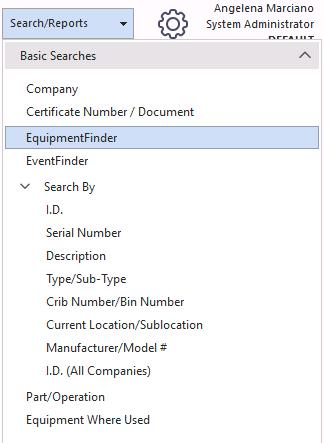
Search-By menu — Equipment Finder
Simple Equipment Selection
Simple Equipment Selection lets you see all equipment for a particular Company or Customer. Every gage in the system is available by checking the All Companies box.
Select the company from the Company drop-down, then click the List All icon to display all the equipment.
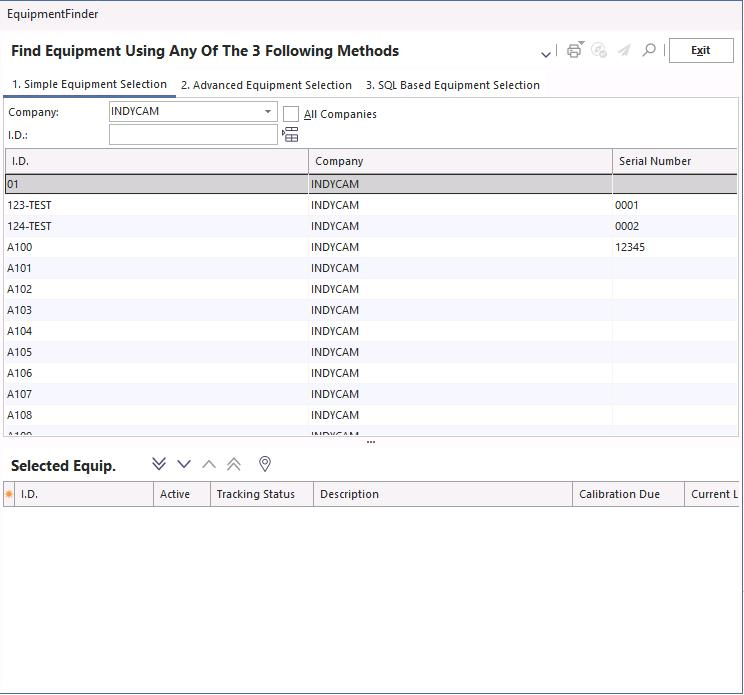
List All for selected company
Scroll the list and double-click any gage you want to add. The gage moves to the Selected Equipment grid at the bottom.
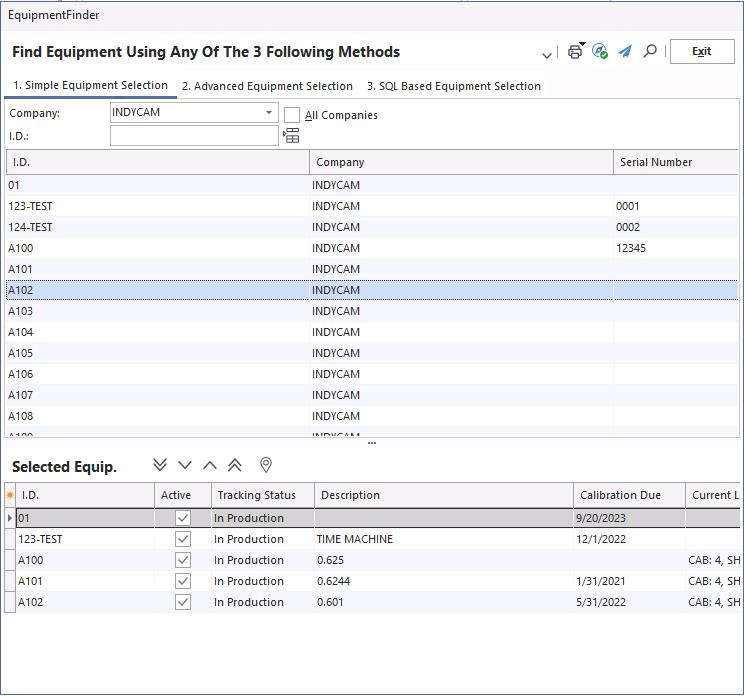
Selected equipment grid
Processing selected equipment
Use the icons in the top-right of the screen to act on selected equipment.
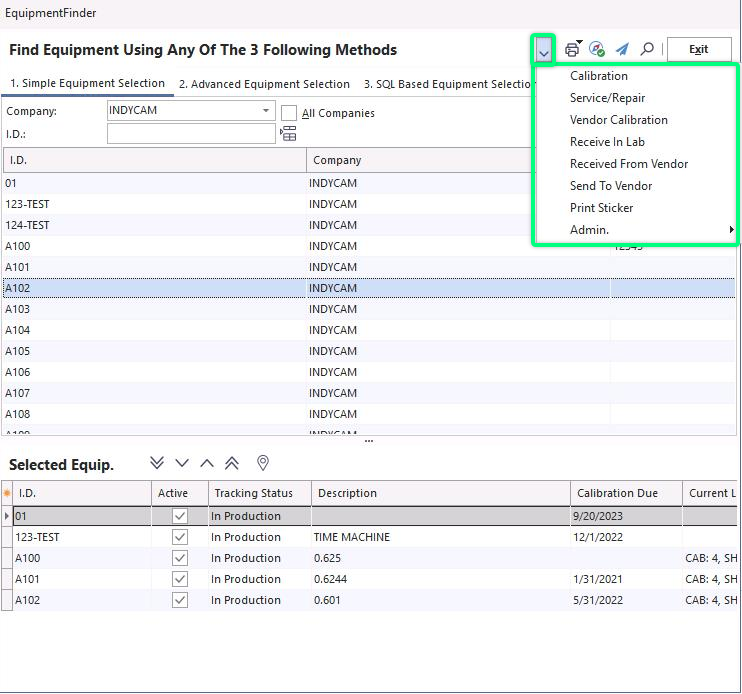
Processing toolbar
Events drop-down
The black arrow icon  opens the events drop-down. You can perform any of these events for one or all selected equipment.
Events drop-down
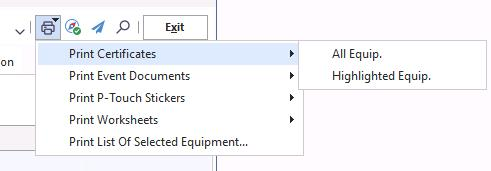
Print
The Print icon  lets you print documents from the selected equipment. To print all worksheets, choose Print All Equipment — or highlight a single gage and print just that one.
Send to Navigator
Send selected equipment to the navigator using  .
.
Send to another user
To send the gage info to another user, click Send to Another User  . You'll be prompted to choose a username and write a short note. The gage info is sent as an instant-message-style pop-up; you can also email the user if desired.
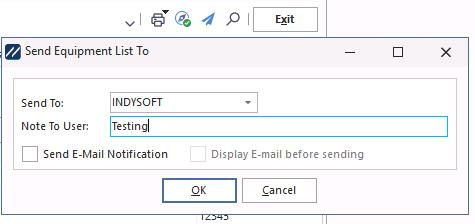
Send to another user dialog
View item
Click View Item  to display the highlighted gage on the main screen and close Equipment Finder.