Installation
To install the Pipette Extension into your IndySoft database, run PipetteExtension.exe on a workstation that already has IndySoft 12.2.10 or later installed.
The install MUST be run on a workstation that already has the IndySoft client installed. The installer uses the IndySoft Export/Import system to import the extension into the database.
Uninstall (if previously installed)
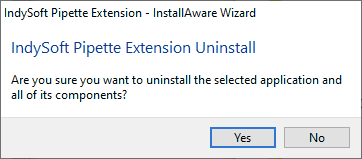
Installation — Uninstall
The uninstall step only appears if you've previously installed the Pipette Extension on this workstation. Re-installation typically requires a full uninstall first.
The uninstall only applies to the setup files added locally during the install — it does not remove any configuration from your IndySoft database.
This takes a few seconds; press Finish, then restart the installation.
Welcome
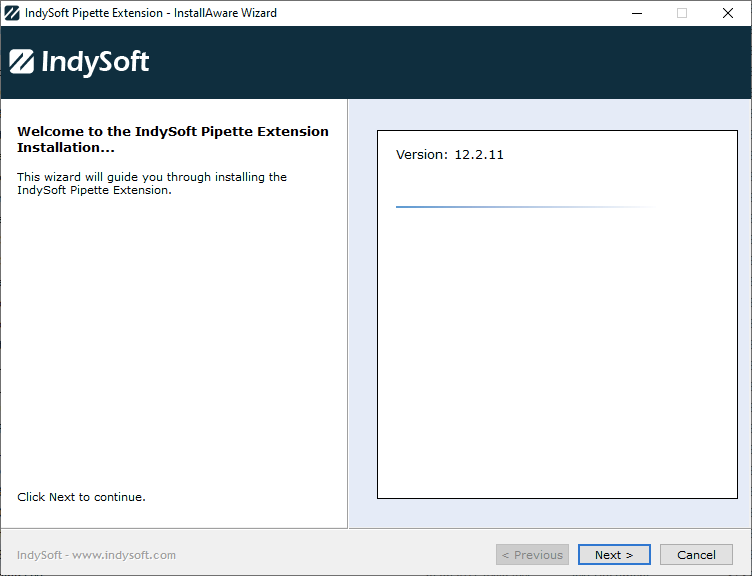
Installation — Welcome screen
The welcome screen reminds you of the Pipette Extension version. Confirm and press Next to proceed.
License agreement
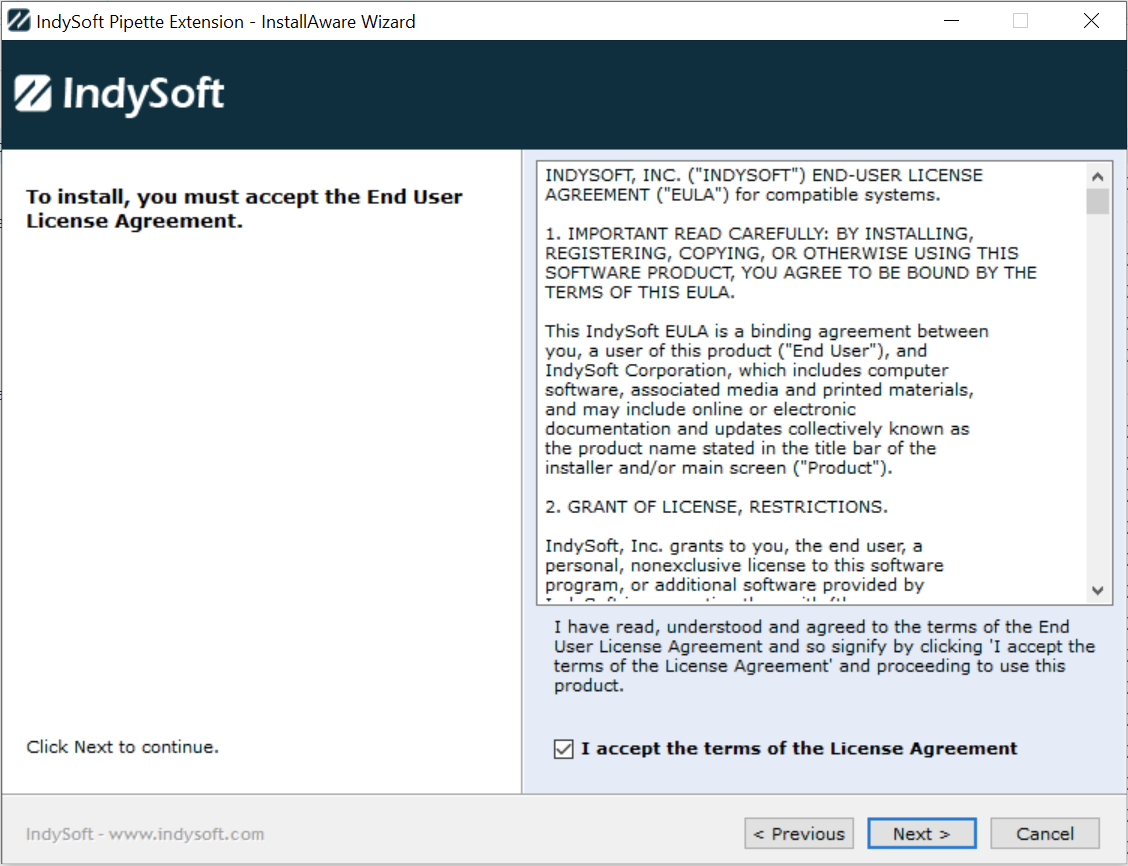
Installation — License Agreement
Confirm the license agreement, check I accept..., then press Next.
Choose application folder
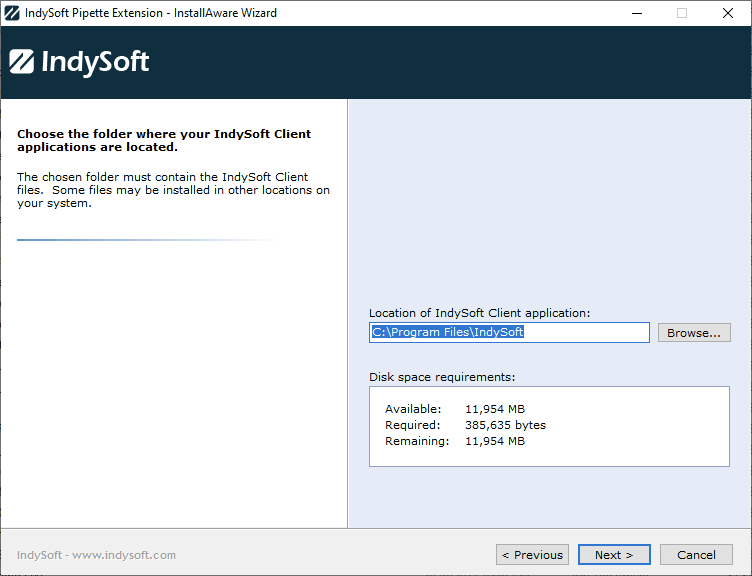
Installation — Choose Application Folder
Confirm or select the folder where the Pipette Extension will be installed. By default, the extension is installed to:
C:\Program Files\IndySoft
If you have a 32-bit install of IndySoft, change the install location to:
C:\Program Files (x86)\IndySoft
Select the directory where your IndySoft client is currently installed — the Pipette installer launches the IndySoft Export/Import tool from this directory.
Choose Start menu group
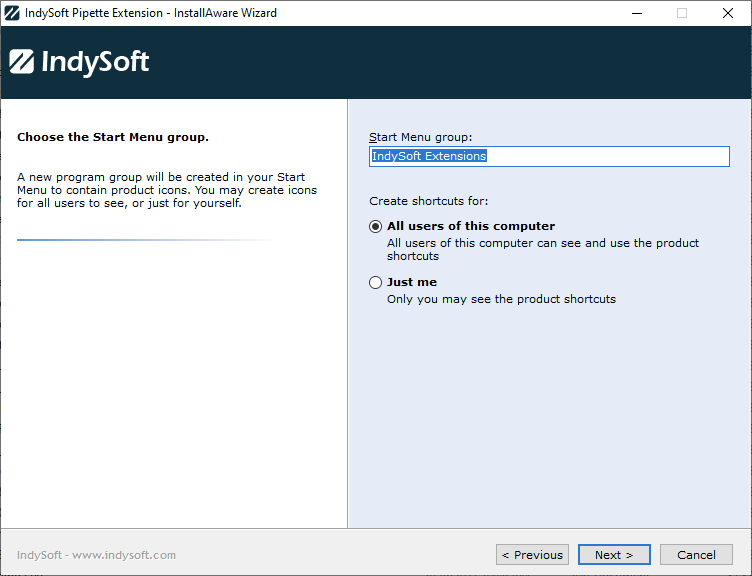
Installation — Choose Start Menu Group
The installer creates a Start menu program group with the name specified in this step. A shortcut for launching the Pipette documentation is created. The shortcut can be created for all users on the computer or only for your current Windows user.
Ready to install
This step confirms that all selections are in place. Press Next to proceed.
Installing files
The progress bar updates as files are copied to the installation directory.
Pipette configuration — automatic import
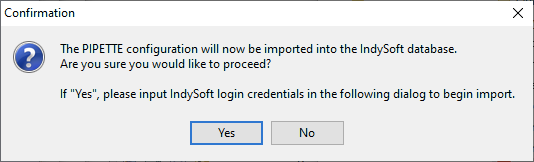
Pipette Configuration import confirmation
The IndySoft Export/Import tool launches to import the Pipette configuration into your IndySoft database. The confirmation dialog shown above appears before the import — select Yes to proceed. You'll then be prompted for IndySoft credentials.
Company mapping
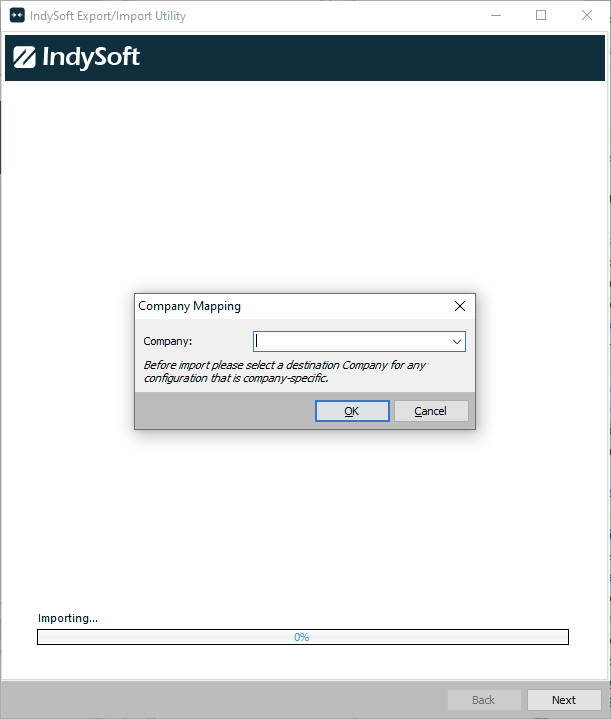
Company Mapping
The Pipette configuration includes some sample pipettes. By default, these items are in ABC COMPANY within the configuration file — but you can change the company during import to a more appropriate one within your database. Make your selection and press OK to proceed with the import.
Configuration import
The Pipette configuration is imported into the database. The progress bar should complete in a few seconds — the import utility automatically closes when finished. Press Finish in the main installation wizard to close. You're now ready to run your IndySoft client and use the Pipette Extension.