Populating Selection List - Add / Edit
You can populate selection lists in IndySoft in two ways:
- Add/Edit (on the left-hand menu).
- By typing the information into the selection lists on the fly.
Using the Add/Edit feature
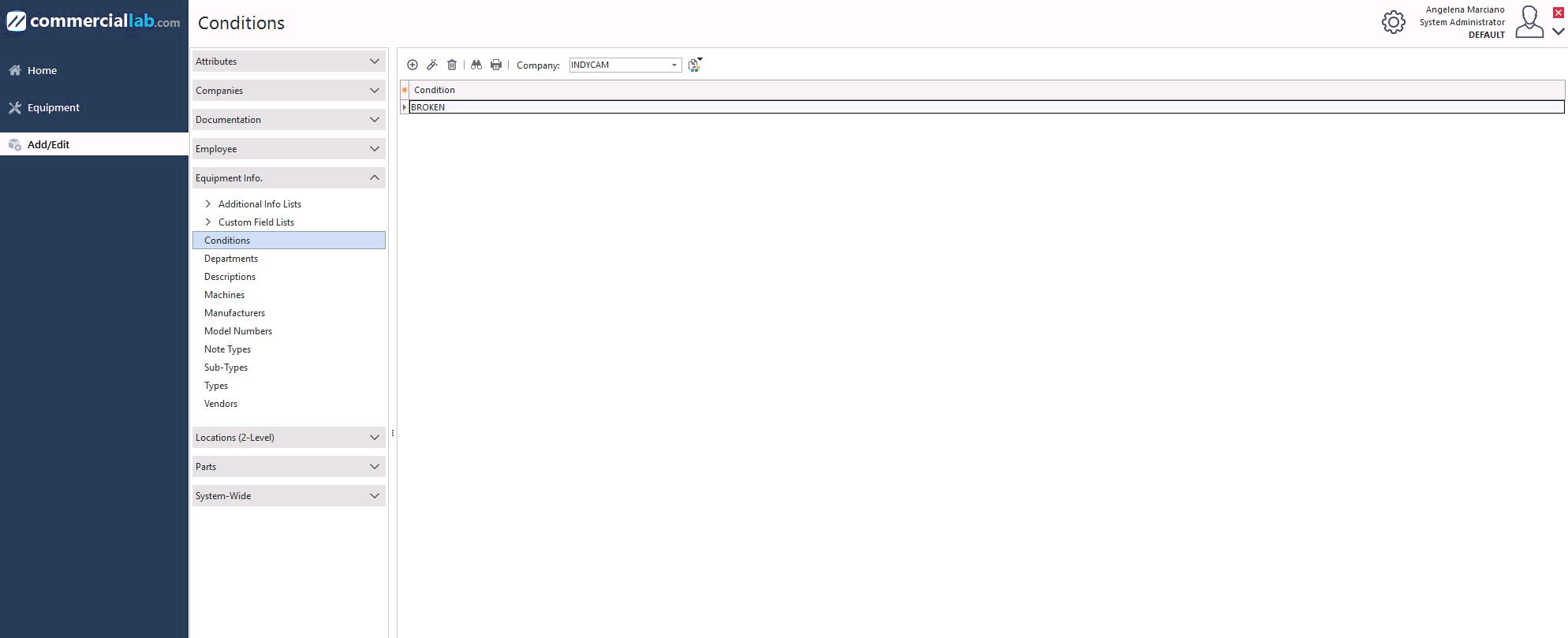
Add/Edit menu
- Open Add/Edit on the main-screen menu.
- Select the selection list to populate (this example uses Conditions).
- Click the Add New icon
 .
. - Add as many items as you wish. To fix a mistake, delete the item and re-enter it correctly.

The Add/Edit Toolbar contains, from left to right: Add New, View Item, Delete Item, Find Item, and Print Grid, plus Company selection and merge-list options.
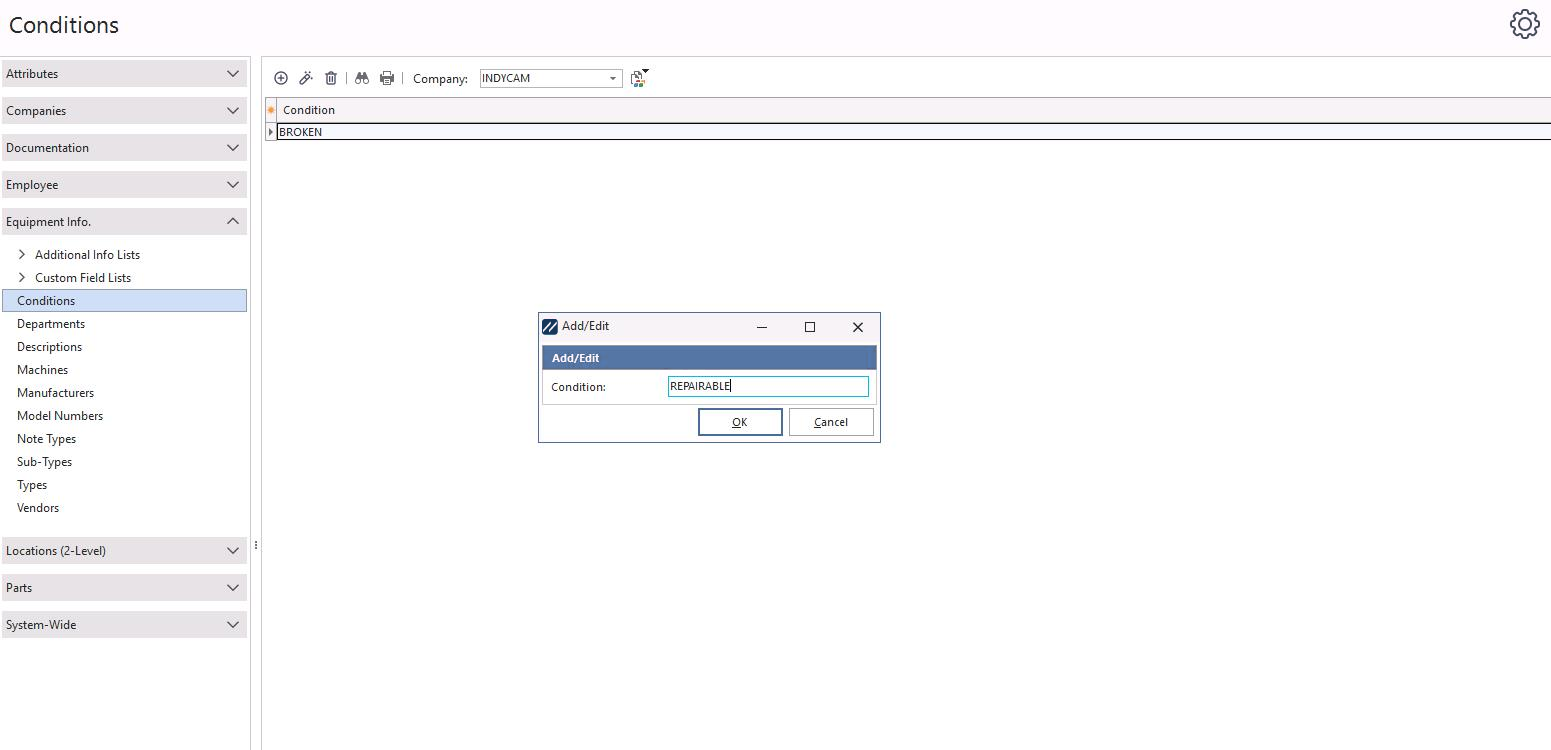
Selection list — Conditions
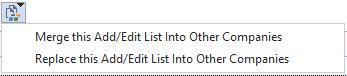
Merging or replacing a list across companies
You can merge a list to another company or replace a list altogether. From the toolbar, select the Company to Merge / Replace icon.
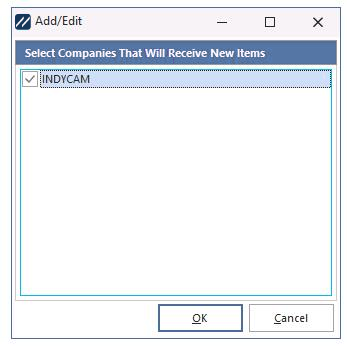
Select target companies
Select the company (or companies) to merge or replace the list into and click OK. The list is now visible in the company you chose.