Using the Event Finder
The Event Finder dialog lets you search existing event history.
To search, use the Event Finder filter to narrow the search.
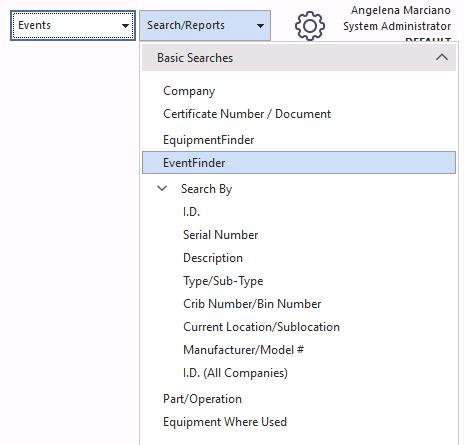
Event Finder filter
Once you've selected the appropriate items, press the Test button (the stopwatch) to preview how many event records were found. When satisfied, press Select Events to list them below.
To go to a particular event, double-click it or highlight it and press the info icon.
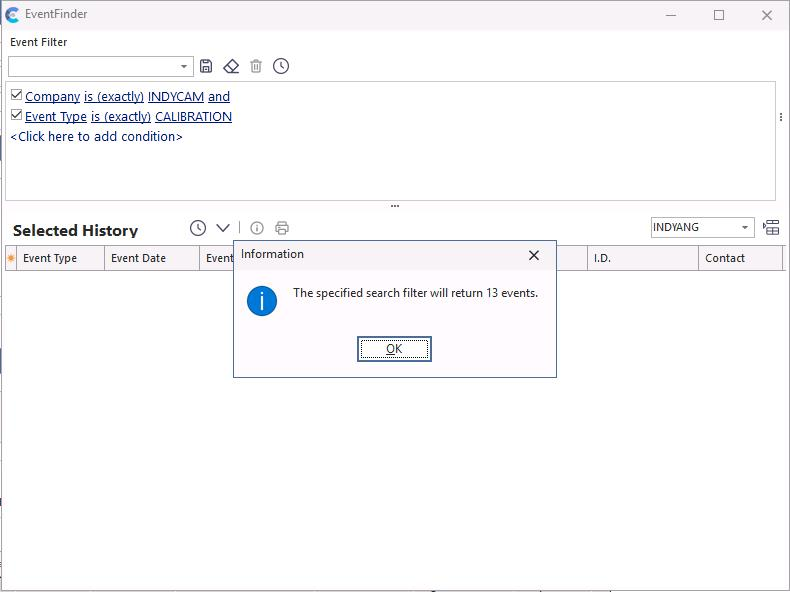
Selected events listed
In this example, 13 calibration events were found and processed.
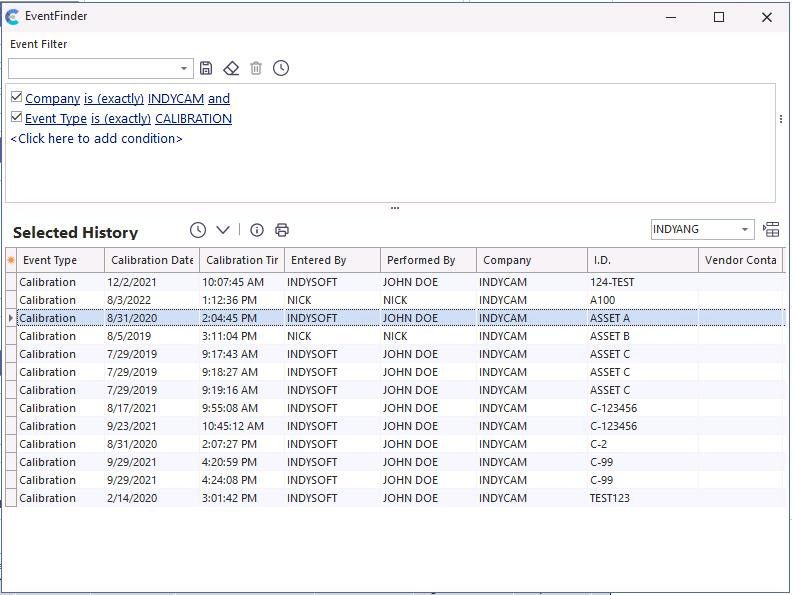
13 calibration events
Sending equipment to Equipment Finder
Equipment can be sent to Equipment Finder by right-clicking in the Selected History and choosing Send equipment to Equipment Finder.
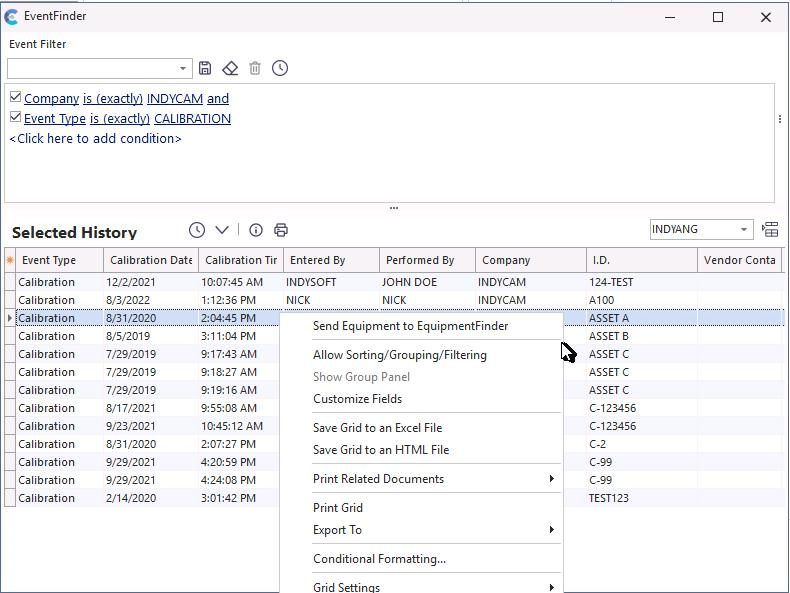
Send equipment to Equipment Finder
A grid view can also be printed.
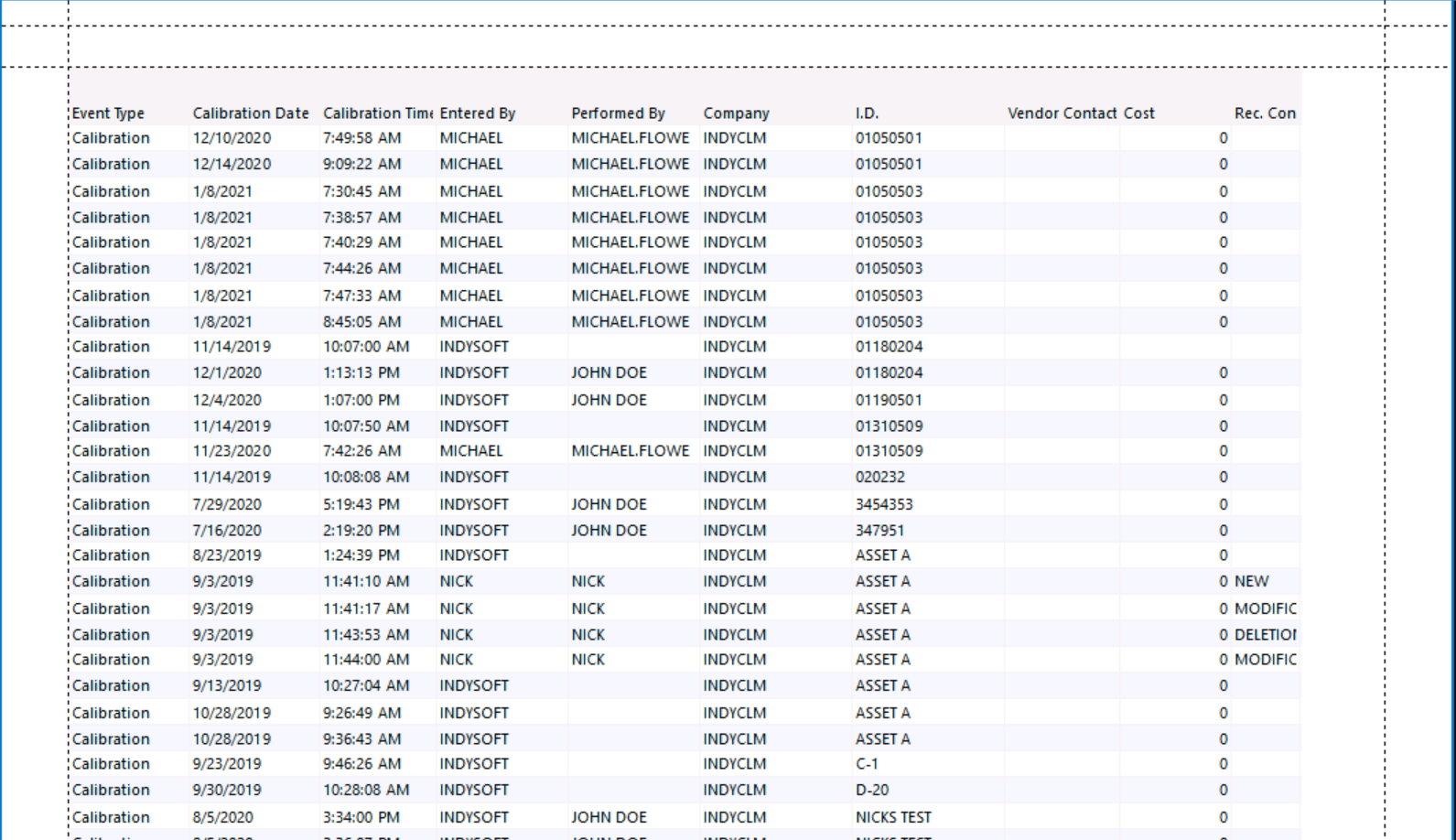
Grid view print
Open sign-offs
To find events awaiting a user's sign-off, choose the username from the list on the right side of the dialog and press the button to its right. All events that need that user's electronic sign-off are displayed.
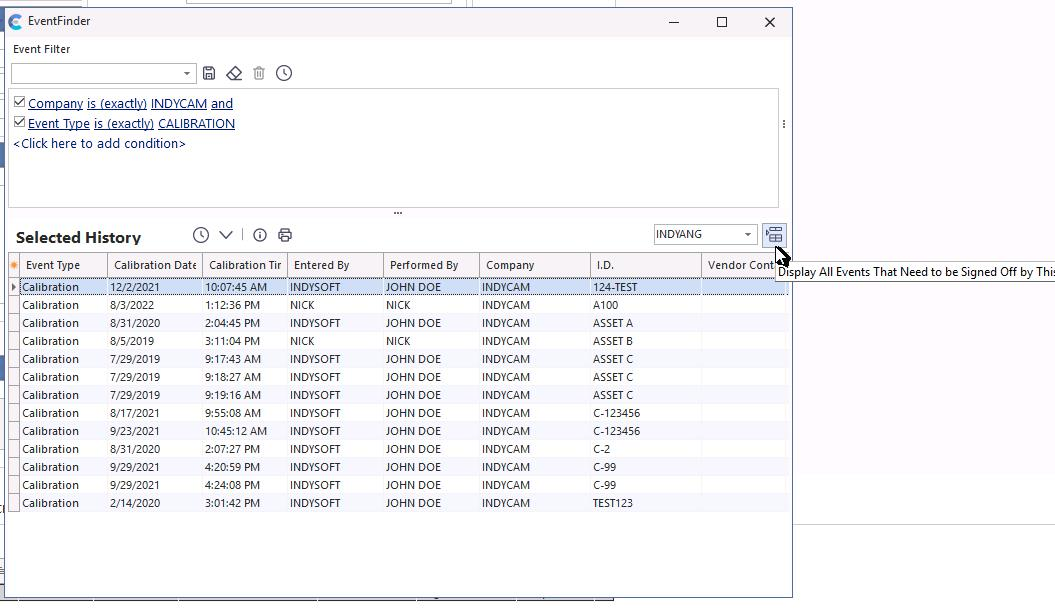
Open sign-offs
If no events need that user's sign-off, the following message appears:
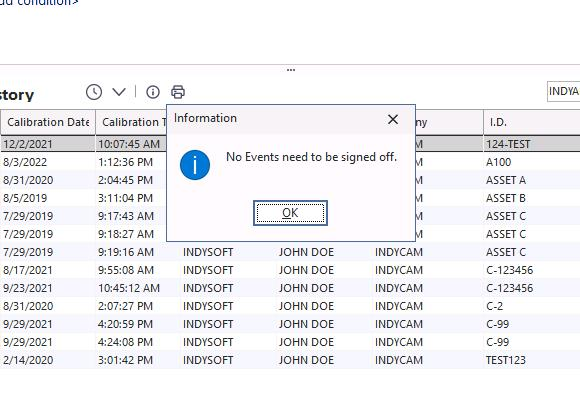
No sign-offs needed