Launching IndySoft
To log in to IndySoft, go to the URL provided for cloud-based login.
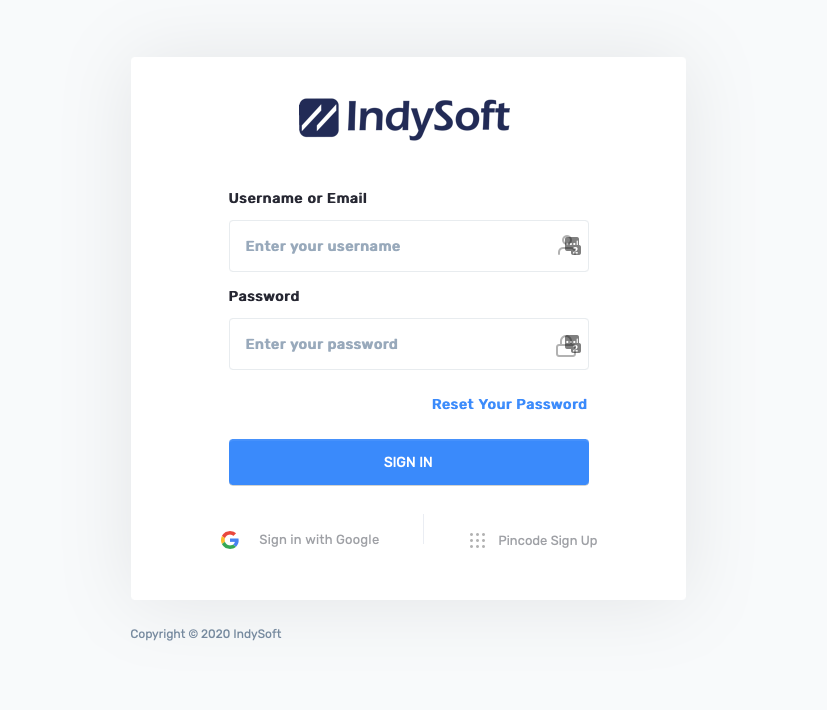
Cloud login screen
If IndySoft is installed on your company's network instead, double-click the IndySoft icon on your desktop or taskbar.

Desktop launch icon
You're prompted to enter your username and password. Your system administrator is responsible for setting up user profiles. If you're logging in for the first time, the administrator gives you a generic password that lets you set your own. Once you've set your password, you'll use it each time you log in until you (or your administrator) change it.
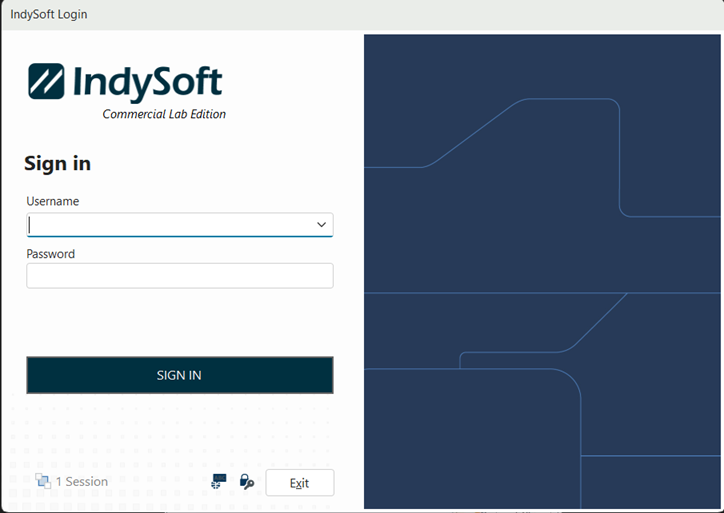
Login dialog
Changing your password
You can change your password at any time by clicking the key icon on the login screen and pressing Next:

Change password — key icon
This opens the change-password dialog:
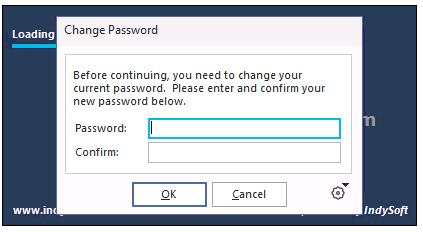
Change password dialog
After your password is changed and confirmed, IndySoft launches.