Adding Documents / Procedures
Adding documents to IndySoft is straightforward and takes only a few minutes. You can add as many documents as you like in any Windows-viewable format.
- Documents are used to store files like user guides, drawings, and so on.
- Procedures are actual procedure documents that detail the steps for completing processes.
Click Add/Edit on the main-screen menu to begin.
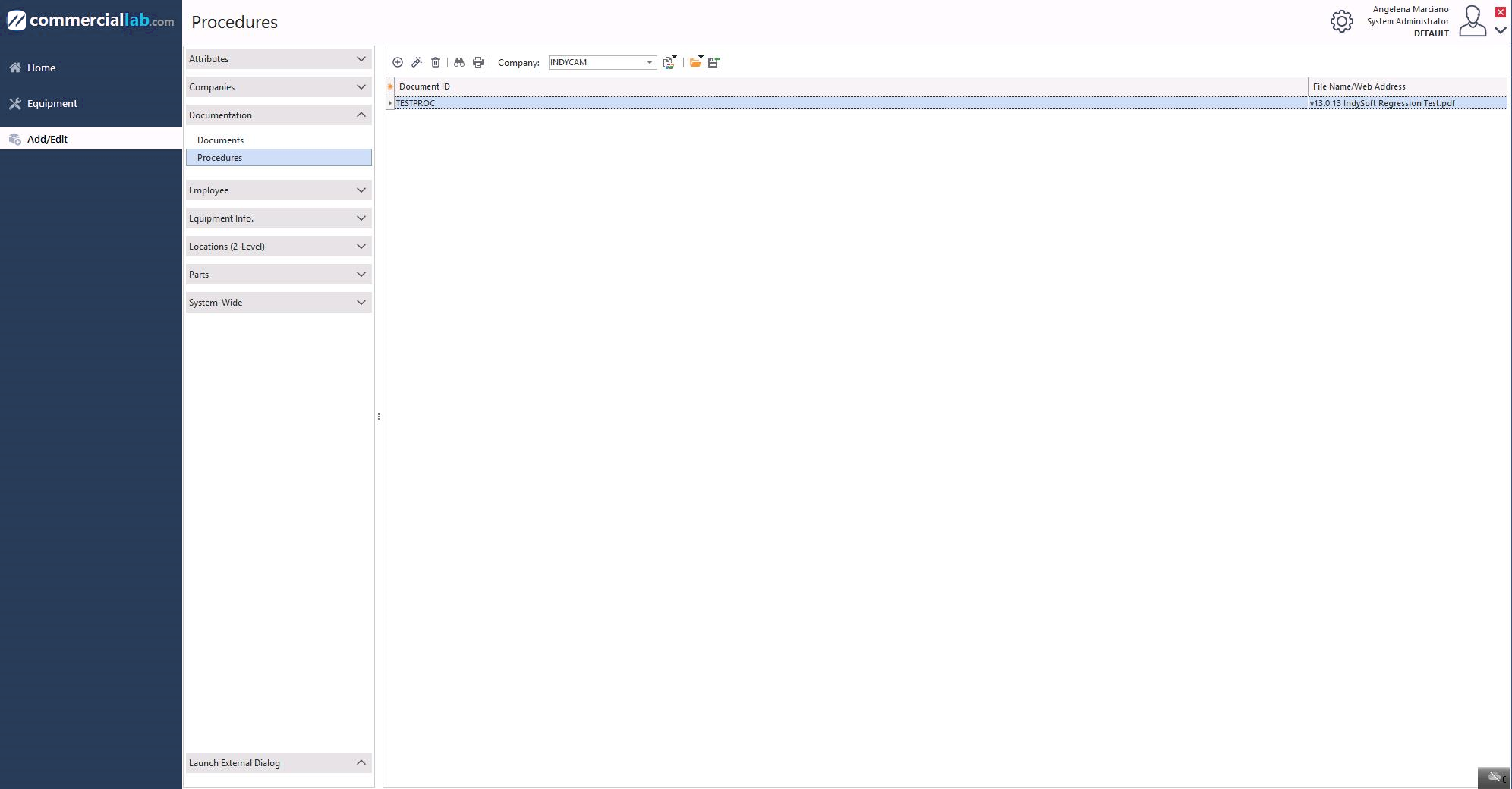
Add/Edit → Documents menu
Click the Add New icon  .
.
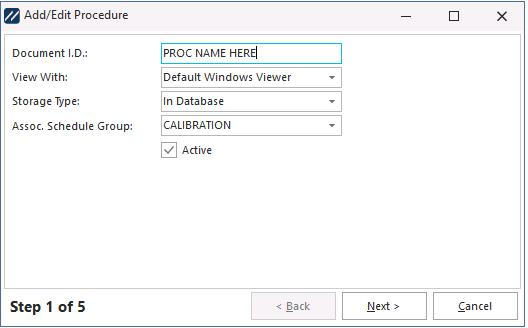
Document wizard — Step 1
A four-step wizard launches. Begin by giving the document an ID.
Step 2 — Select the format
Select the format you want to view the document in. There are three choices:
- Default Windows Viewer — view the document in any Windows format (
.doc,.xls,.ppt, and so on). - Web Browser — view the document in the user's web browser.
- No Viewer — Reference Only — store the document only as a reference (such as a name or number); the document itself can't be viewed.
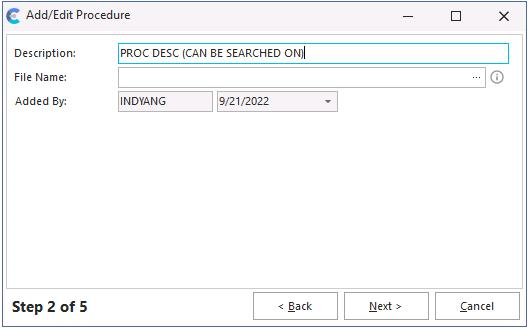
Document format selection
Provide a full description and browse to the file using the File Name ellipsis button.
Then select the document type:
- Standard — the document is viewable as read-only.
- Embedded Calibration Doc — used when you want the document as a test-point document. When embedded (typically an Excel document), it can be used as a test-point results document in the calibration event.
- VisualCal Program — see the user guide for more information.
Step 3 — Specify the current revision
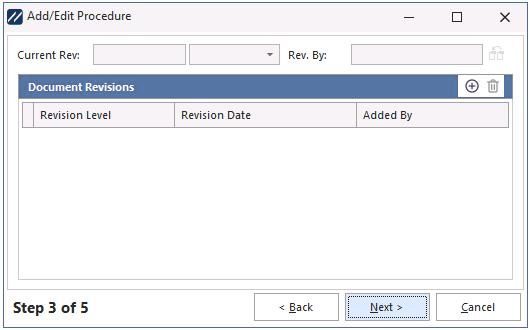
Step 3 — Specify a current revision
Step 4 — Add notes
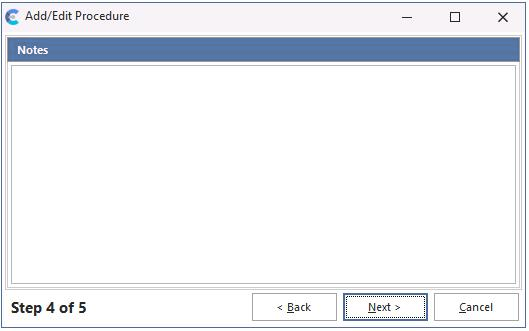
Step 4 — Notes
Step 4 is for notes about a specific procedure or document.
Custom fields
Enter any custom-field information and click Finish.
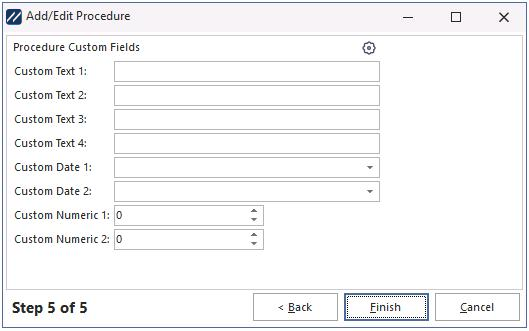
Custom fields
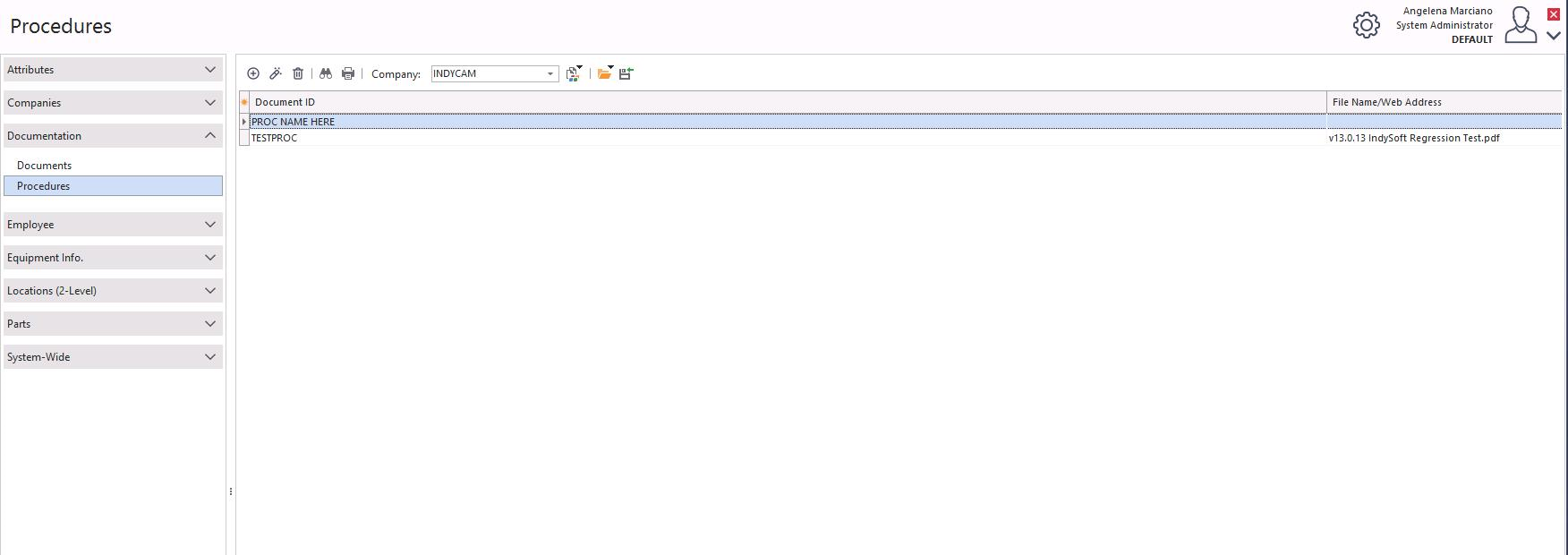
Document added