Adding Companies / Customers
All equipment in IndySoft Calibration Management is keyed off a particular Company. The term Company may also refer to a large department, a library of equipment, or a customer. However it's used, each Company has its own list of equipment, security settings, and selection lists. Various other fields and events can also be customized per Company.
Adding a new company
To add a new customer or company:
-
Click Add / Edit and select Companies.
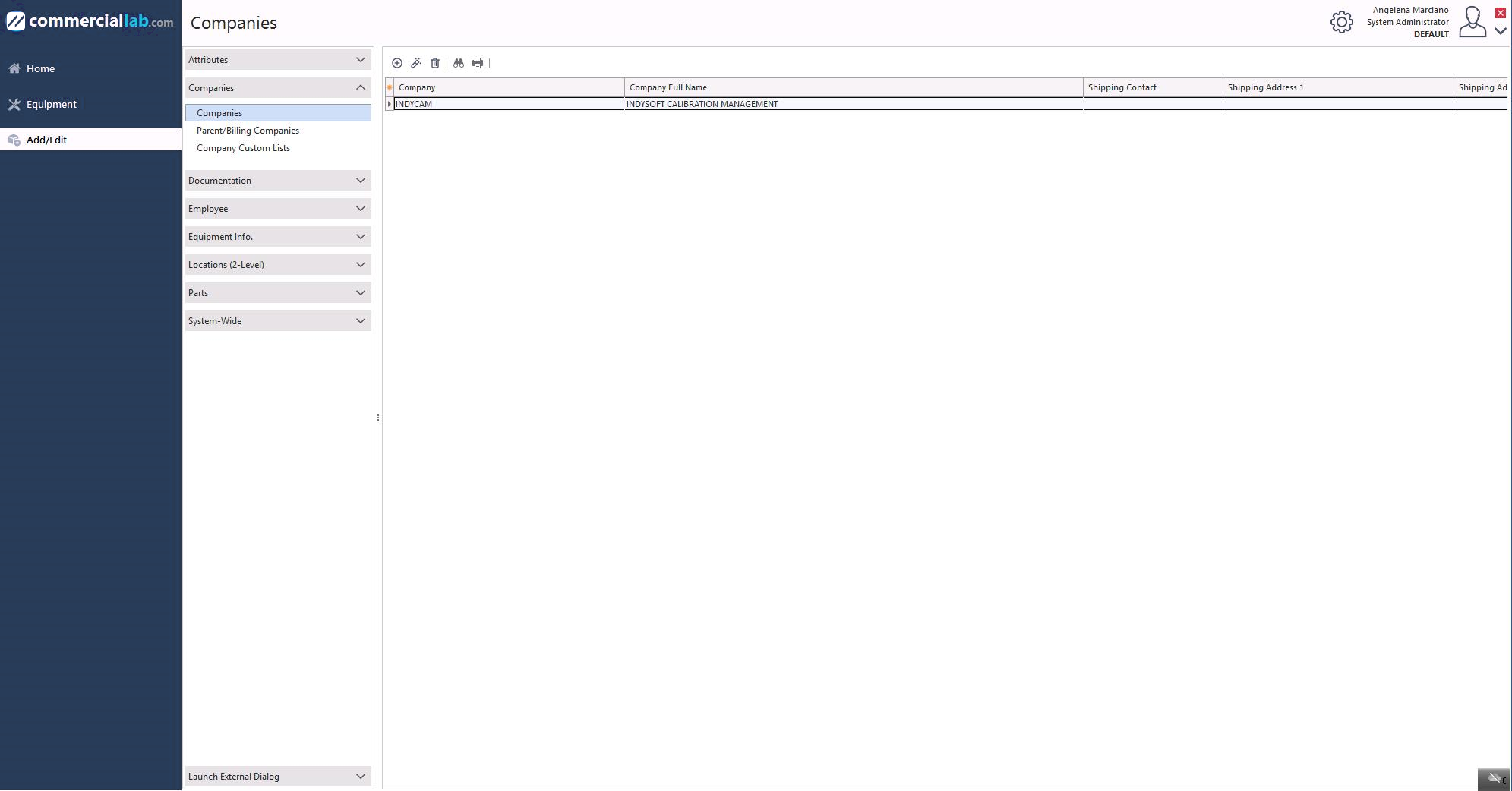
Add/Edit → Companies menu
-
Click Launch External Dialog to open the Add/Edit Company dialog.
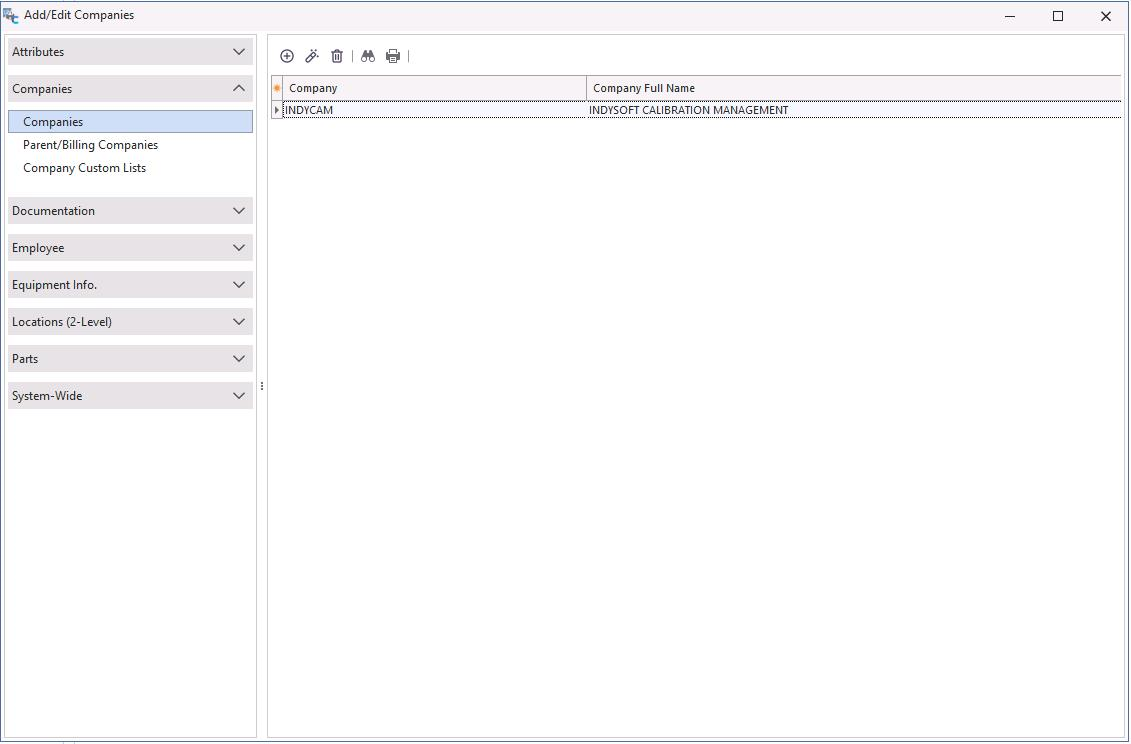
Add/Edit Company dialog
-
Click the Add New icon
 on the toolbar. Enter the information for the new company and click Next.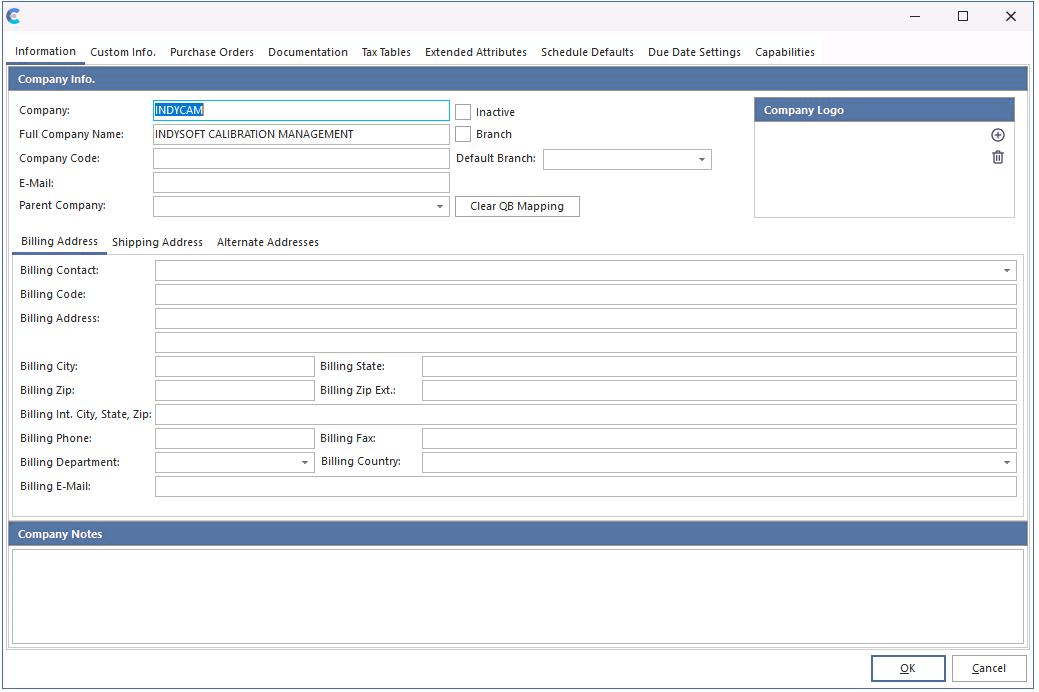
New company entry
You can enter Billing, Shipping, and Alternate Addresses on the Information tab. The other tabs in the dialog are for customer-specific information. New company info is displayed in the Company dialog on the Equipment Layout and in the Add/Edit location.
Toolbar actions
| Icon | Button | Description |
|---|---|---|
 | View | View the company information. |
 | Delete | Delete the company. Only available if no existing gage records exist. |
 | Find | Search for a particular company. |
 | Print the list of companies. |
Adjusting grid columns
Adjust the columns shown in the grid using the button in the top-left corner:
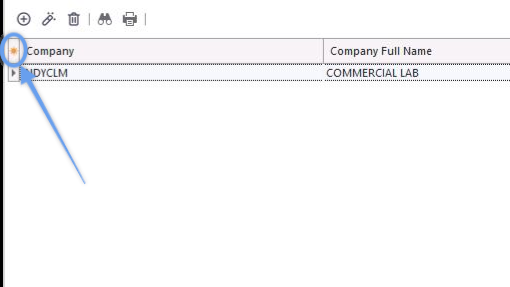
Adjust columns button