Adding New Users
Adding new users to IndySoft is a quick process — only a few minutes. This page walks through the steps.
1. Launch Profile Manager
Launch Profile Manager from the Home Layout. In v13, this is done from the Admin Panel.
You must be a system administrator to access Profile Manager.
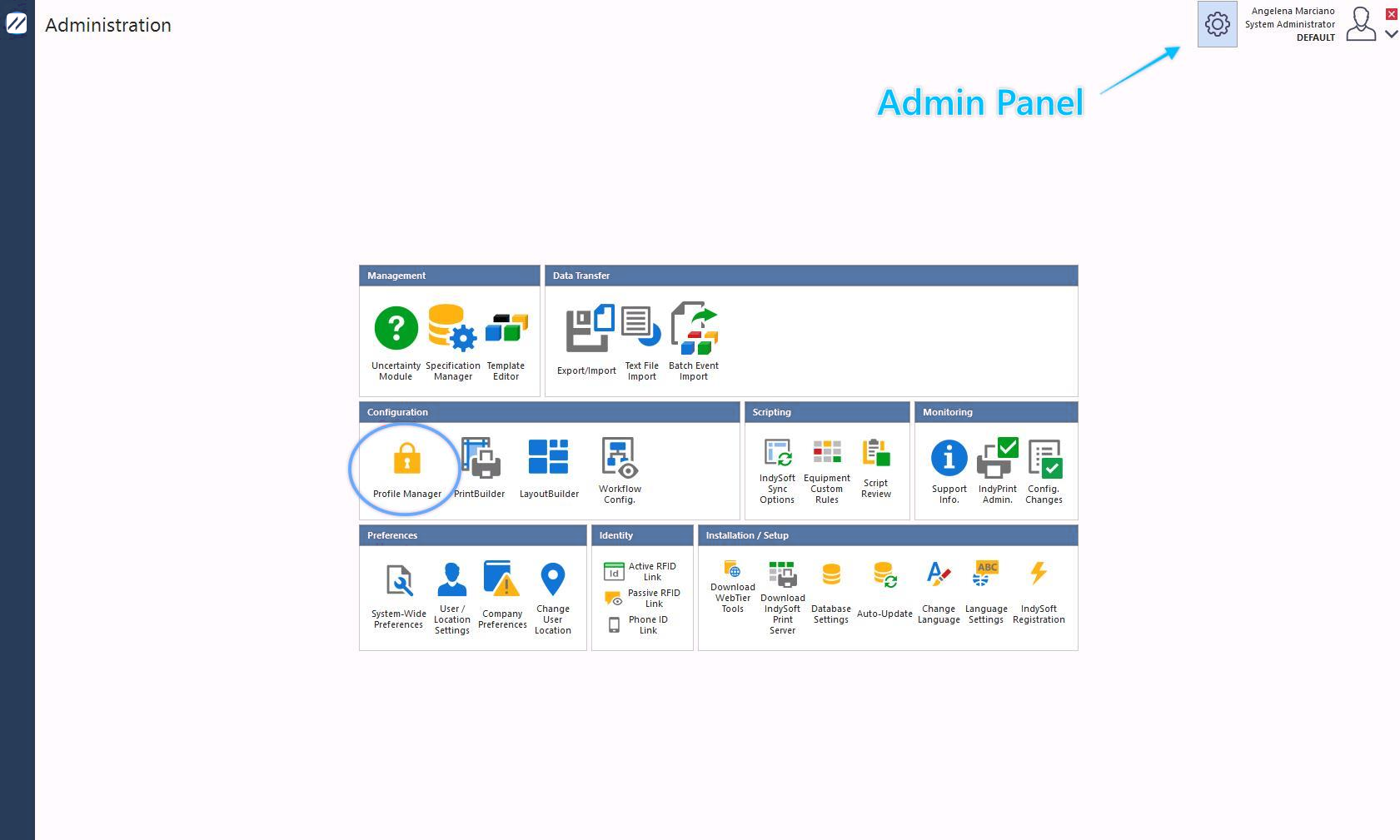
Launching Profile Manager from the Admin Panel
2. Add a new user
In Profile Manager, click the Add New User icon.
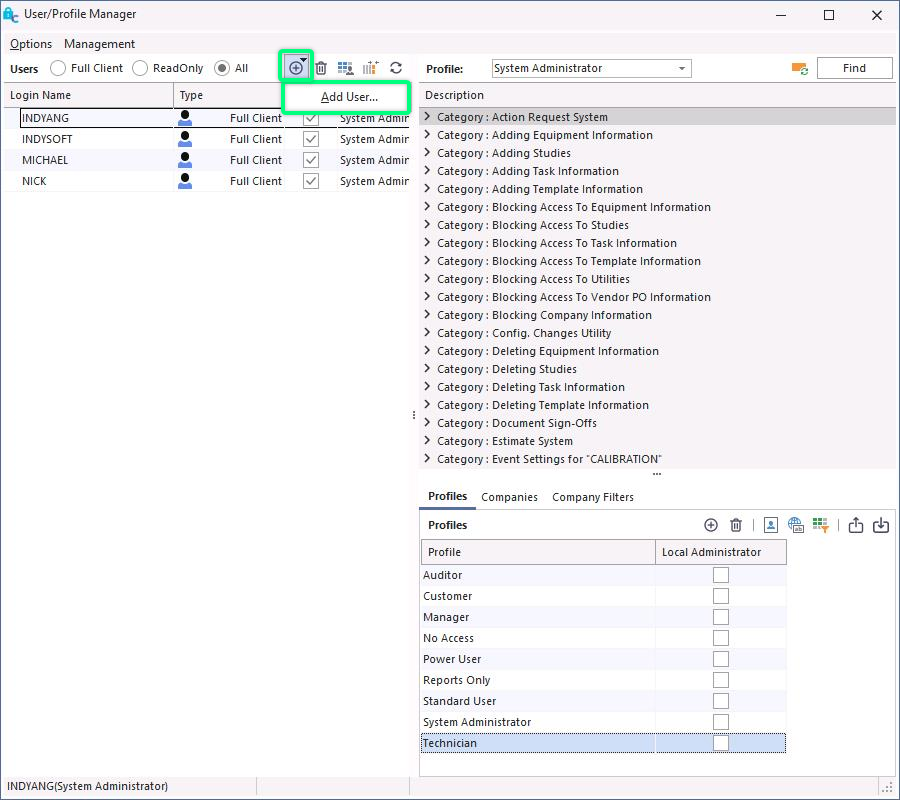
Add New User icon
3. Enter the user information
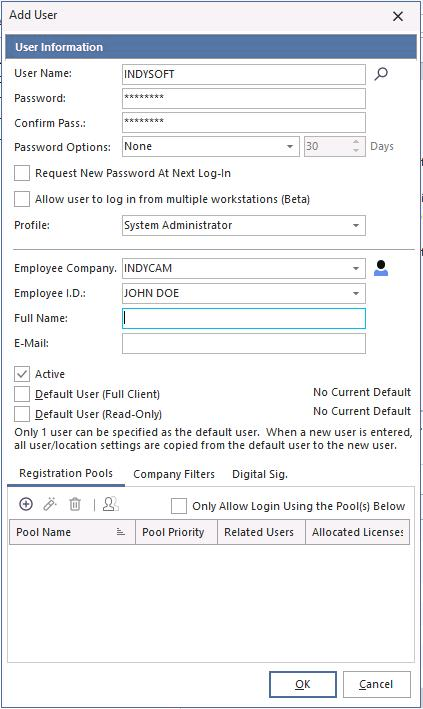
New user form
The user name must be one word with no spaces.
Give each new user a password to log in for the first time. Check Request New Password At Next Log-In. This lets users set their own password in privacy when they first log in.
Passwords are not stored anywhere in IndySoft. If a user forgets their password, the system administrator must re-enter it.
Profiles
IndySoft comes pre-loaded with several profiles to choose from:
- Auditor — used for auditing purposes; limited access. Cannot add new equipment by default.
- Power User — has access to most tasks but limited access to utilities.
- Reports Only — used for reporting purposes only.
- Standard User — has access to most tasks but cannot add to the add/edit lists.
- System Administrator — full access to all utilities; can perform any action.
4. Add the user to the employee list
Click the Employee ID icon  . The Employee Add/Edit list appears:
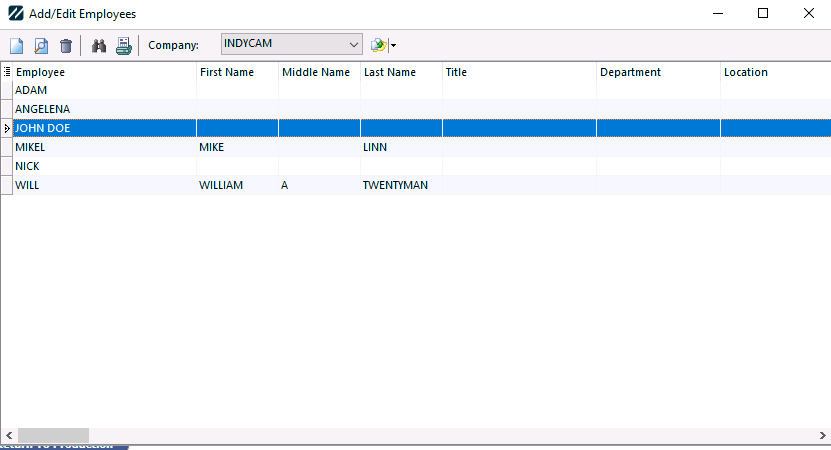
Employee Add/Edit list
Click the Add New icon  on the toolbar. The Employee dialog opens — if you entered the username in the Add/Edit User dialog, the new employee is automatically pre-filled.
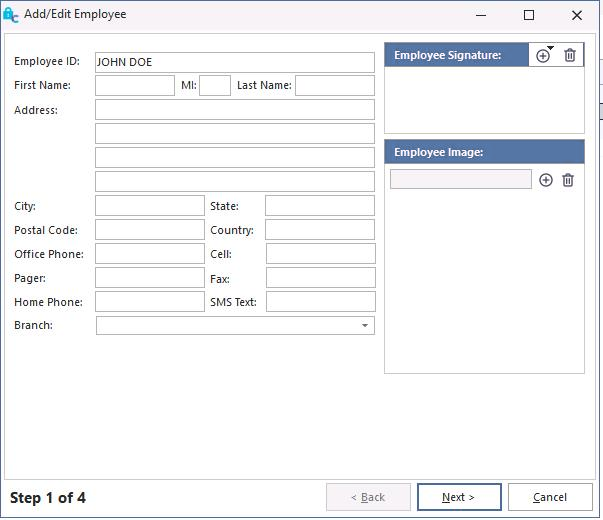
Employee — Step 1
Click Next.
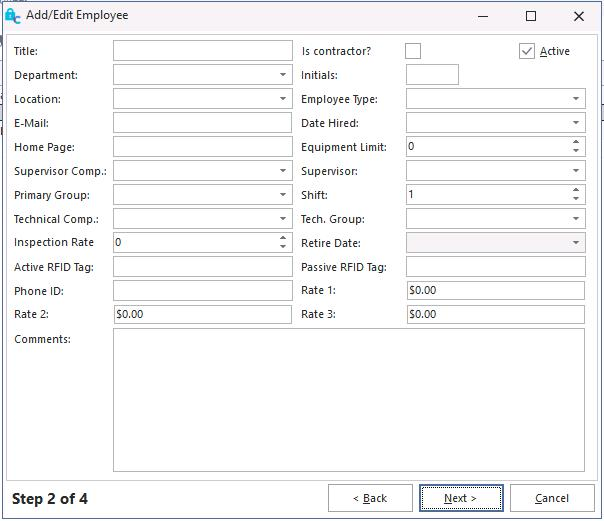
Employee — Step 2
Click Next.
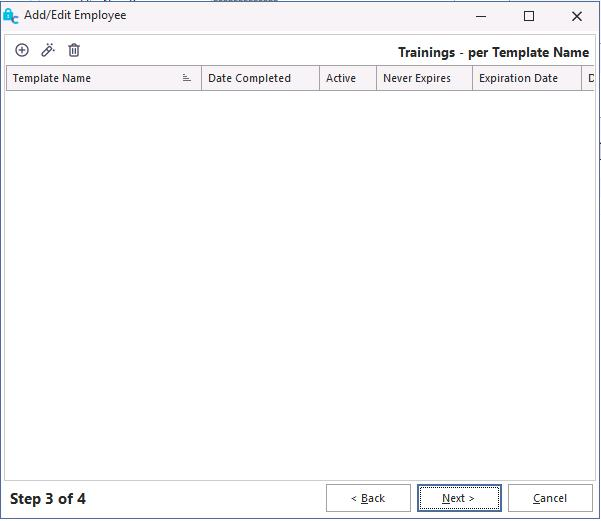
Employee — Step 3 (training templates)
Step 3 is for recording training templates. See the user guide for more on training templates.
Click Next.
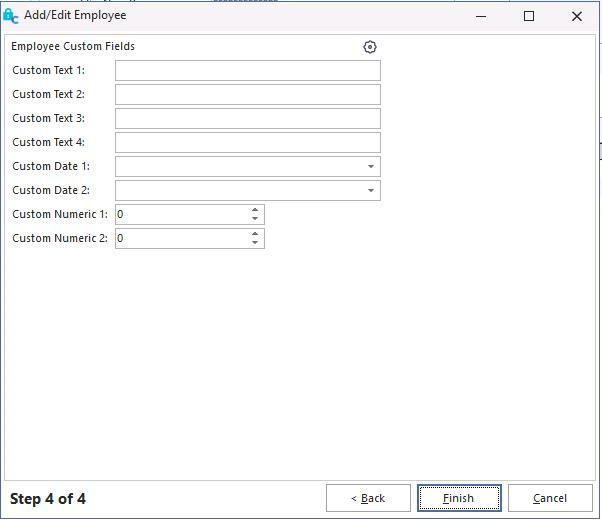
Employee — Step 4
Complete the information and click Finish. The new user is added to the Employee list. Close the Add/Edit dialog.
5. Activate the user
From the Employee ID drop-down, select the new username. This activates the user in the system.
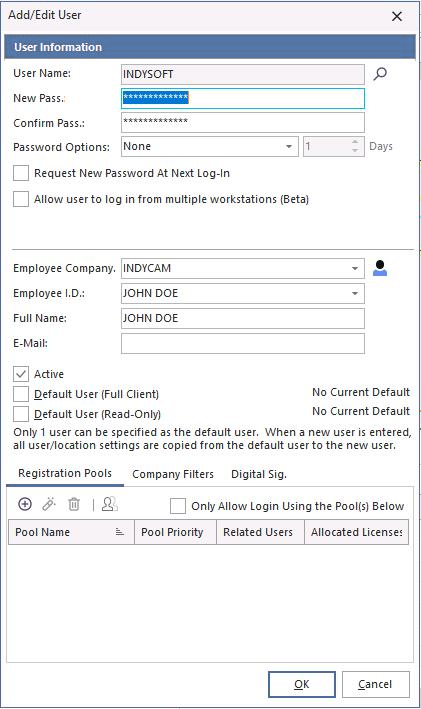
Selecting the new user
6. Type the user's full name and click OK
7. Select a profile
Power User is usually best — it has the highest level of security right below System Administrator. Profiles can be added to a user by dragging from the Profiles list onto the username.
If a user forgets their password, a system administrator can re-enter it. From Profile Manager, right-click the username and select Edit User. Re-enter the new generic password — the user can then log on and change it to one of their choosing.