Vendor Calibration
Vendor Calibration events are launched from Events → Vendor Calibration on the main-screen menu.
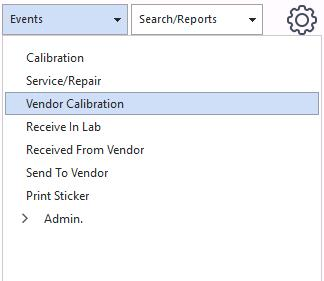
Events → Vendor Calibration menu
The default Vendor Calibration event has two steps:
- Event Information / Choose Equipment
- Documents
This is all the pertinent or required information needed to complete the event.
1. Event Information
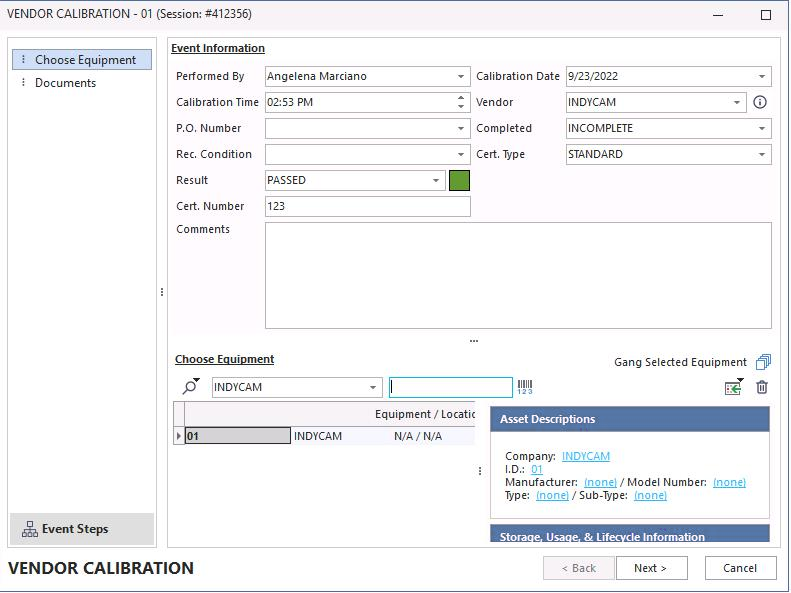
Event Information
Click Next to proceed.
2. Documents
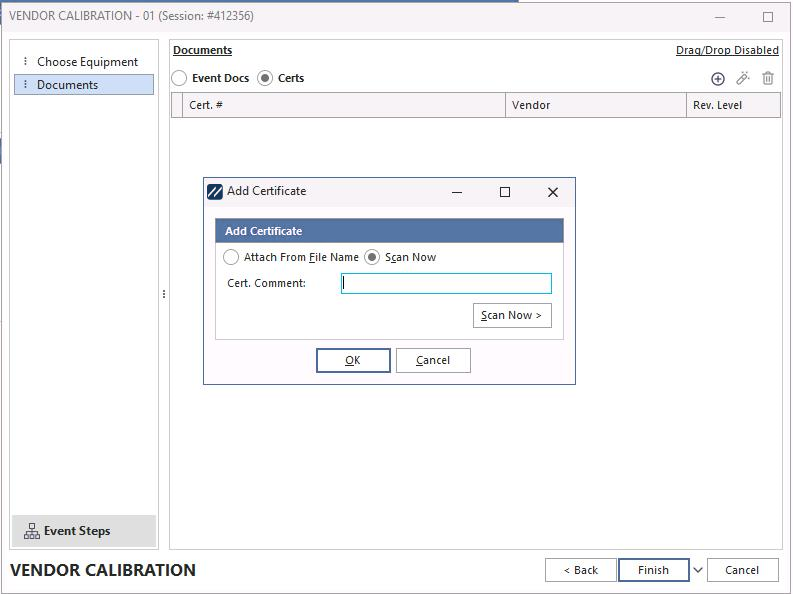
Documents
Documents are carried forward into the event if you've inserted them on the Equipment Layout under the Calibration Info tab. You can also add them on the fly using the Add New icon.
You can scan documents by selecting the Event Docs or Certs radio buttons. The dialog that appears lets you attach a document from a file or scan it directly.