Event Name and IndyGo Settings
Turning a regular event into an IndyGo event
Turning an event into an IndyGo event takes a single check on step 1. Click the Use With IndyGo checkbox and the workflow configuration screen updates to show only the functionality IndyGo will use.
IndyGo events can only be used in an IndyGo context. Some event settings may be lost when you flip this switch — the message displayed when you click the checkbox describes which.
See the walkthrough video.
You can expect to see only five steps on the left-hand side after enabling Use With IndyGo.
Visibility options
Check your desired visibility option to control whether the event shows up in the IndyGo application in mobile (non-kiosk) or kiosk mode. The event-name screen is where you enable the IndyGo event option. If enabled, you can specify whether the event should appear in:
- Kiosk Mode
- Non-Kiosk Mode
- Both
- Neither
Kiosk and non-kiosk modes are set at the IndyGo mobile-app workstation level by a system administrator on the Settings screen. If enabled, the Use in Main Client option also allows the event to be run in the main Windows client.
Event Notes can be used as user-facing directions in your IndyGo interface. The text appears on the Events or event-information screen to help guide the user. If no event fields are exposed, only the Add Equipment screen appears, and the Event Notes show there.
Main-client–only options
- Layout — tells the main IndySoft client how to display the event. Options: Tabs (Multi-Step), Vertical, or Horizontal (the latter two are single-step).
- Show Event Notes — when enabled, always shows the event notes in the IndySoft client. Regardless of this setting, the notes also appear on the event-information screen in the mobile application.
- Auto Add Current Equip. — adds the equipment currently on the screen to the IndyGo event automatically.
- Close Option Default — when checked, defaults to closing out of the IndyGo event rather than offering another quick IndyGo transaction.
IndyGo settings
-
First/Top — dictates whether the equipment selection or the event-information screen is in the first position, regardless of layout.
-
Equip. Card Setup — lets the administrator (at the system-wide level) choose which key fields are exposed in the primary equipment card. The card is used in:
- Client-side equipment information when viewing equipment added to the event.
- The mobile application's Equipment Details and Locate Equipment screens.
noteSmaller equipment boxes in the Search and Add Equipment screens don't have customization options. They show the asset's I.D., company (if configured locally in the app), description, and the due date specified by the schedule type in System-Wide settings.
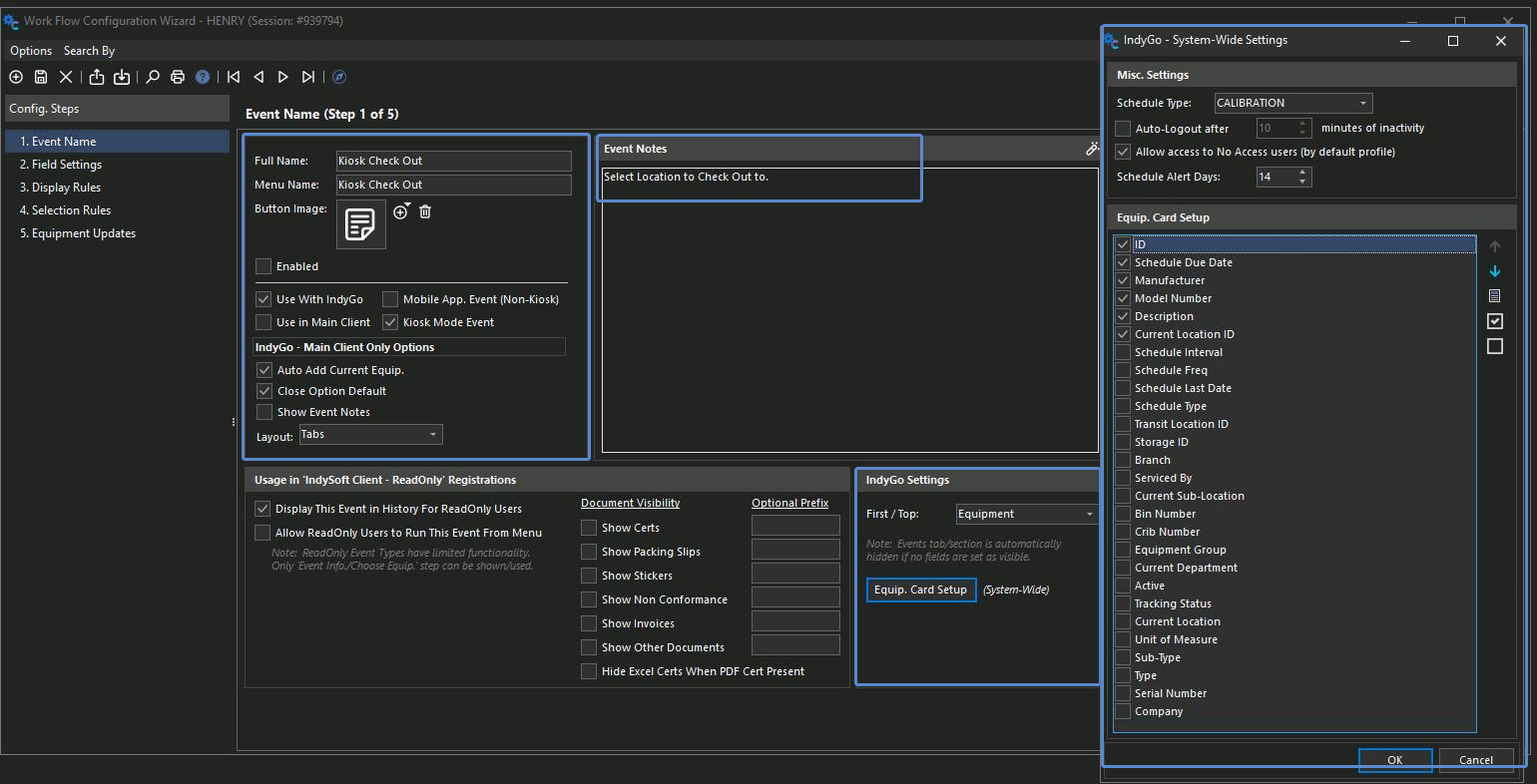
Equip. Card Setup
The fields appear on the equipment card in the order shown in this interface. The Schedule Type for exposing schedule fields is set from the drop-down at the top of the screen. We recommend using 4–6 key fields.
-
Allow Access to No Access Users — check this if users with a base level of No Access need to log in to the mobile application.
-
Schedule Alert Days — by default, due-today and past-due dates show in red. This integer value lets you also display dates in orange when they are due within that number of days in the future.
-
Auto-Logout — set the auto-logout time in minutes. The auto-logout only applies to the mobile application when it is not in Kiosk Mode (Kiosk Mode has a hard-coded 1-minute timeout).