Environmental Data
When you go to the Calibration Test Points screen on an incomplete event, several actions take place, followed by displaying the Environmental Data interface.
Pre-flight checks
1. Pipette setup check
The pipette is checked to ensure the IS_PIP node with text value PIPETTE exists. If not, a warning is displayed:
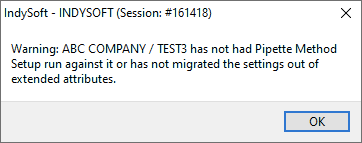
Pipette setup check — missing IS_PIP node
If some specs are missing (for example, after an upgrade adds new nodes), this warning appears:
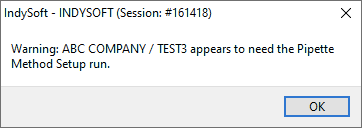
Pipette setup check — missing specs
2. Balance connection check
An attempt is made to connect to each master that has an IS_PIP / BALANCE node in specs. Connection errors are displayed. If no balances connect, you're notified:

Balance connection error
3. Test points check
A check is made for test points. If none, a warning is displayed:
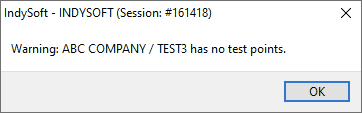
Missing test points warning
Environmental Data screen
Once the pipette is verified and balances are connected, the Environmental Data screen appears. Here you confirm the environmental conditions, review the YZ factor, and choose basic test options.
For a single-channel pipette and balance:
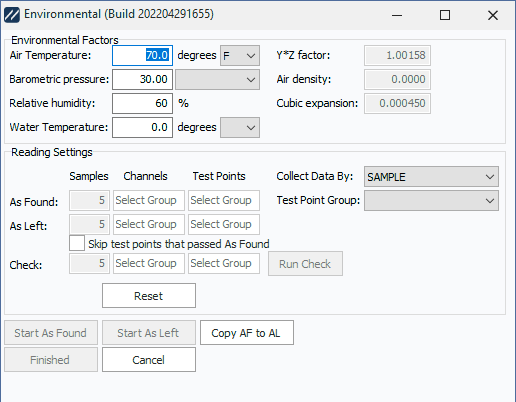
Environmental Data — single channel
For a multi-channel balance, you also indicate the arrangement of channels:
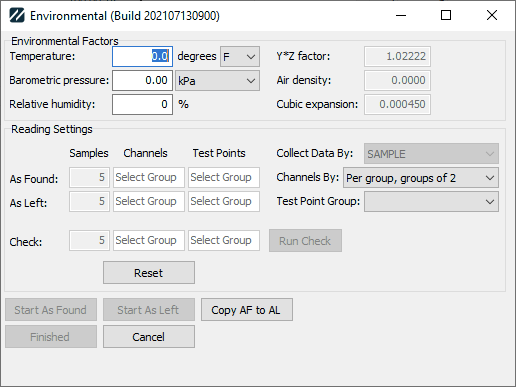
Environmental Data — multi-channel
Environmental conditions
Temperature, Barometric Pressure, and Relative Humidity all read from the Event Information screen. The following IS_PIP specs are also loaded:
| Spec | Default |
|---|---|
USE BAROMETRIC PRESSURE | false |
USE DENSITY | false |
USE REL HUMIDITY | false |
USE TEMPERATURE | false |
DENSITY | 1 |
CUBIC EXPANSION COEFF | 0 |
These are used to calculate Air Density and Z-factor for data collection:
temp  = Temperature in Celsius (or 21.111 °C if USE TEMPERATURE is false)
press = Barometric pressure in mm Hg (or 760 mm Hg if USE BAROMETRIC PRESSURE is false)
RH    = Relative humidity (or 70 if USE REL HUMIDITY is false)

Pw  = 0.001 * (999.83952 + (16.945176 * temp)
              - (7.9870401e-3 * temp^2)
              - (46.170461e-6 * temp^3)
              + (105.56302e-9 * temp^4)
              - (280.54253e-12 * temp^5))
              / (1 + (16.879850e-3 * temp))

If USE DENSITY is true and IS_PIP DENSITY has a value:
    Pw = IS_PIP DENSITY
Otherwise: Pw uses the formula above.

es = 1.3146e9 * e^(-5315.56 / (temp + 273.15))
Pa = ((0.4646 * (press - (0.003796 * RH * es))) / (273.15 + temp)) * 1e-3
Y Factor = 1 - (CUBIC EXPANSION COEFF * (temp - 20))
Z Factor = (1 / (Pw - Pa)) * (1 - Pa / 8) * Y Factor
Changes to Temperature, Barometric Pressure, and Relative Humidity update the calculations on the fly and also update the Event Information screen.
Sample and channel options
Below the environmental fields:
-
# Samples and Channels/Test Points for As Found and As Left can be changed from the default. Examples:
1-10,1,3,5-10,1-3,4,5,6-10. This lets you skip channels or test points if desired. -
Collect Data By:
SAMPLE— all channels for sample 1, then all channels for sample 2, and so on.CHANNEL— all samples for channel 1, then all samples for channel 2, and so on.
Defaults to the value selected in Pipette Method Setup.
Multi-channel balance — channel arrangement
For a multi-channel balance, Channels By: options depend on the spacing of the pipette.
STANDARD spacing:
- Per Group, groups of
X - Per Volume, groups of
X
Where X is either the number of channels on the balance or an equally divided number of channels on the pipette, based on the number of channels per row.
1/2 STANDARD spacing:
- Per Group, odds/evens of
X - Per Volume, odds/evens of
X
Where X is either the number of odd channels per row, or an equally divided number of channels where there are more odd channels per row on the pipette than on the balance.
In both cases:
- Per Group — collect all volumes for a set of channels first (reduces tip switching).
- Per Volume — collect all samples for a given volume first (more tip switching, but fully confirms a given volume across all tips).
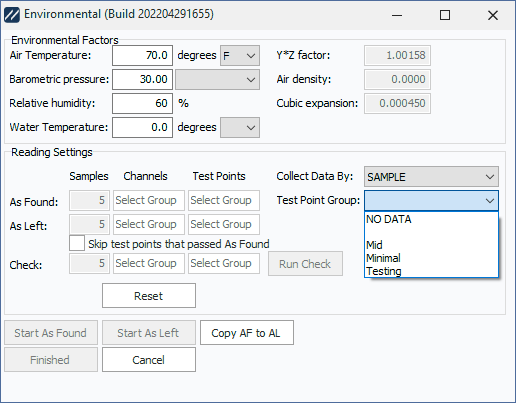
Channel arrangement options
Test point group
Test Point Group lets you select which group of test points to use. Behavior:
- If the group is blank for all test points, data collection is required and the drop-down is disabled.
- If you re-enter the dialog after entering some test points, the drop-down is locked to your previous choice.
Selecting NO DATA means you won't enter any readings — instead, you'll select Pass/Fail/Adjusted outside the Pipette Module. Any other option updates Test Points to show how many are available, defaulting to all the test points for that group.
The Skip test points that passed As Found option ignores any test points/channels where you collected data and the test point passed. For example, if your As Found data was only test points 1 and 6, but you select 1,3,6 for As Left, then test point 3 will always be collected — but 1 and 6 only display if they had passed.
The Copy AF to AL button copies all As Found readings to As Left, possibly overwriting any collected As Left data.
Saving environmental data
When you click Start As Found or Start As Left, the environmental data is saved to test points (in the As Found or As Left fields):
| Environmental Data | Saved to |
|---|---|
| Barometric Pressure | As Found Pressure |
| Barometric Pressure Units | As Found Pressure Type |
| Relative Humidity | As Found RH |
| Temperature | As Found Temp. |
| Temperature Units | As Found Temp. Type |
| Y * Z Factor | As Found Num 1 |
| Density | As Found Num 2 |
| Expansion | As Found Num 3 |
| Y Factor | As Found Num 4 |
| Water Temperature + Unit | As Found Custom Text 1 |
Other actions
- Run Check — collects sample data without saving it, for verifying performance of the pipette.
- Set up Scale — sets up the RS-232 connection to the scale.
- Read Env. (Sartorius SpeedCal Mobile only) — gets the current environmental conditions from a connected SpeedCal Mobile with an environmental tower.