Test Point Grid Setup
The first two steps in setting up a pipette's test points are:
- Set the Setup Grid and Results Grid to
PIPETTE. - Choose one of the Pipette options as the Tolerance Type.
Because pipettes are defined by a nominal value with an accuracy and/or precision, the test-points grid looks a little non-standard.
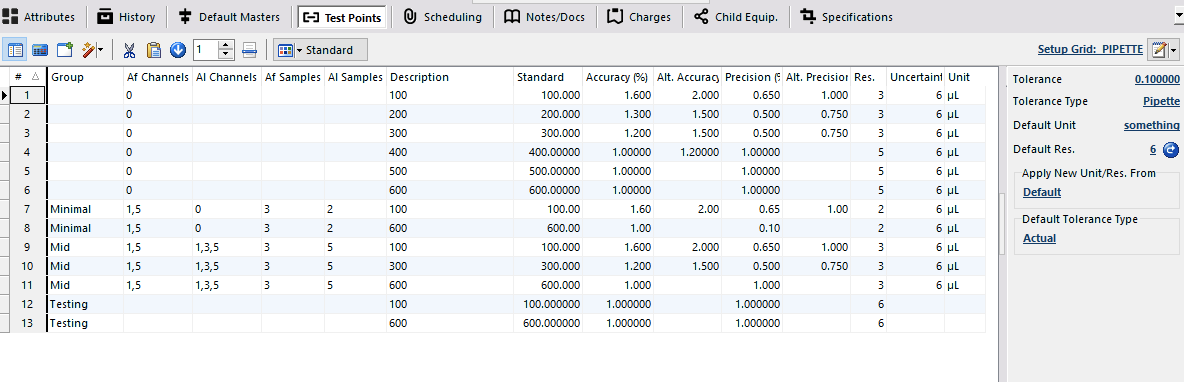
Pipette test-points grid
Tolerance types
| Type | Interpretation |
|---|---|
| Pipette | Legacy from 12.1 and earlier. Treated as Pipette % Value. |
| Pipette % Range | Accuracy and Precision are interpreted as a percentage of the maximum nominal value for that group. |
| Pipette % Value | Accuracy and Precision are interpreted as a percentage of the current test point. |
| Pipette microL | Accuracy and Precision are interpreted as the limit in microliters. |
Test-point grid columns
| Column | Description |
|---|---|
Group (Custom 1) | Lets you have several predefined sets of test points to choose from at calibration time. |
Af Channels (Custom 2) | A subset of the channels to test for As Found, by default. Should be the same for all items in a given group. Blank defaults to all channels. 0 indicates As Found data is not collected for this test point in this group. |
Al Channels (Custom 3) | Same as Af Channels but for As Left. |
Af Samples (Custom 4) | A subset of the samples to test for As Found, by default. Should be the same for all items in a given group. Blank defaults to the value selected in Pipette Method Setup. |
Al Samples (Custom 5) | Same as Af Samples but for As Left. |
| Description | A good description of the line. |
| Standard | Always the target in microliters. |
Accuracy (Extra Num 1) | Desired percent accuracy (between 0 and 100%). |
Alt. Accuracy (Extra Num 3) | Optional. Reminds the technician of an alternate accuracy. For example, if you calibrate to manufacturer spec with ISO 8655 as a backup, list the ISO 8655 spec here. |
Precision (Extra Num 2) | Desired percent precision (between 0 and 100%). |
Alt. Precision (Extra Num 4) | Optional. Same idea as Alt. Accuracy for precision. |
| Res. | Desired resolution. |
| Uncertainty Res. | Desired uncertainty resolution. |
| Unit | All pipette calculations use microliters internally. Putting a different unit here generally causes confusion. |
Per-group channel selection
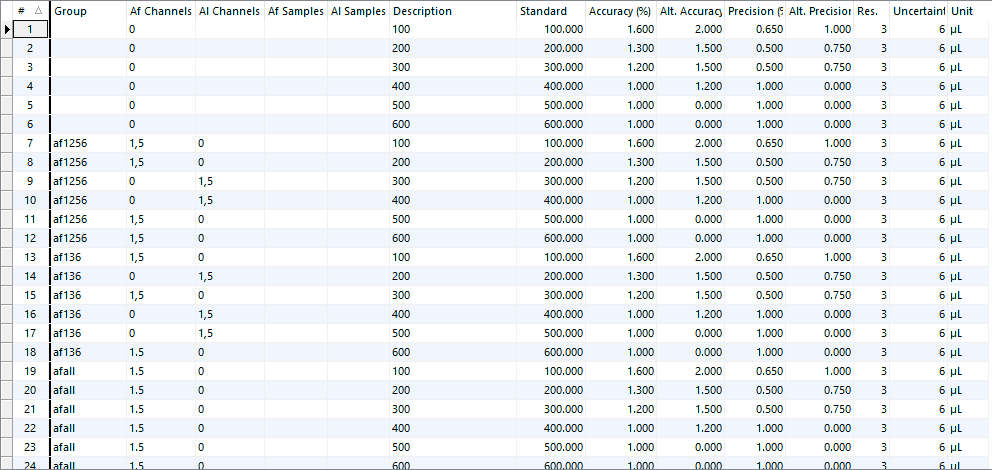
Per-group channel selection example
Take care if you want only certain As Found / As Left test points in a group. In the screenshot above:
- Group
af1256uses test points 1–2 and 5–6 for As Found, and 3–4 for As Left. - Group
af136uses 1, 3, 6 for As Found, and 2, 4–5 for As Left.
Use a Pipette Tolerance Type to ensure dual-tolerancing works properly.
Resulting test points
When the pipette data is complete, the results grid will look like this:
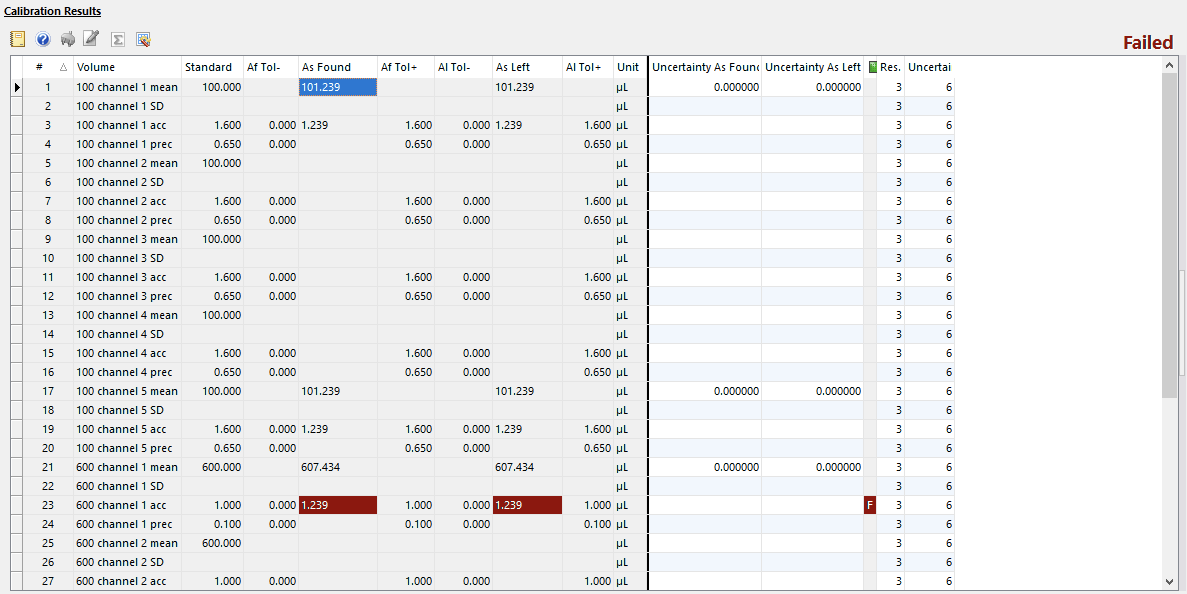
Resulting test points grid
Each default test point generates 4 test points per channel. So a 4-channel pipette with 5 setup test points produces 4 × 5 × 4 = 80 test points in the resulting calibration.
As Found / As Left readings are stored as either 1 (in tolerance) or 0 (out of tolerance) for the purposes of determining the overall calibration result.
Saved environmental data
As Found and As Left environmental data is saved in the following fields. (Replace AF with AL for As Left.)
| Field | Stores |
|---|---|
ENV_AF_BP | Barometric Pressure |
ENV_AF_BP_TYPE | Barometric Pressure Units |
ENV_AF_RH | Relative Humidity |
ENV_AF_TEMP | Temperature |
ENV_AF_TEMP_TYPE | Temperature Units |
AF_EXTRANUM1 | Z * Y Factor |
AF_EXTRANUM2 | Air density |
AF_EXTRANUM3 | Cubic Expansion |
AF_EXTRANUM4 | Y-Factor |