Adding Documents / Procedures
Adding documents to IndySoft Commercial Lab Management is straightforward and takes only a few minutes. You can add as many documents as you like in any Windows-viewable format.
- Documents are used to store files like user guides, drawings, and so on.
- Procedures are actual procedure documents that detail the steps for completing processes.
Click Add / Edit on the main-screen menu to begin.
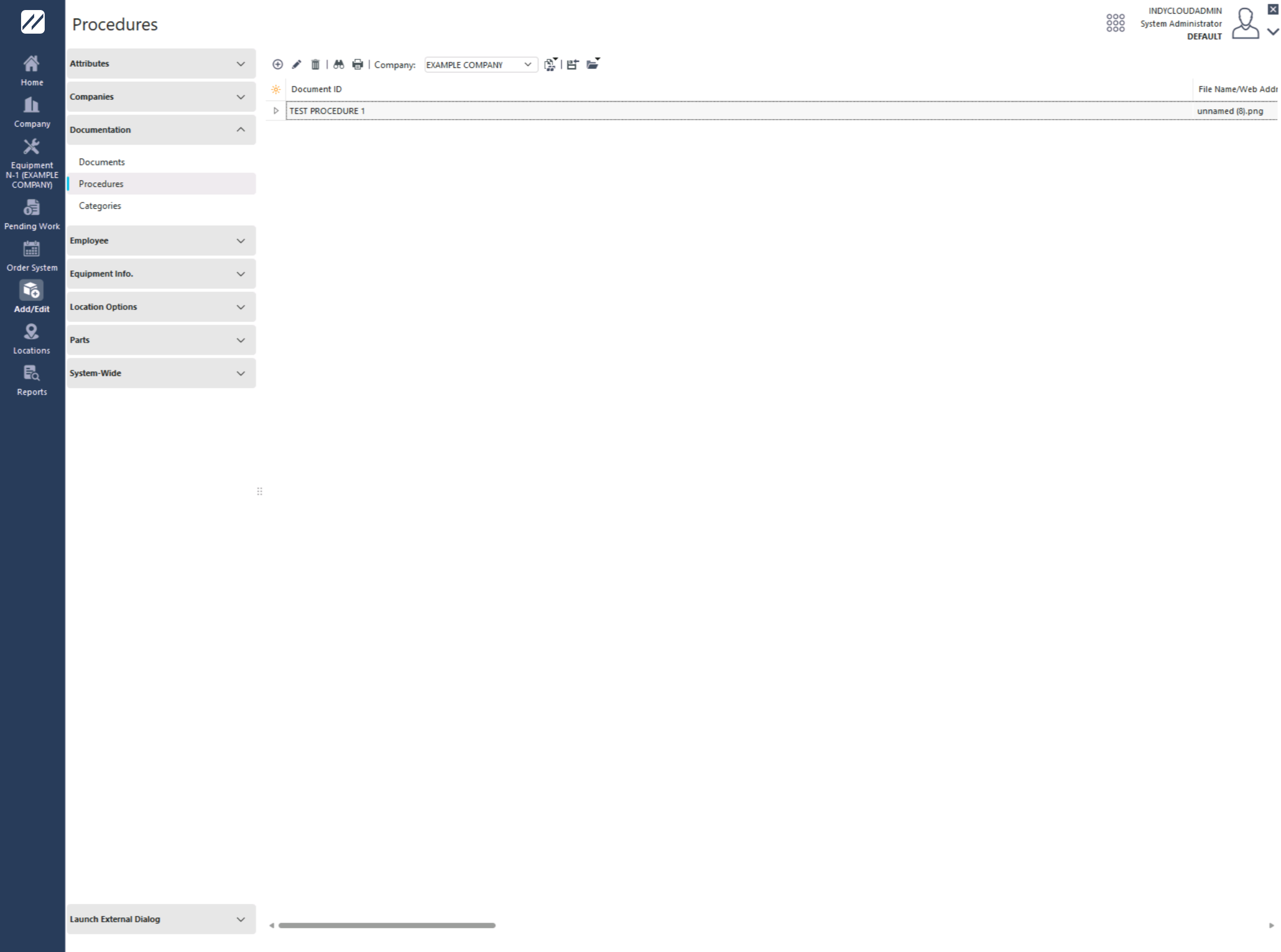
Add/Edit menu
Click the Add New icon  .
.
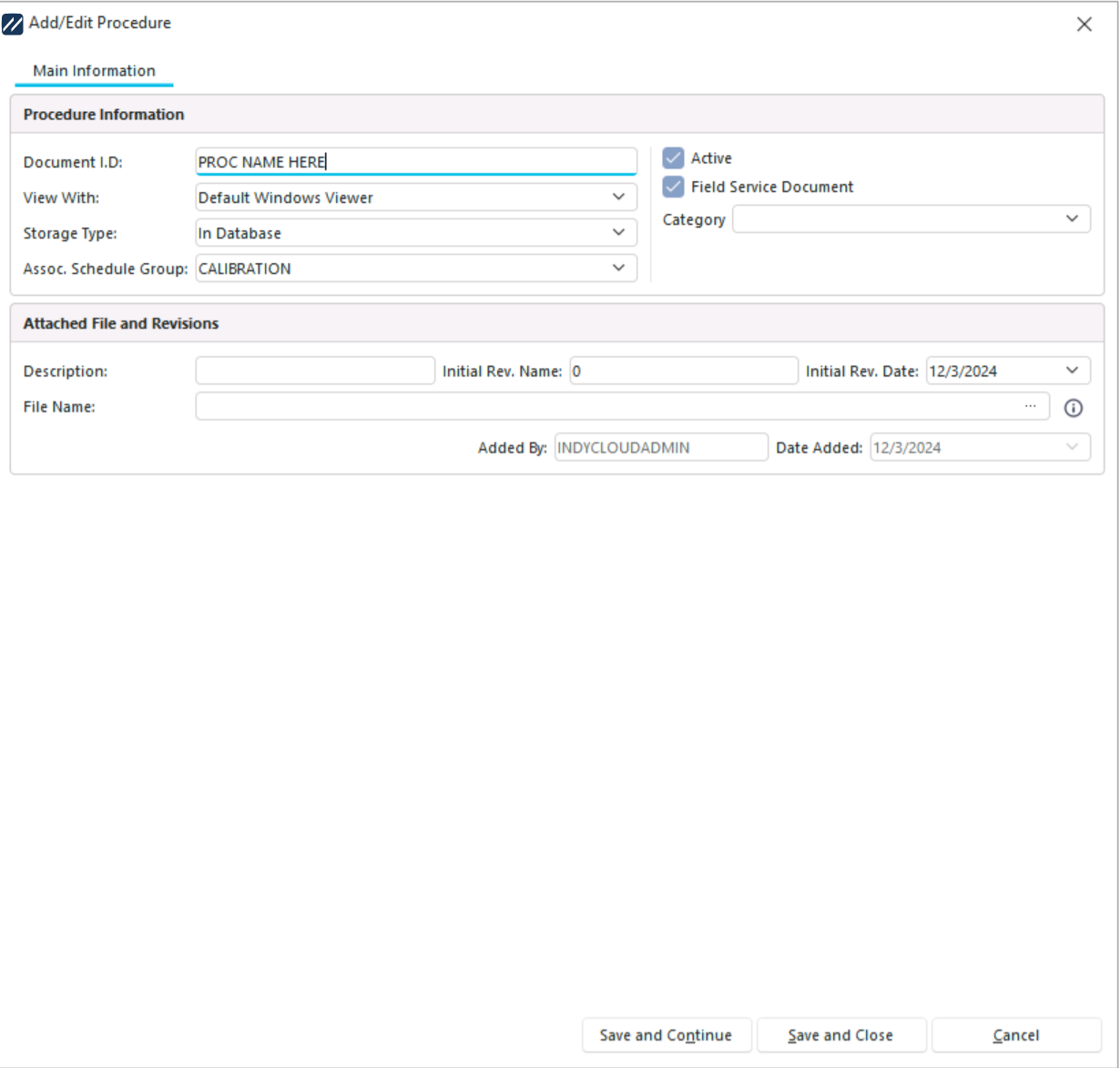
Document wizard — initial dialog
Begin by giving the document an ID.
Selecting the format
Select the format you want to view the document in. There are three choices:
- Default Windows Viewer — view the document in any Windows format (
.doc,.xls,.ppt, and so on). - Web Browser — view the document in the user's web browser.
- No Viewer — Reference Only — store the document only as a reference (such as a name or number); the document itself can't be viewed.
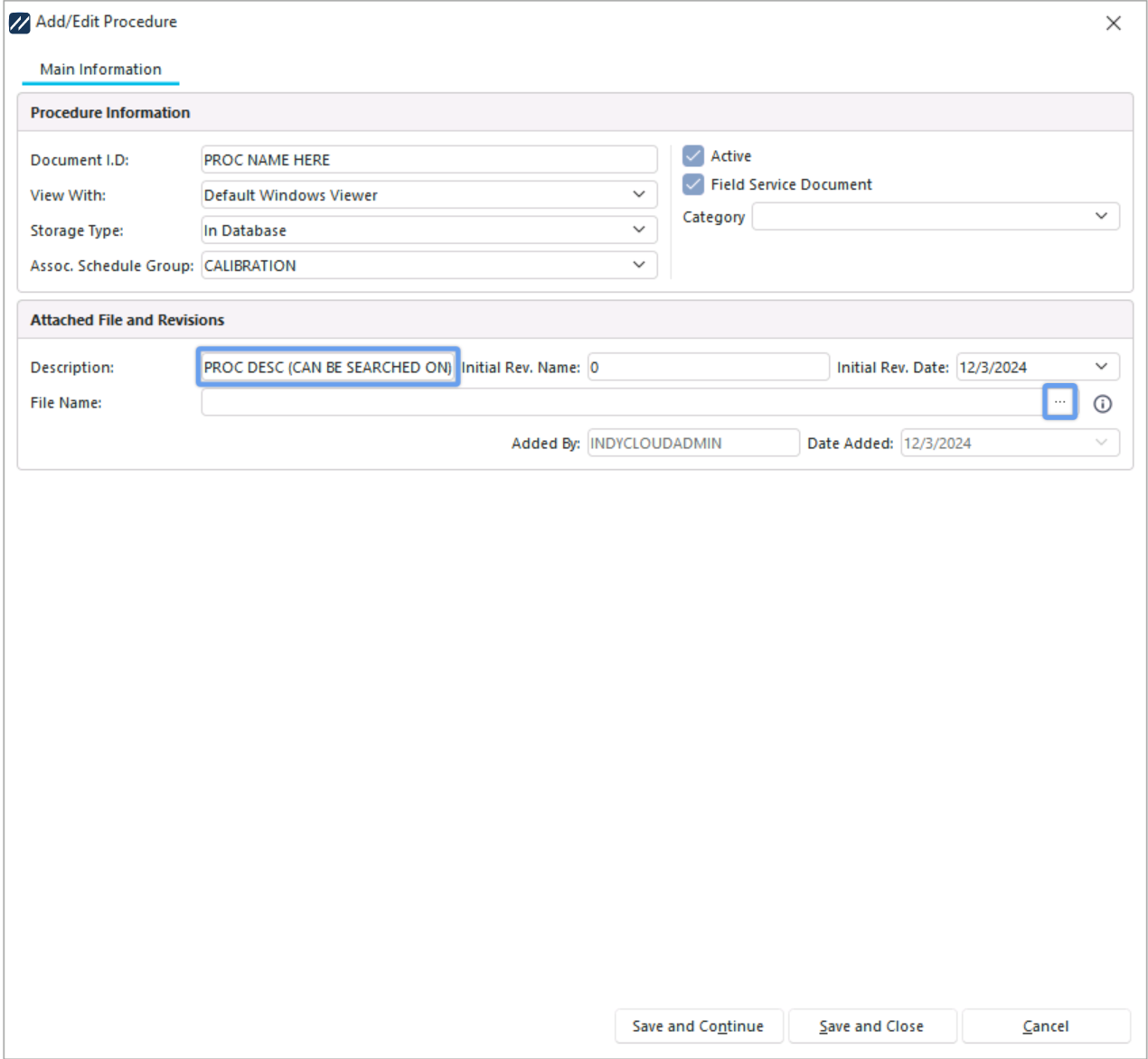
Document format selection
Provide a full description and browse to the file using the File Name ellipsis button.
Click Save and Continue.
Notes and Custom Fields
You'll now see an additional section called Notes and Custom Fields. Here you can input notes and use custom text, date, and numeric fields for the newly-added procedure.
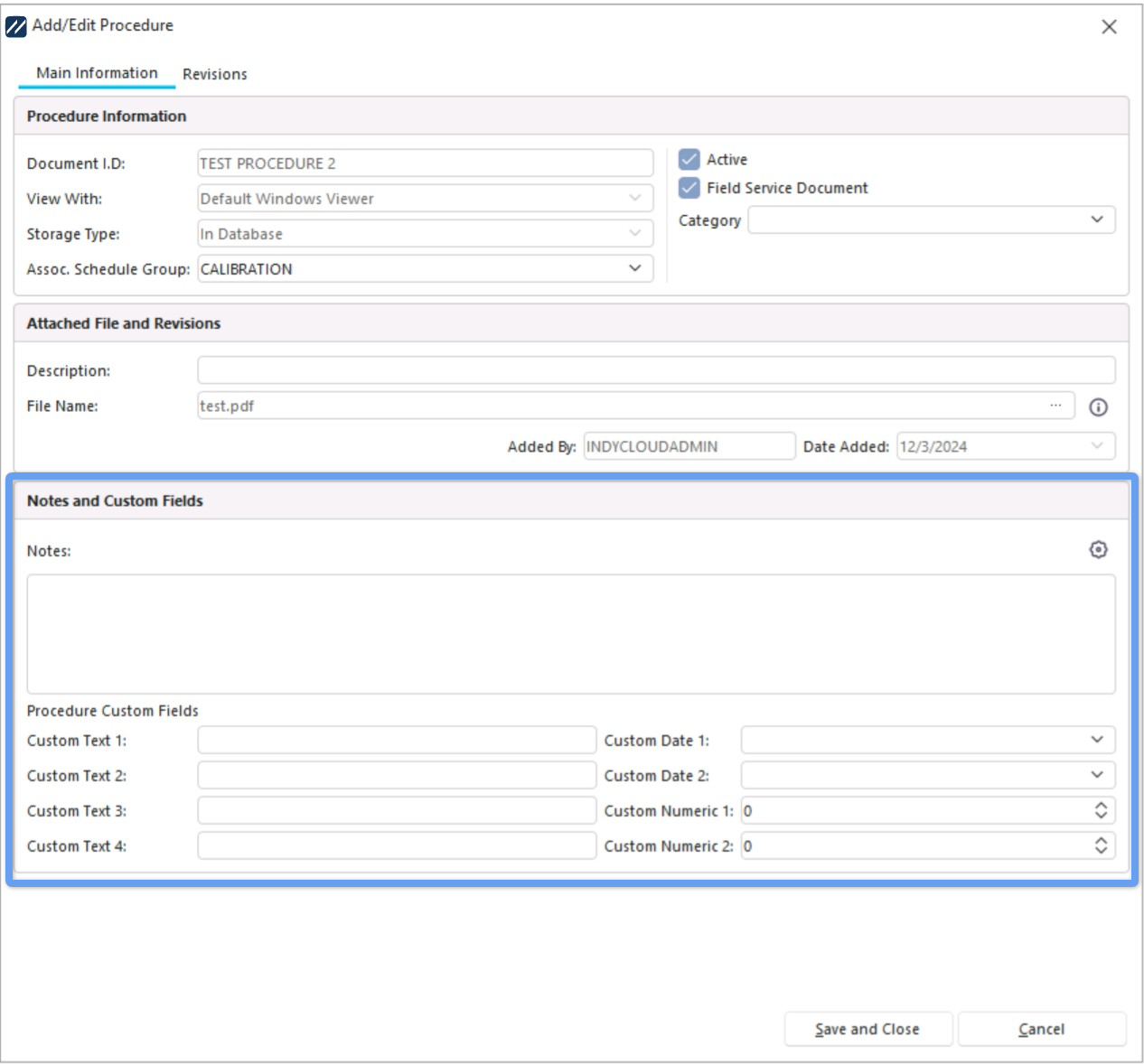
Notes and Custom Fields
Revisions
The Revisions tab lets you specify a current revision of the document. You can also:
- Block users from completing related events if no valid training is found for the user.
- Make training never expire, or follow a specific training frequency / interval.
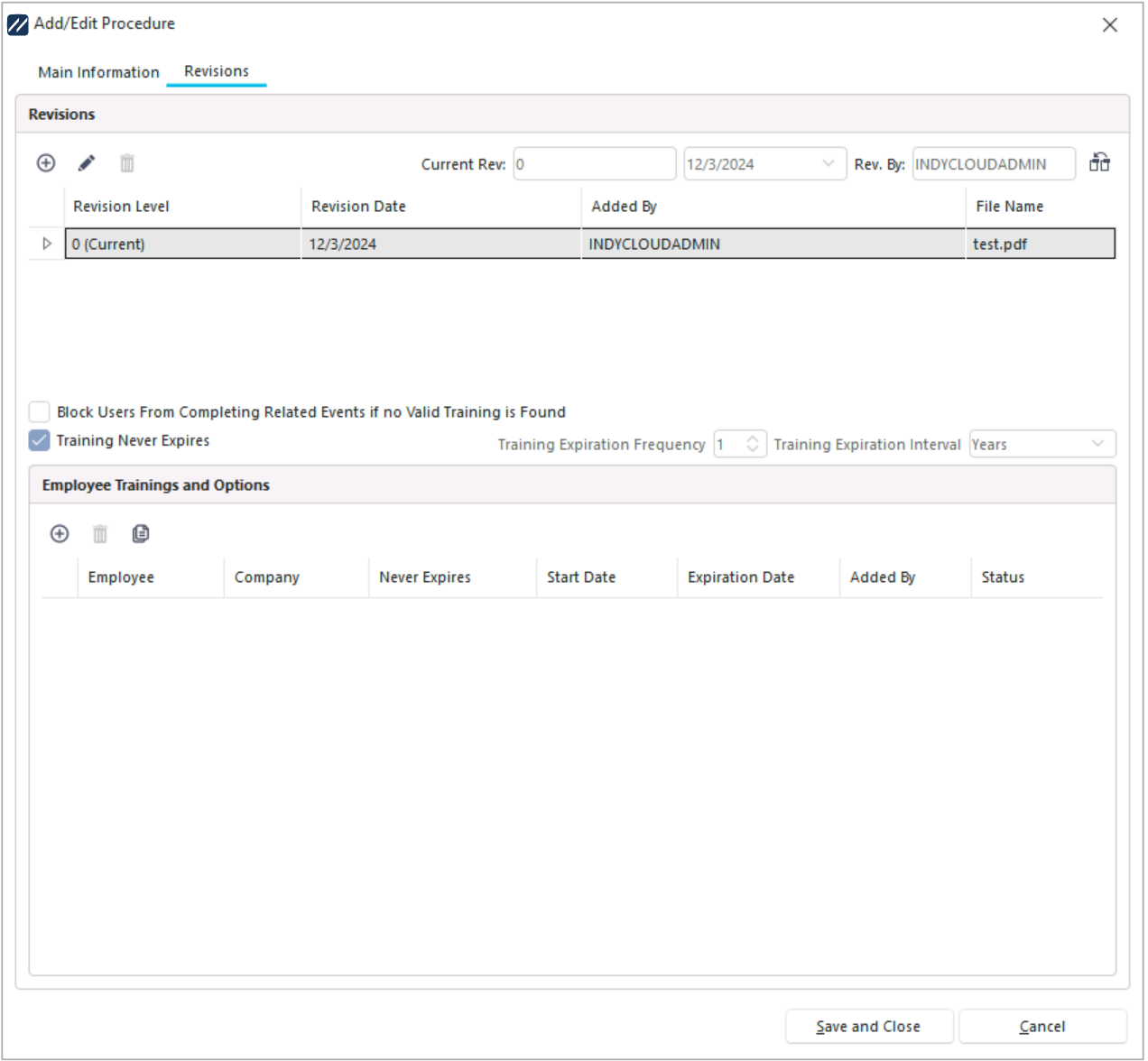
Revisions tab
When you're done editing your procedure, click Save and Close.